Ring Central
Last updated: June 10, 2026
To integrate Flip with RingCentral we need to forward the calls going into the public phone number to a Flip phone number. If the caller needs to connect to an agent Flip will then forward the call to a "return number".
We recommend you read our PSTN forwarding guide to understand the concept before following these steps.
First, get a list of all the public phone numbers that you would like to forward to Flip.
You then need to make a note of where each of the public numbers are currently routing to.
Open the RingCentral dashboard and go to the phone numbers section:
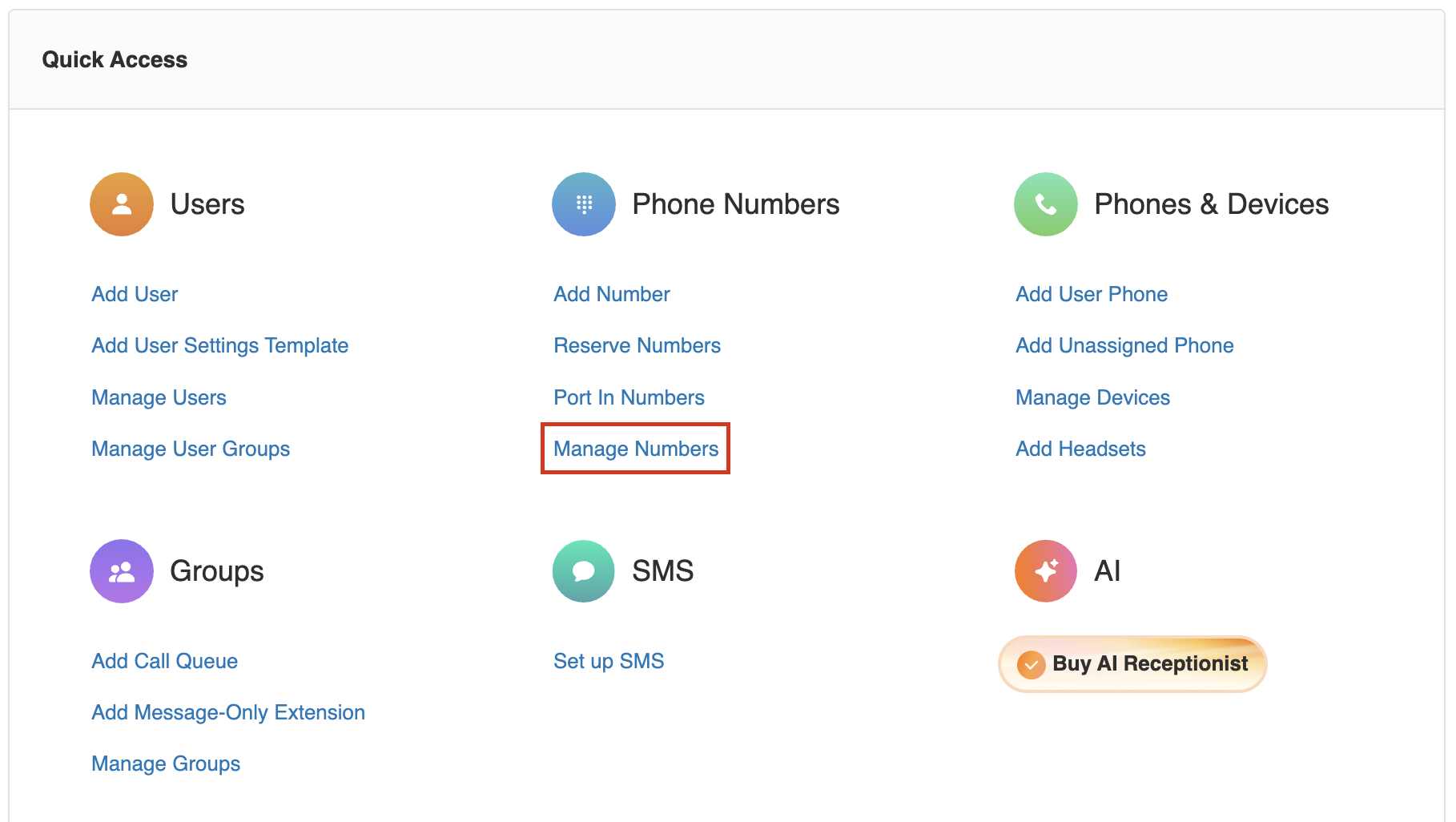
You can then search and select the numbers you would like to send to Flip. Inside the numbers settings you can find the extension the number is currently routing to.
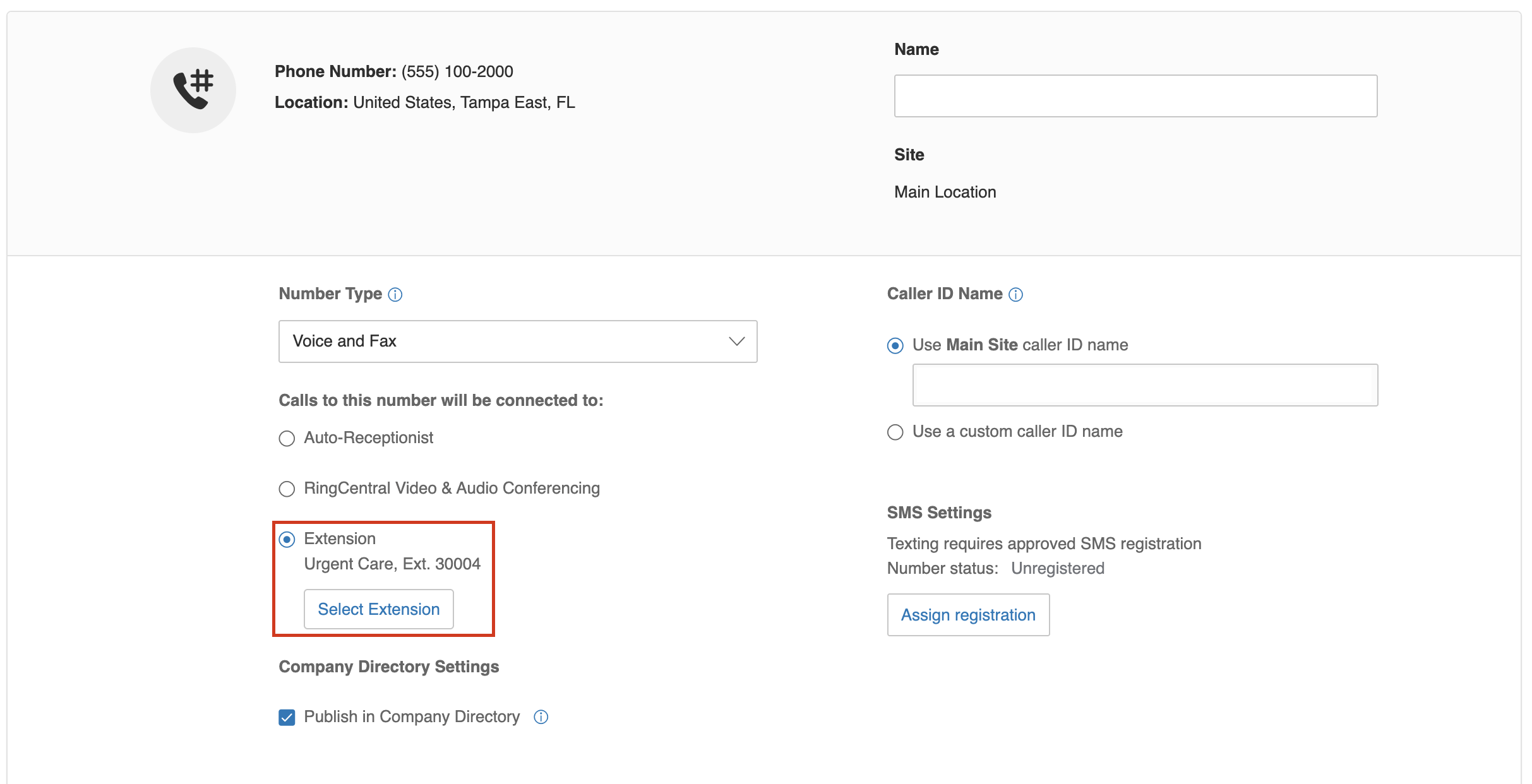
Once you have all the public numbers and the extensions they route to you will need to add a new number that routes to the same extension.
If you have spare phone numbers you can just select them from the phone number list and then set the extension to match what the public number has. Otherwise, you can go to the phone number list and select "Add Number" to purchase a new phone number.
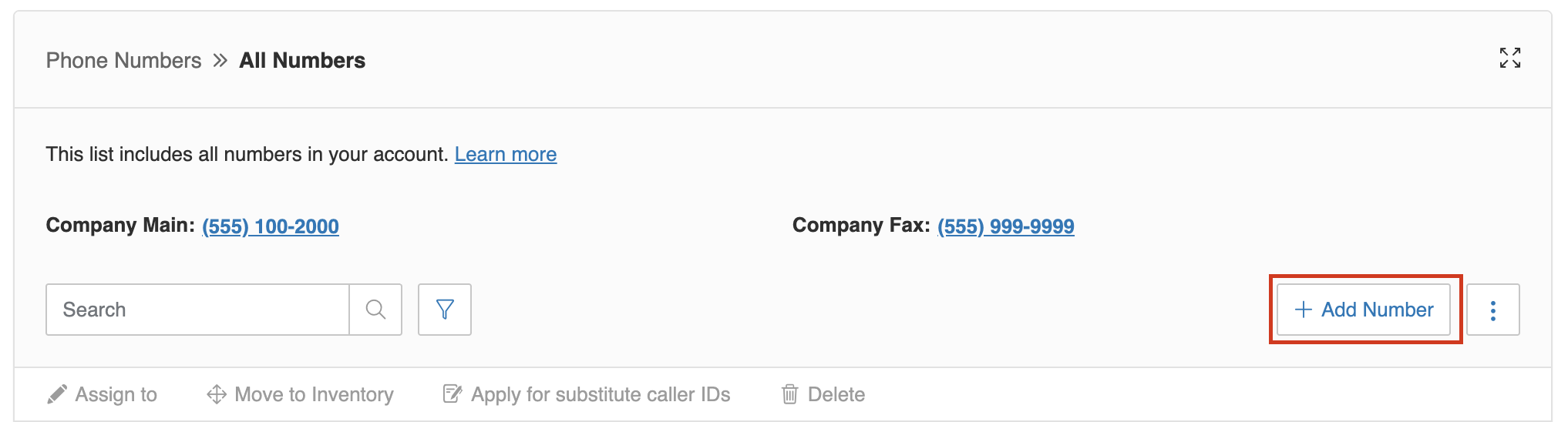
Once you have your new numbers that route the same as the public numbers you can email these to Flip so they can be added to the configuration as the numbers to return the caller to. Flip will then provide phone numbers for each location configured on their portal (the Flip numbers).
Next, we need to add a call forwarding rule so the inbound calls can be sent to the Flip numbers. The easiest way in ring central is to use a call queue as it gives you a unique extension so you can easily route and manage the forwarding and make changes if needed. Another way is to create a user extension and add the forwarding in the configuration but RingCentral have a fee per user this this isn't ideal.
In the left side menu go to "Groups" and the "Call Queues".
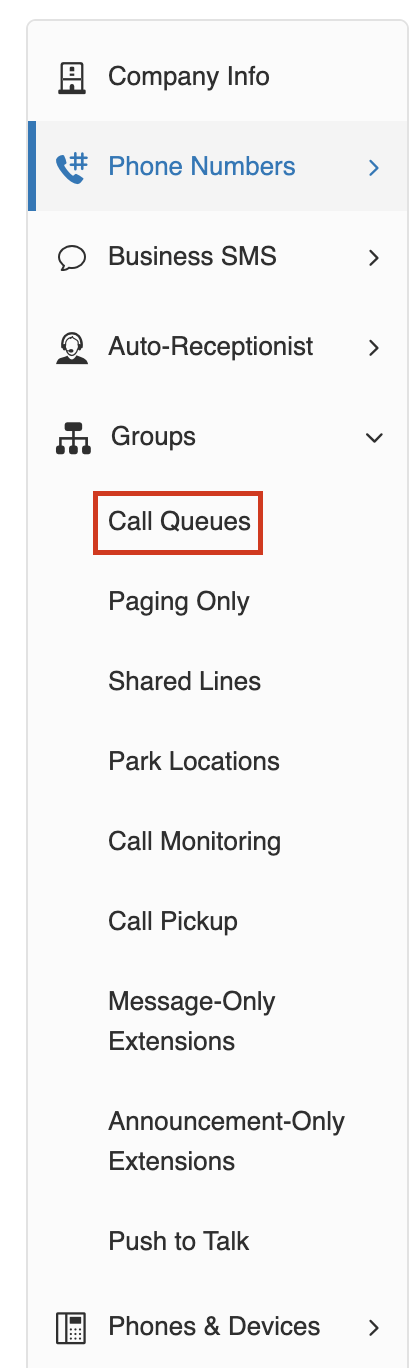
You can then select the "New Call Queue" button
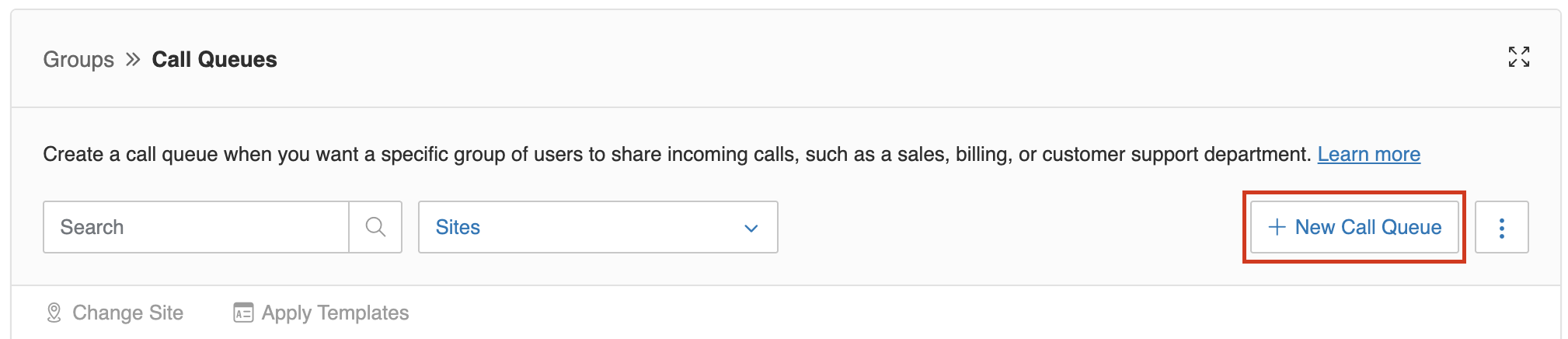
Enter a name for the queue, we recommend "Forward to Flip - " followed by the name of the site / location. You will then need to select a manager for the queue and a member. These can be the same user, and the user doesn't matter since the queue will just be forwarding the calls not answering them.
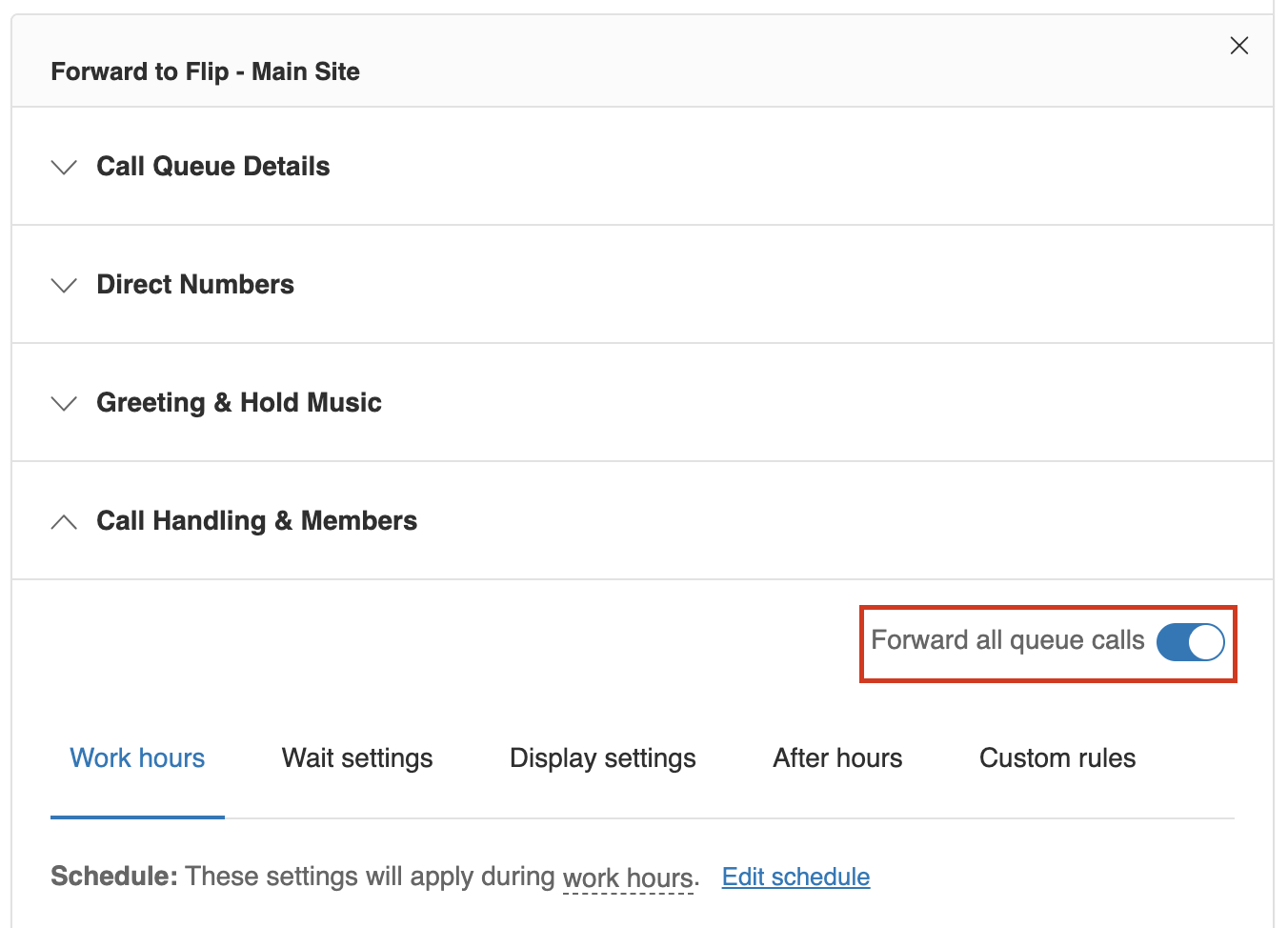
Once you have created the queue you can then click it to which will open the queue settings, then go to "Call Handling and Members" and then select "Forward all queue calls"
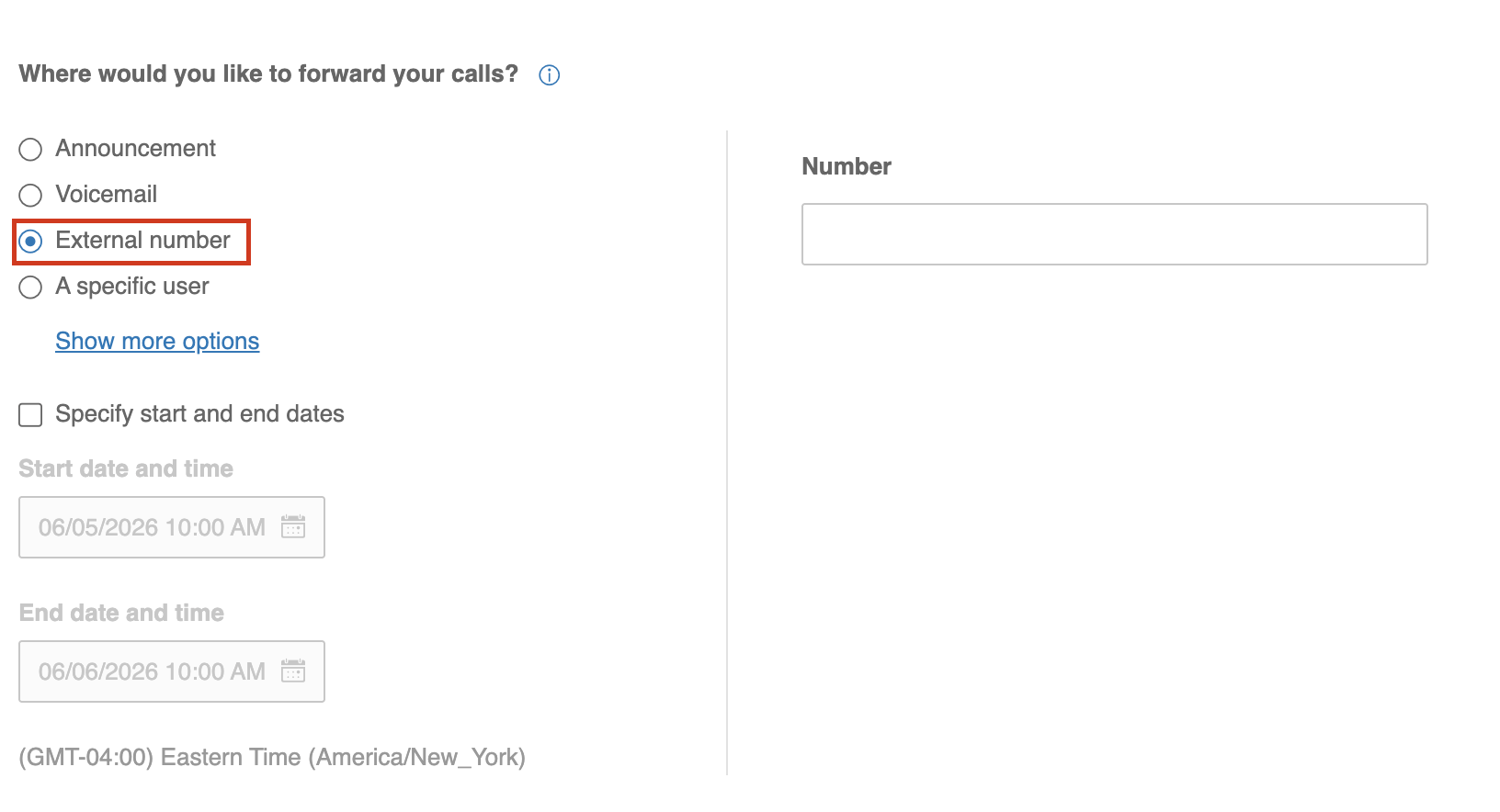
You should then see a menu, on the left select "External Number" and on the right enter the Flip phone number assigned to that location.
Finally, you can update the public phone numbers to route to their Forwarding queues.
Open the phone numbers page again and search for the public number and then select it. You can then press the "Select Extension" button and then select search for the queue you created for that location.
Once you save the change, the calls will route to the forwarding queue where they will then be sent to Flip which will then route the call back to the return number.