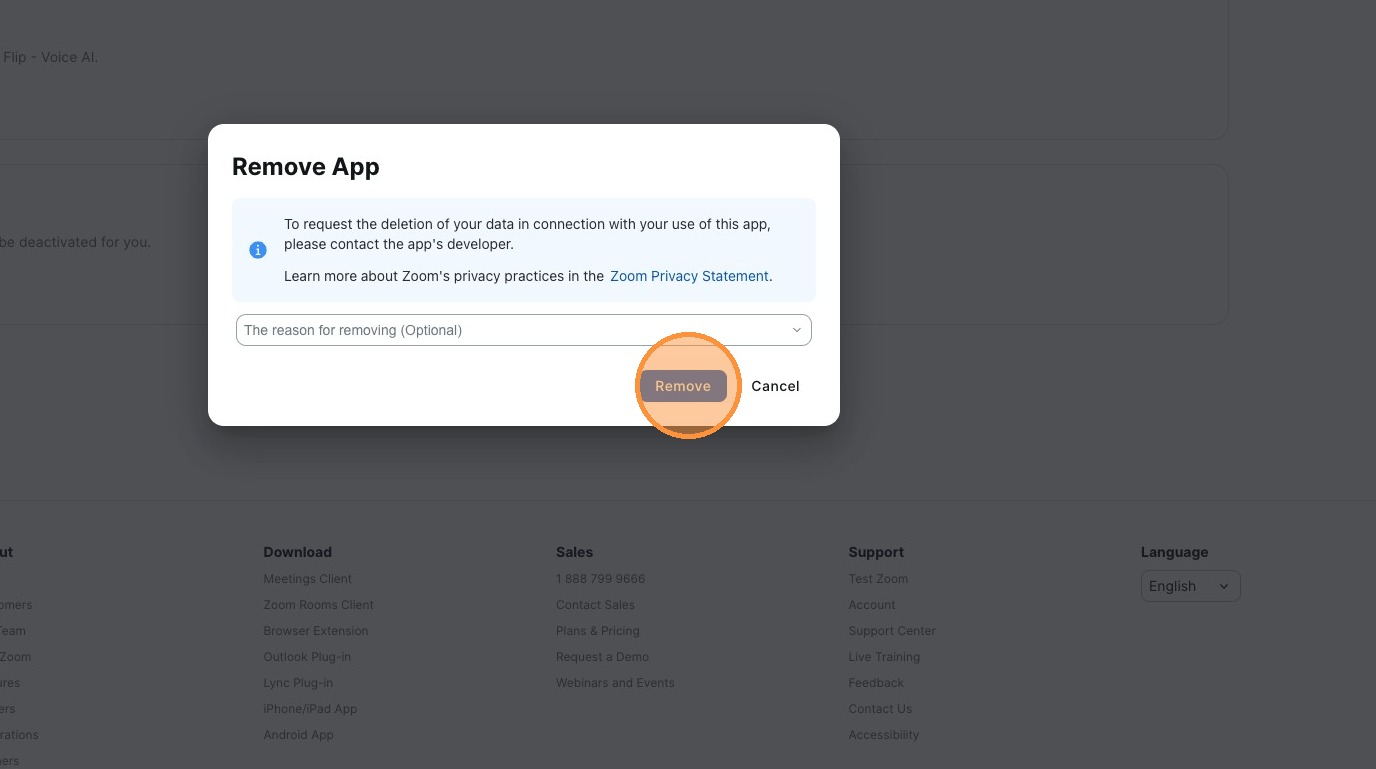
Integrating Flip Voice AI With Zoom Contact Center
Last updated: June 30, 2026
Learn how to connect Flip Voice AI to your Zoom environment and configure custom flows for automated call routing. This guide provides step-by-step instructions on setting up SIP integrations, mapping variables, and assigning routing logic to your phone numbers.
App Installation and Connection
Navigate to the Flip marketplace listing on the Zoom Marketplace
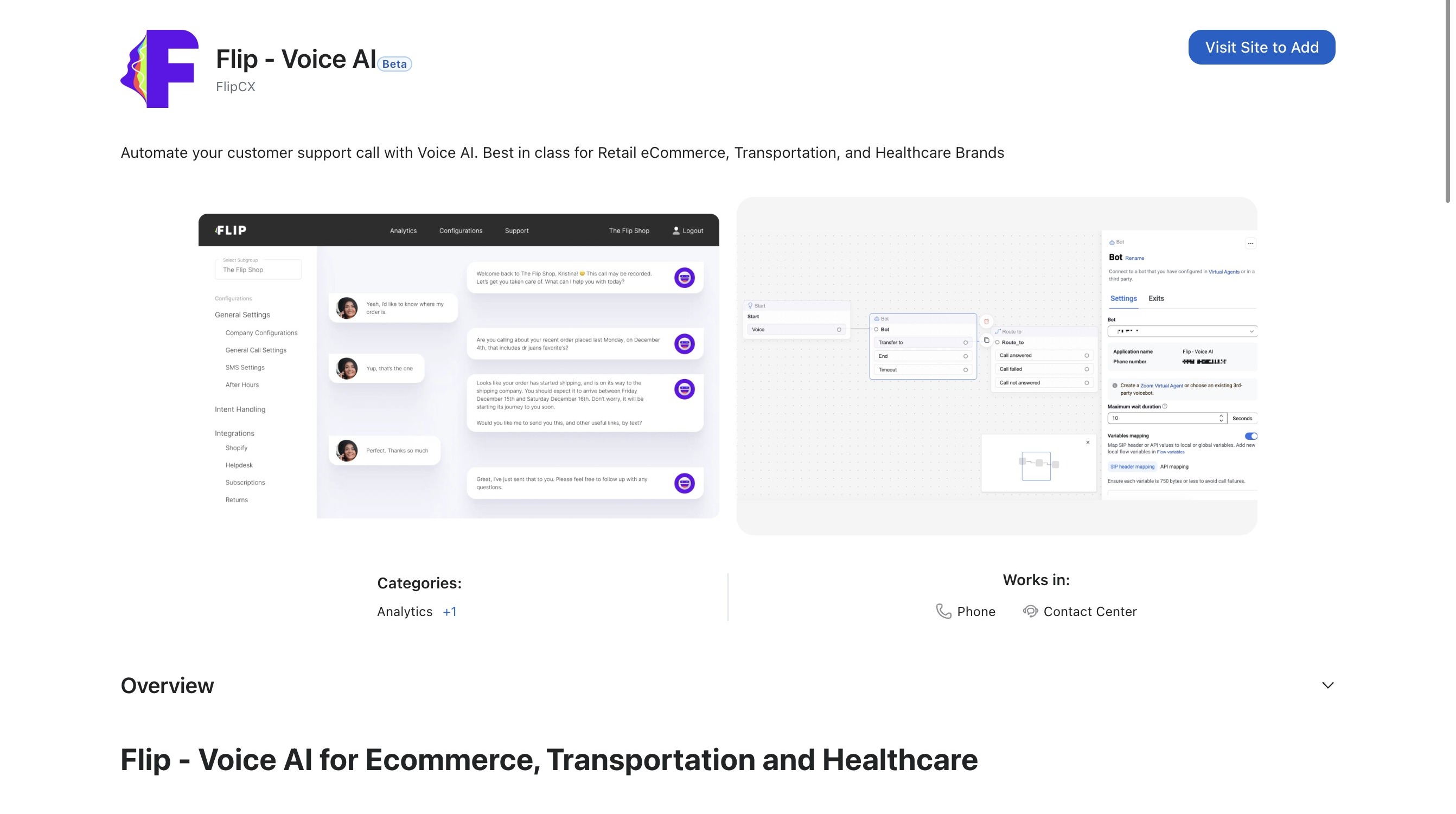
Click "Visit Site to Add" this will redirect you to the Flip Portal
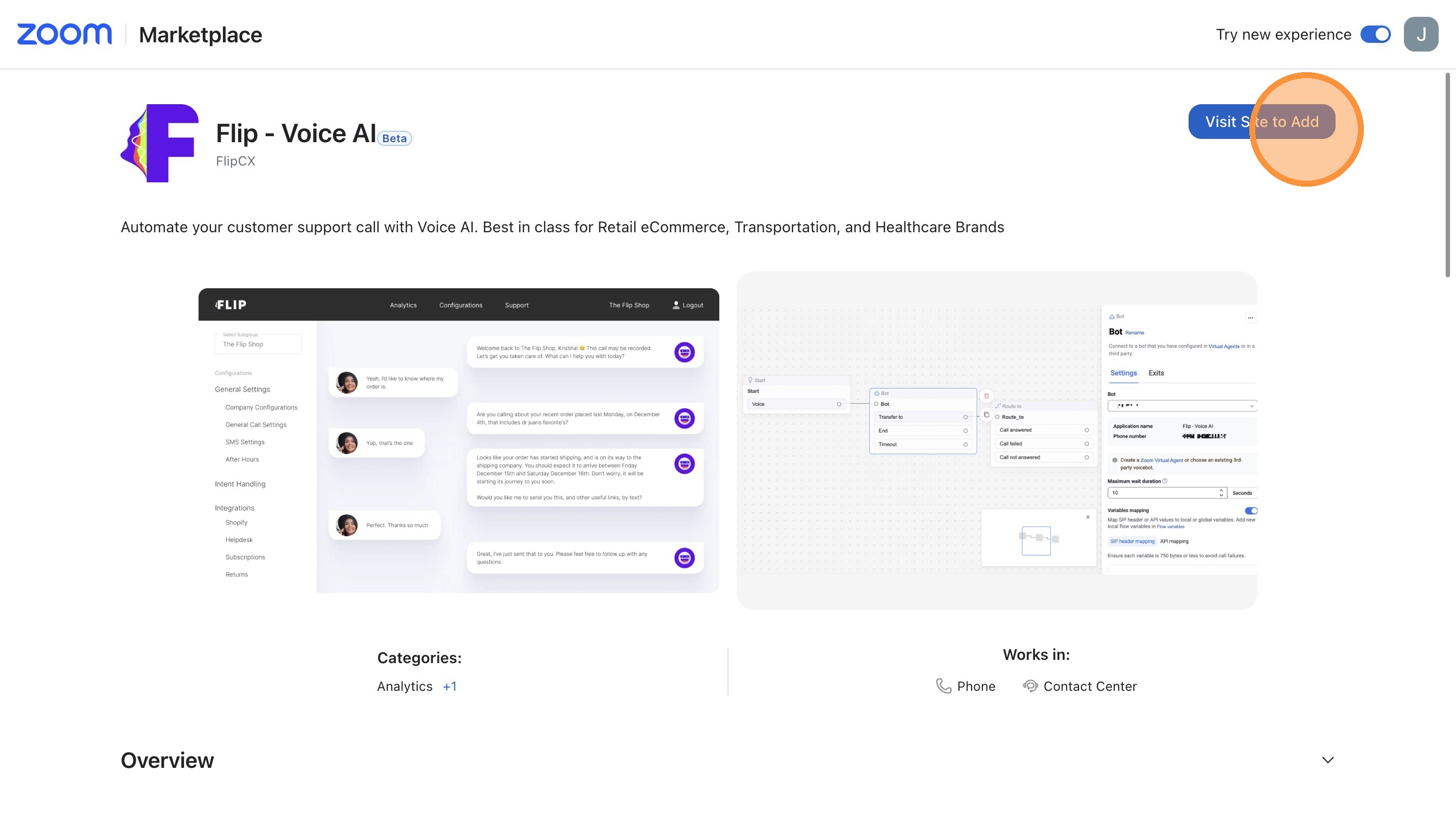
Once on the Flip Portal, click "Add Zoom App"
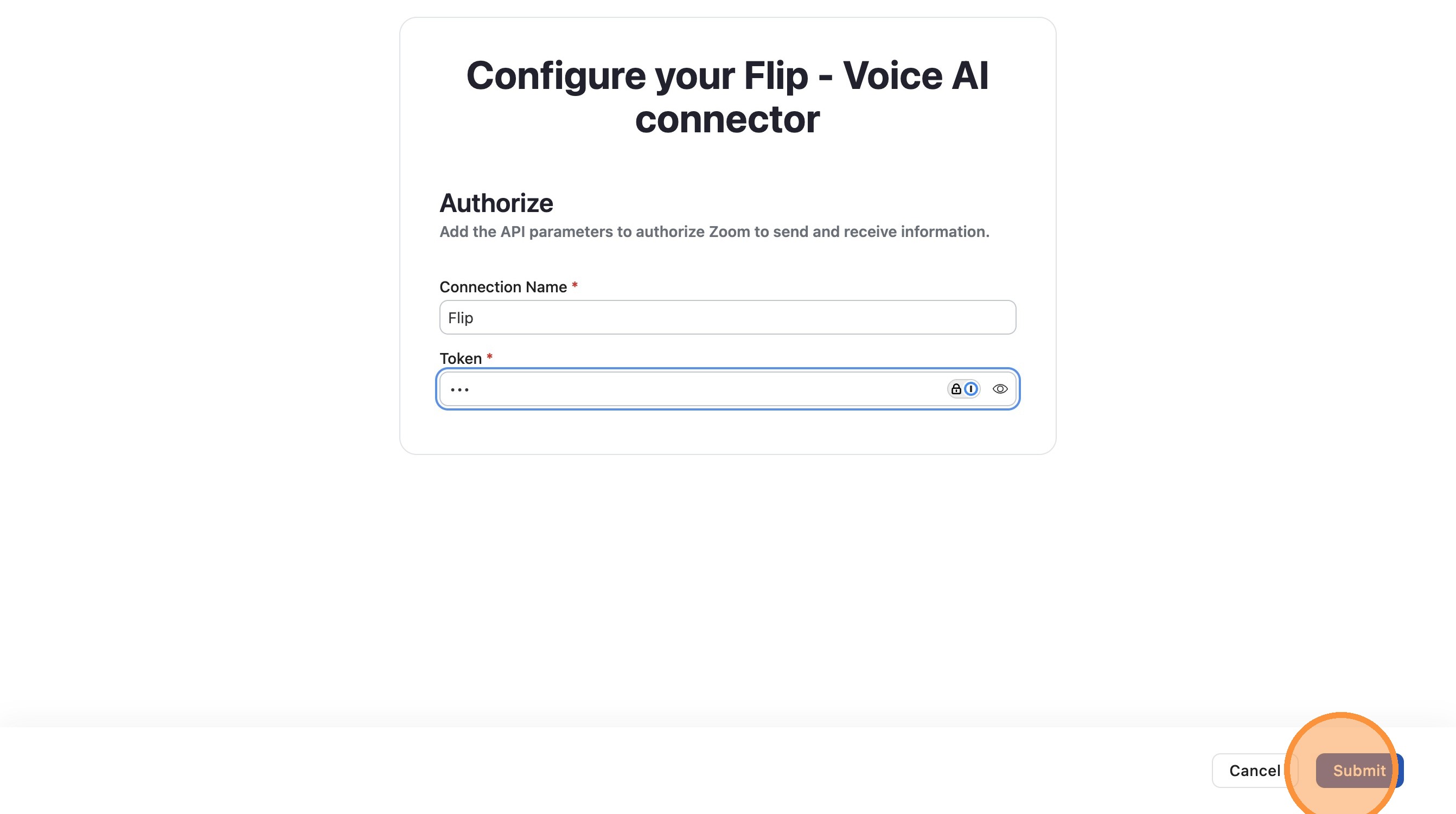
For the "Connection Name" put "Flip" and "Token" can be anything. It is unused in our integration. Then press submit
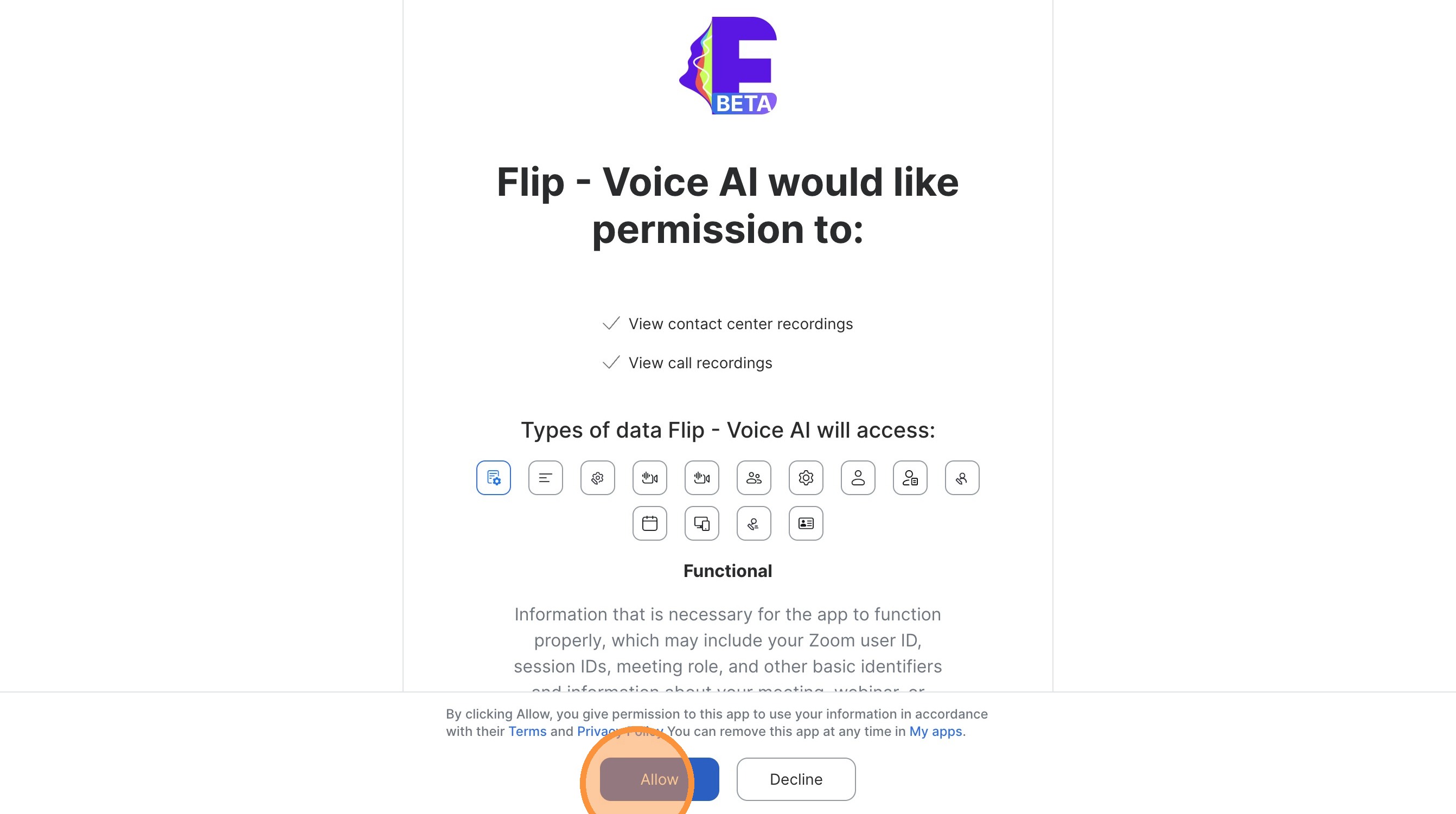
Click "Allow"
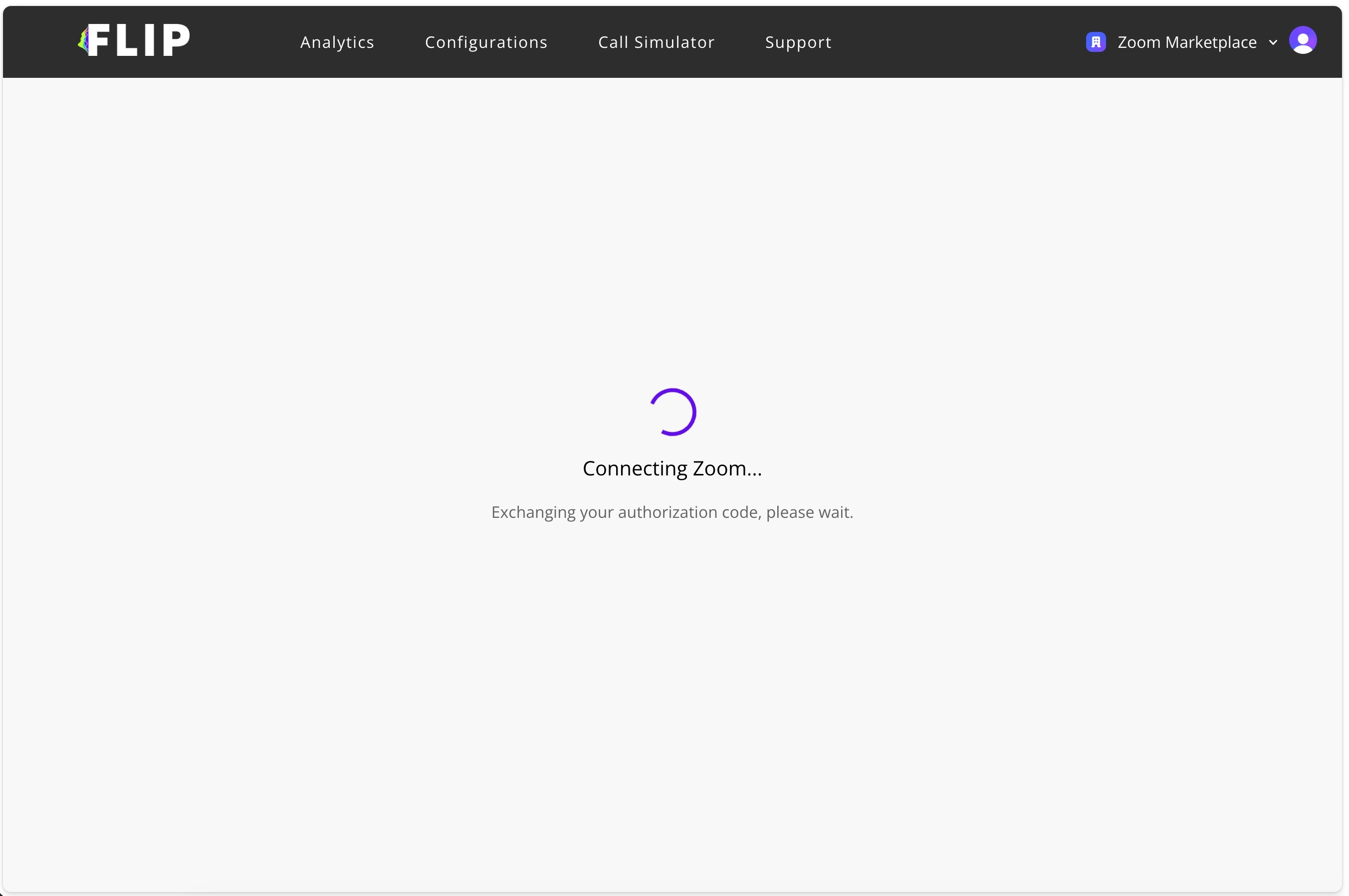
Once you click allow you will be redirected back to the Flip Portal. It will take a few seconds for us to authenticate with Zoom.
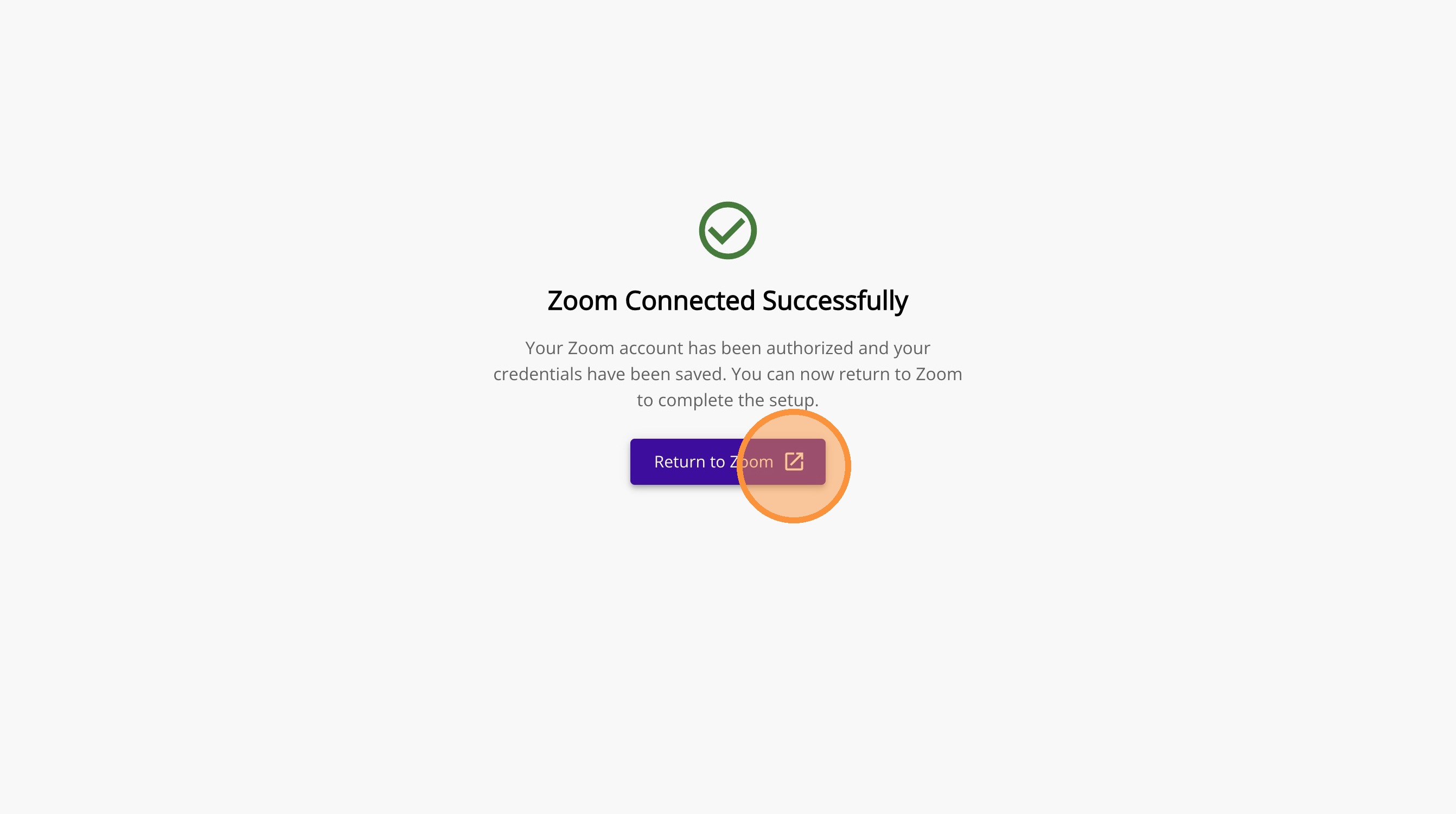
Once authenticated you will see a success message. You can now click "Return to Zoom"
This will take you to the integrations page in Zoom. Here we need to configure the integration from the Zoom side. First we need to assign a division. Click the three dots on the Flip connector
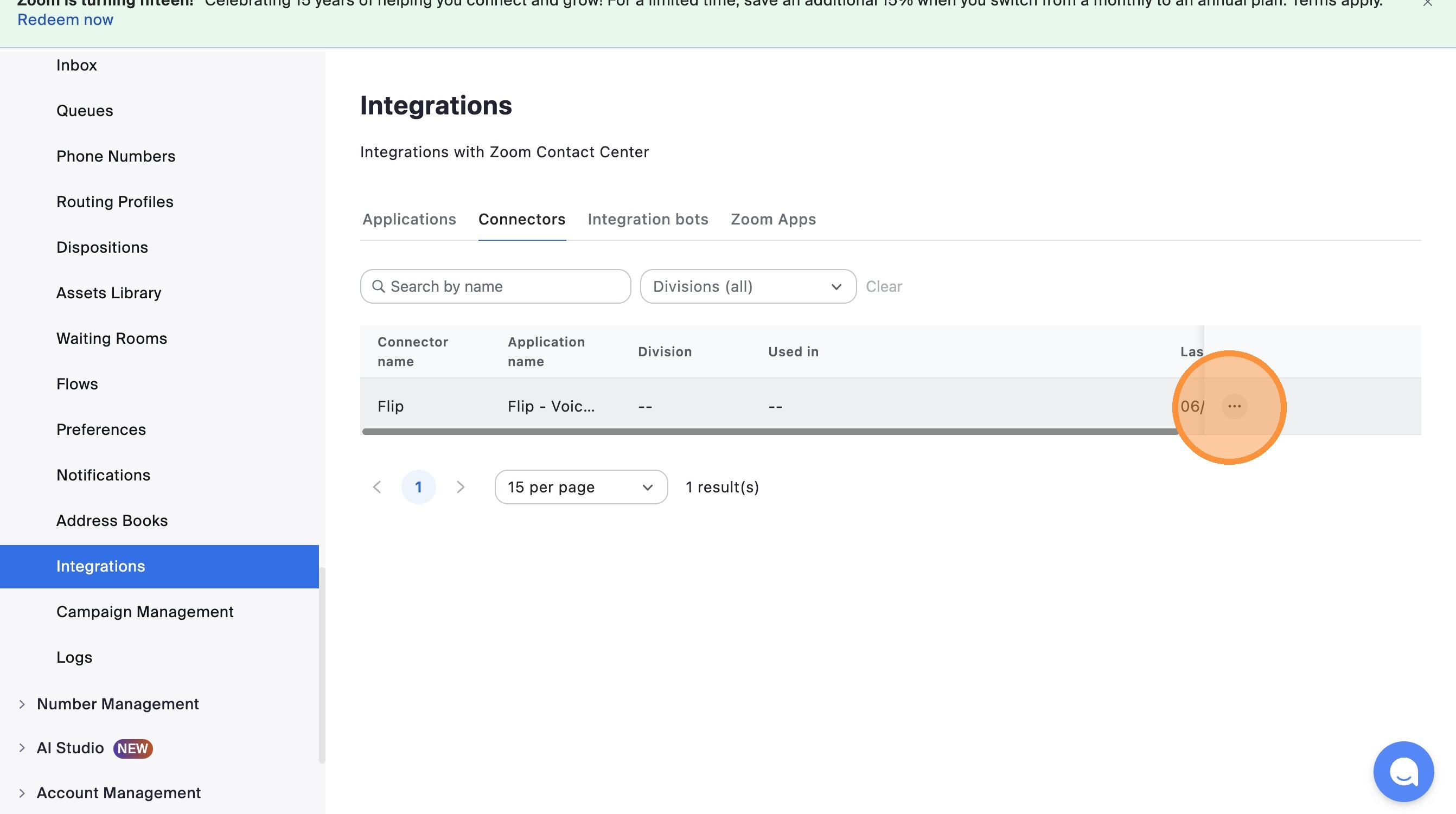
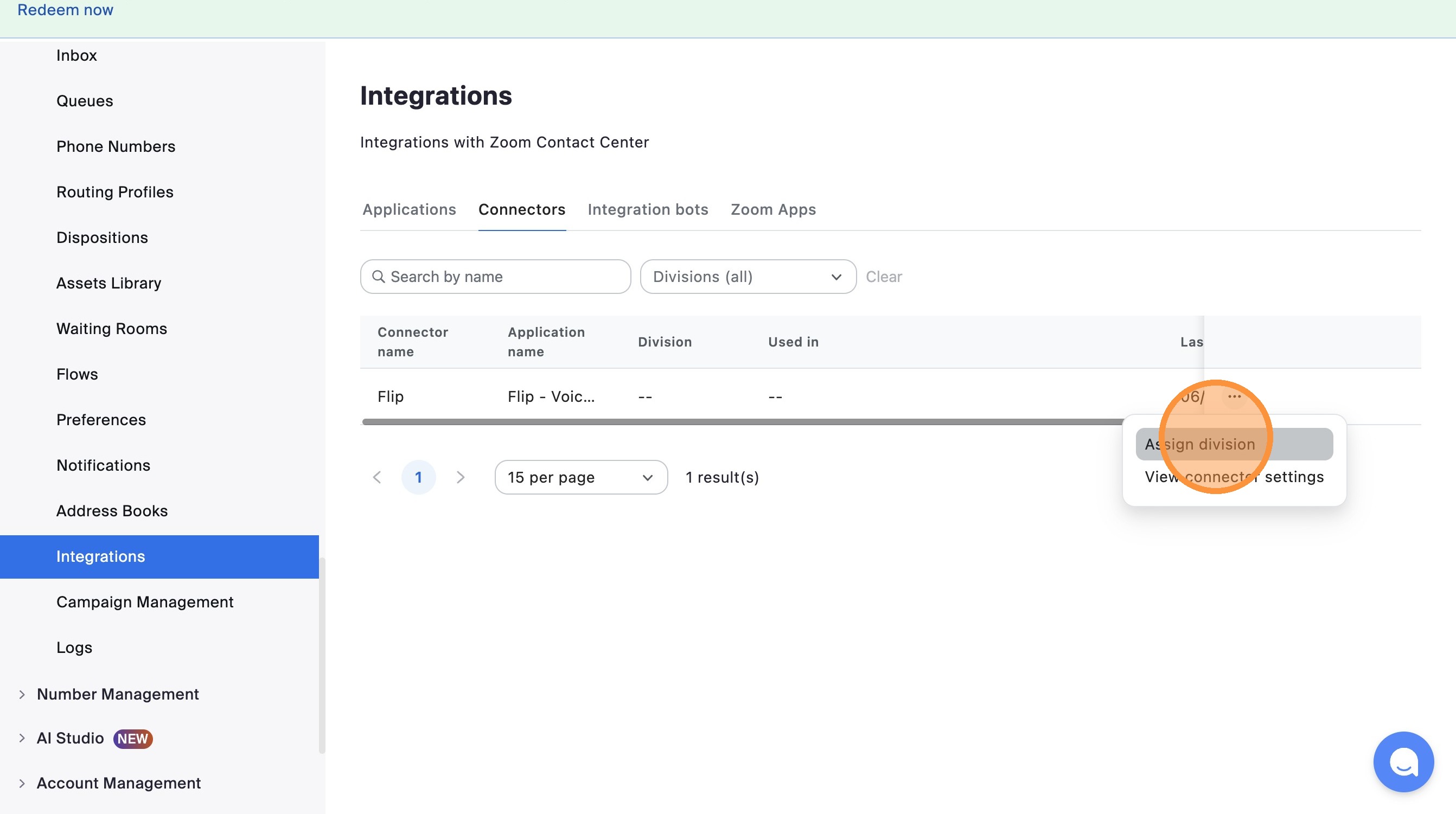
Click "Assign division"
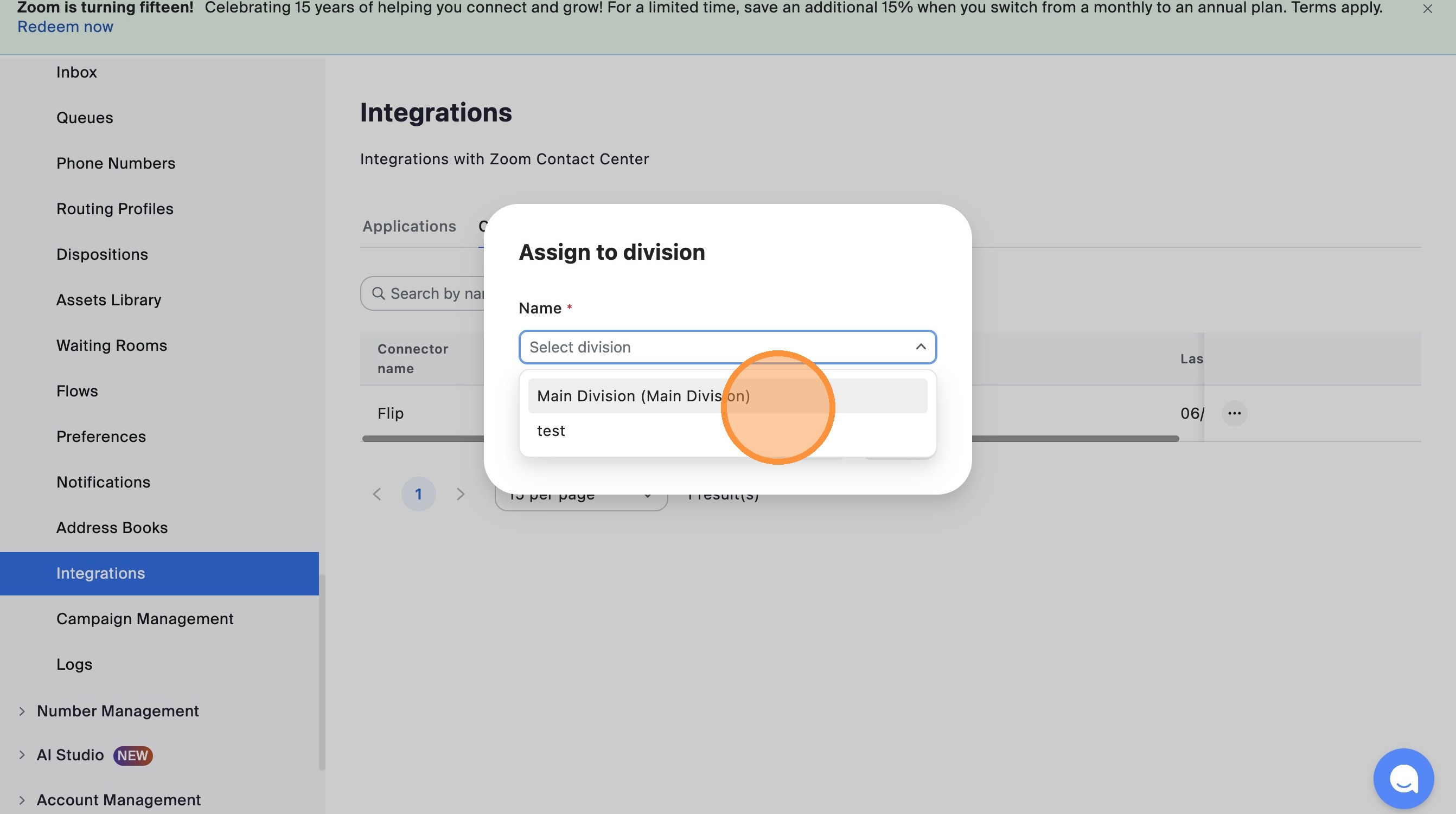
Select your main division
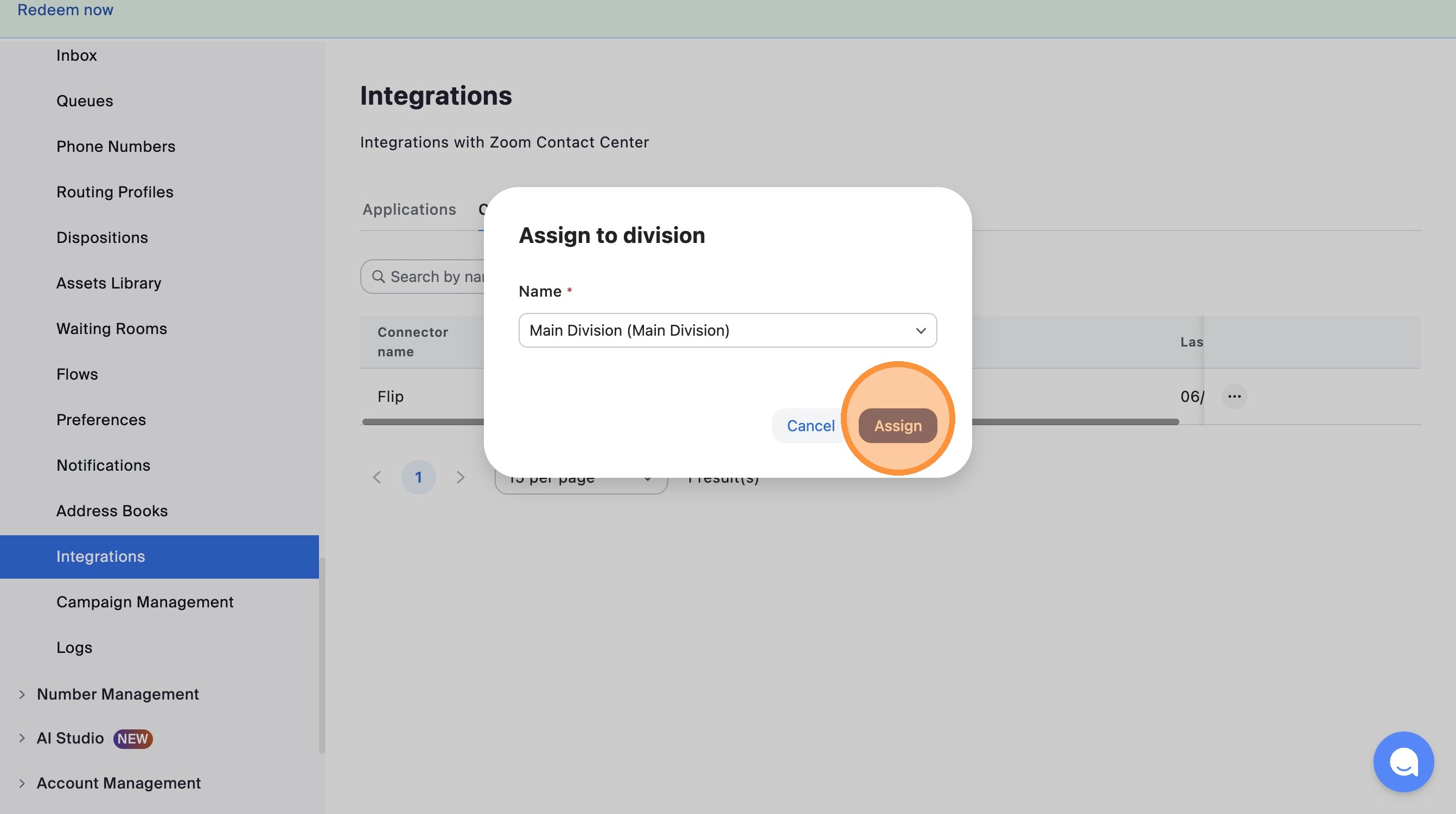
Click "Assign"
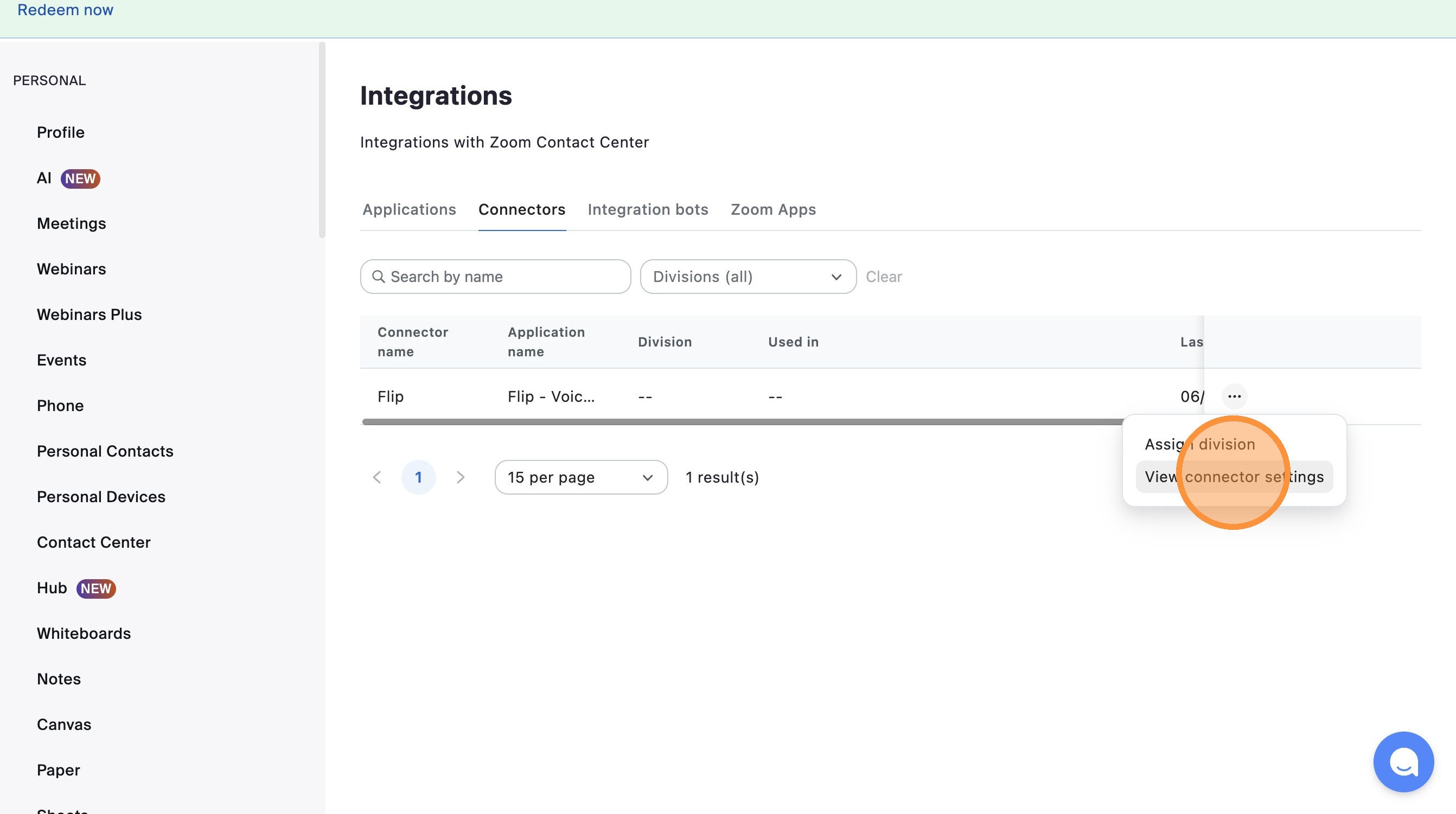
Next, we need to assign a region, Click "View connector settings"
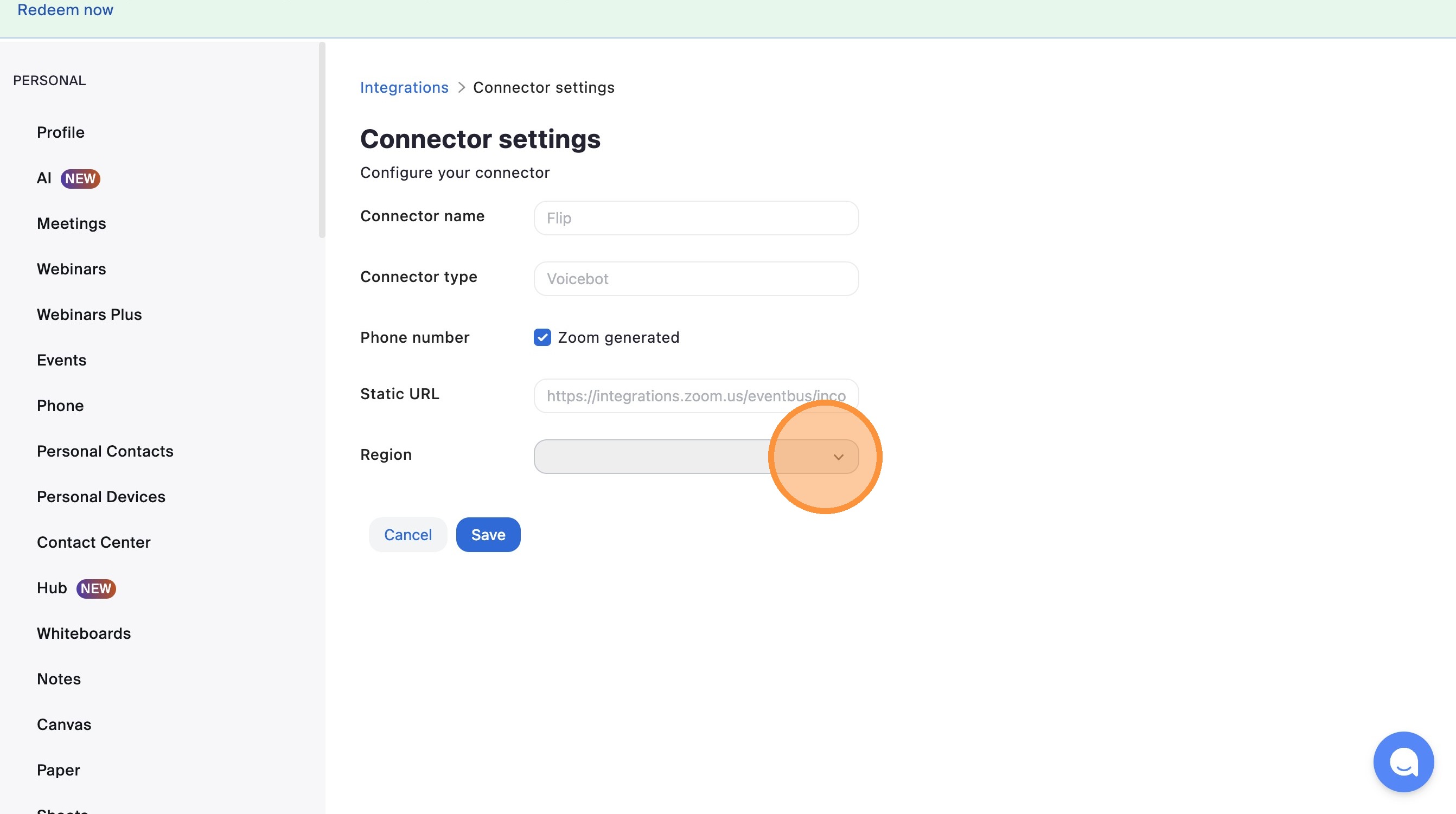
Click Region dropdown
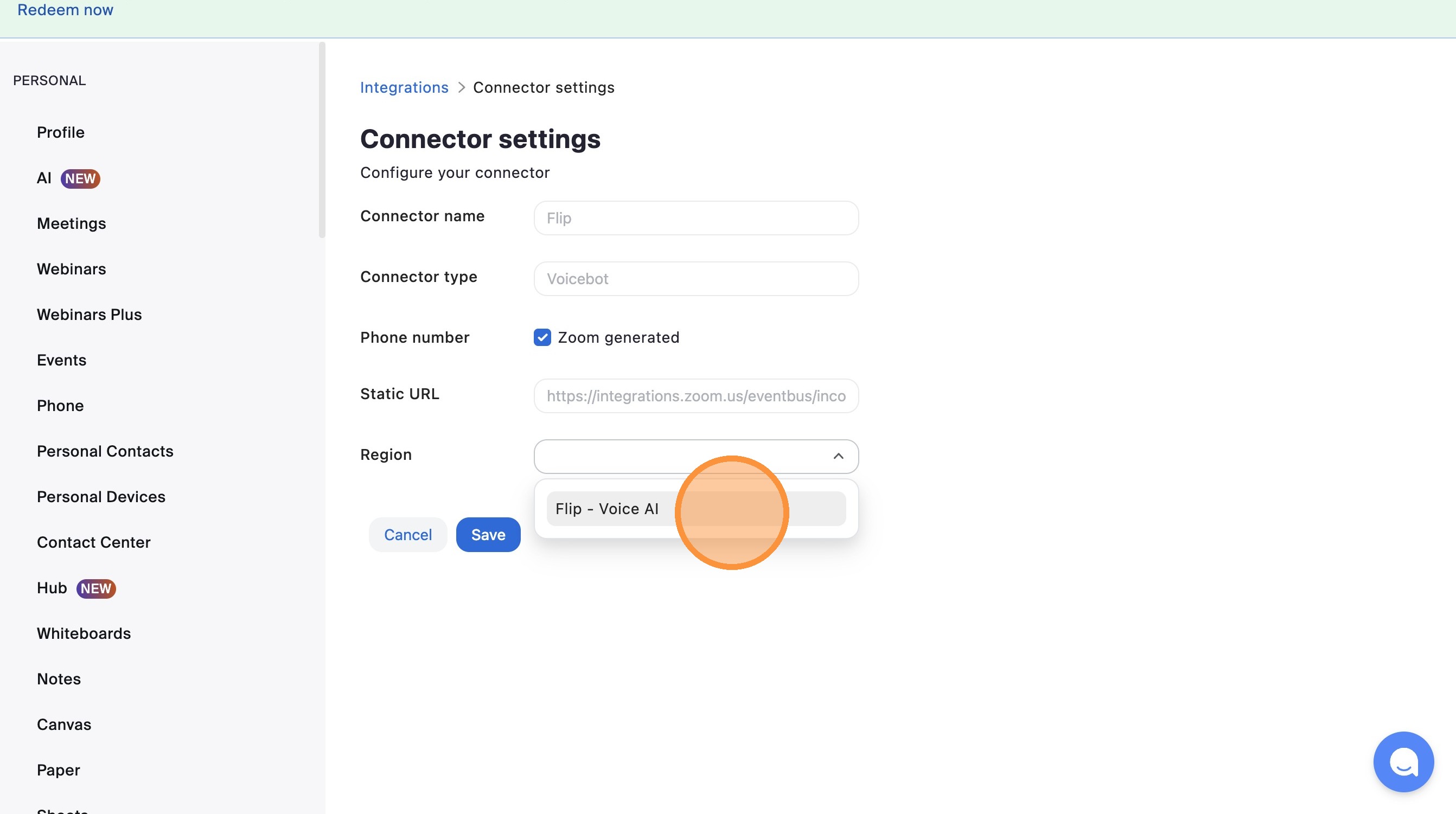
Click "Flip - Voice AI"
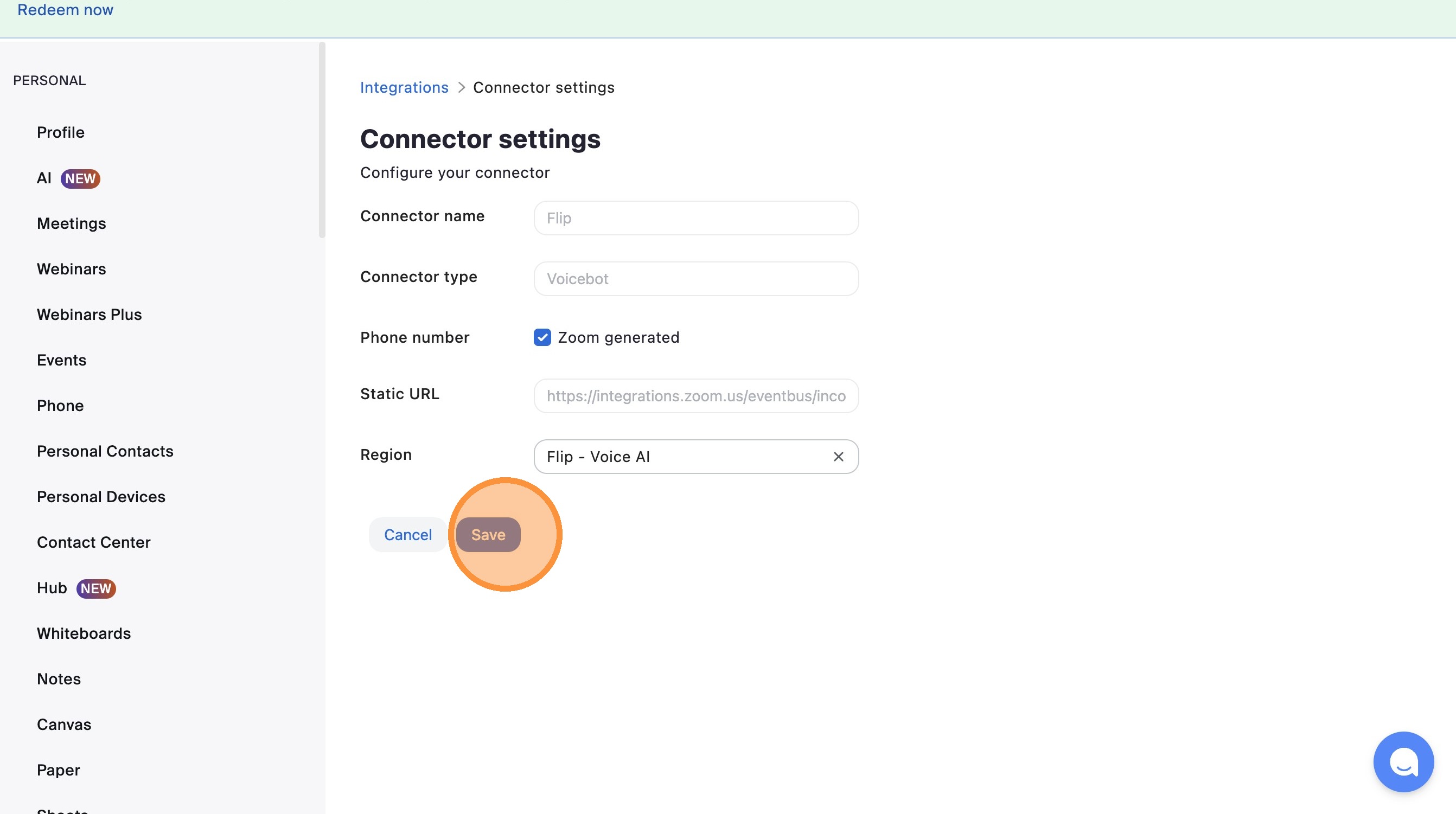
Click "Save" and thats the connection between Flip and Zoom setup!
Flow Setup
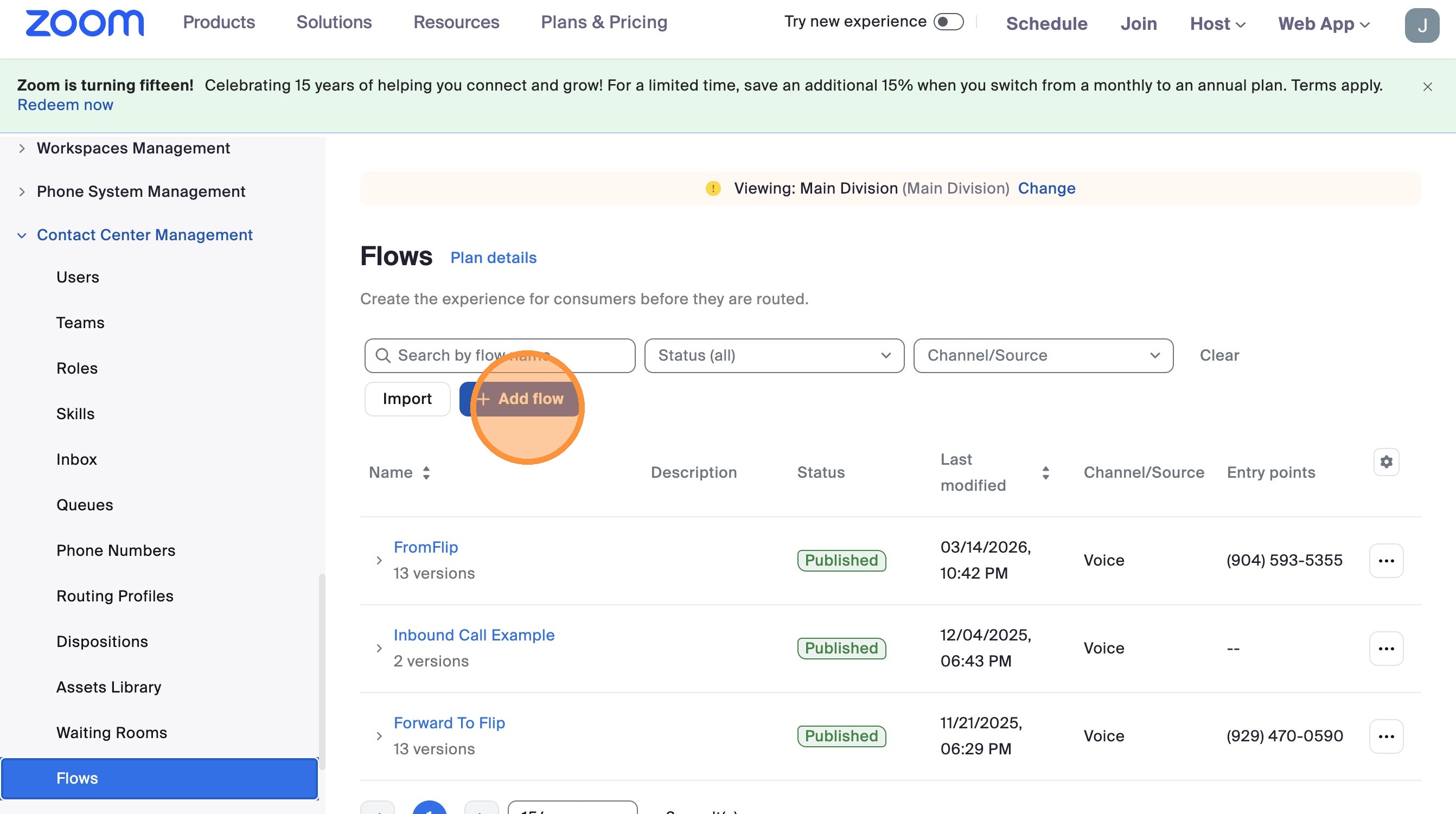
Click "Add flow"
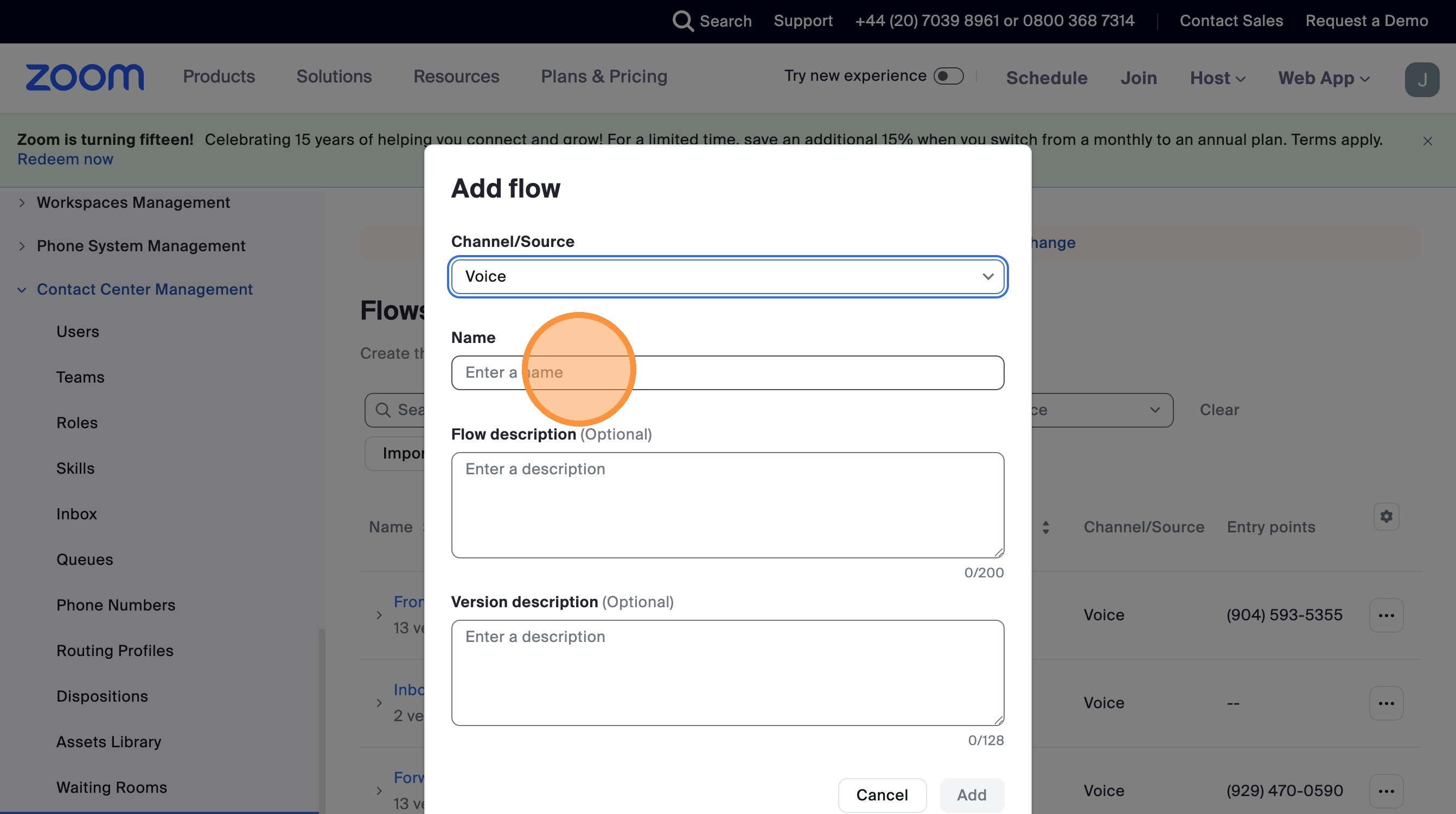
Type "Flip Flow" in Name field
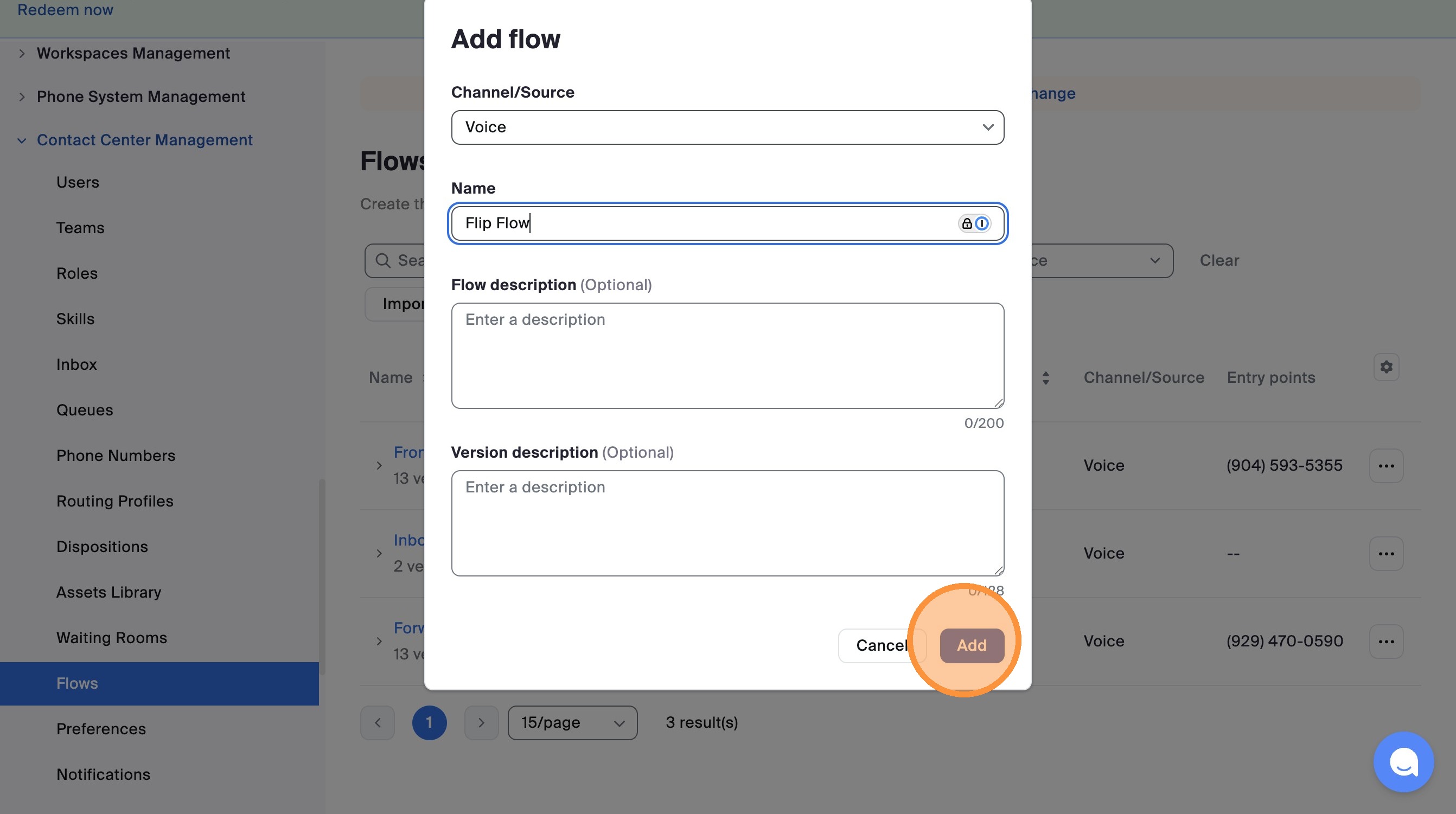
Click "Add"
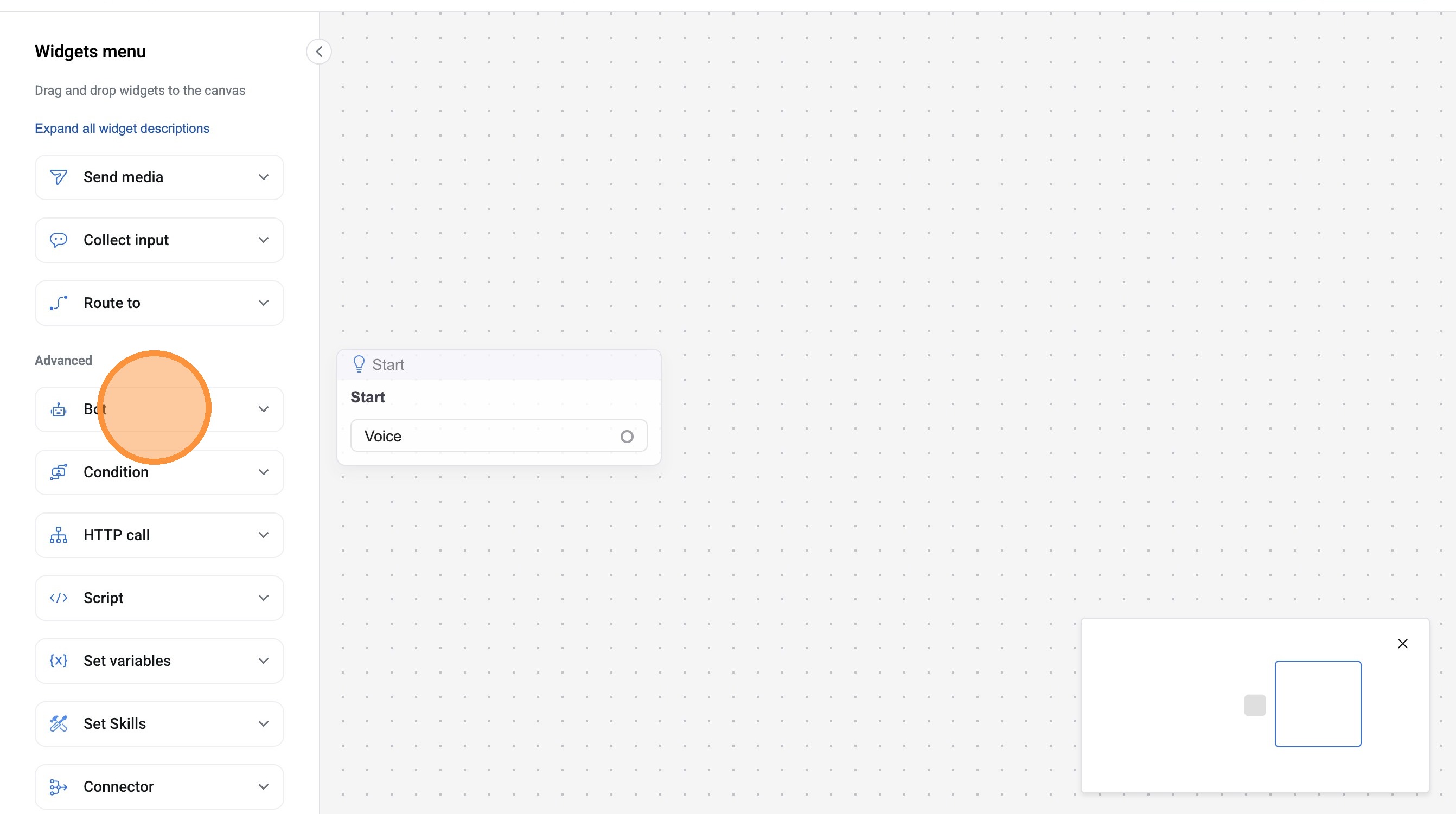
Add Bot widget to flow
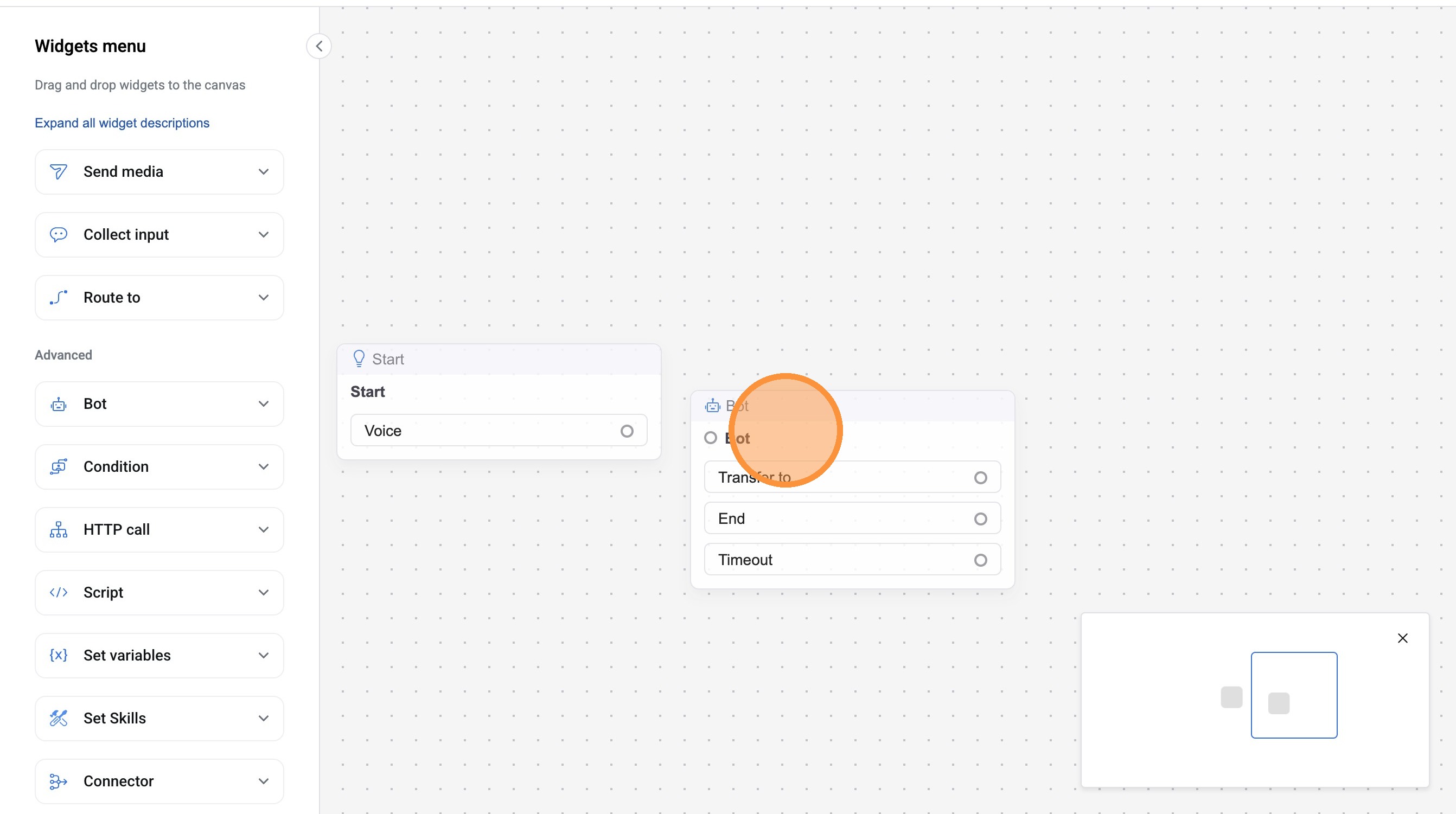
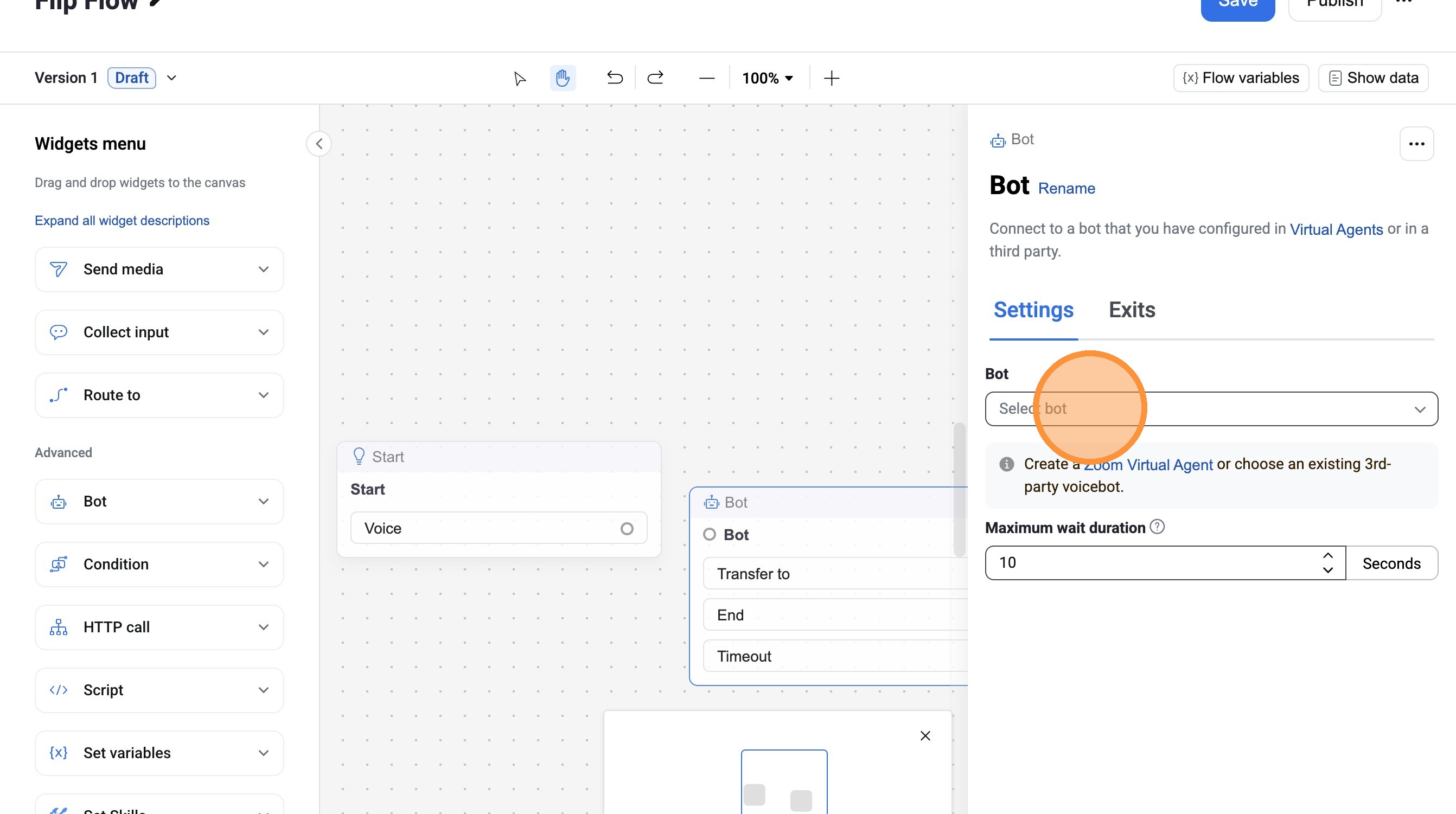
Select "Flip" from Bot dropdown
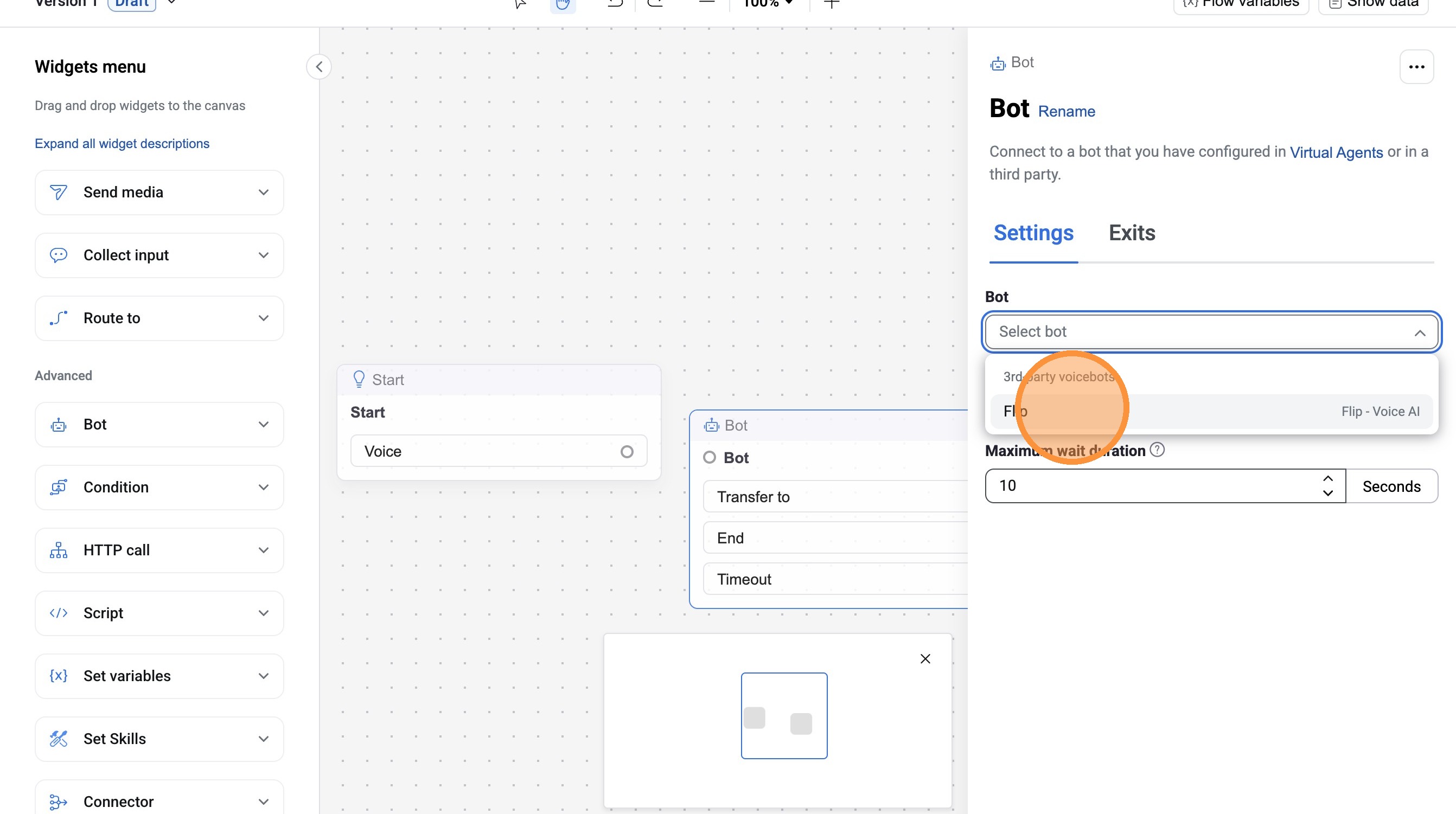
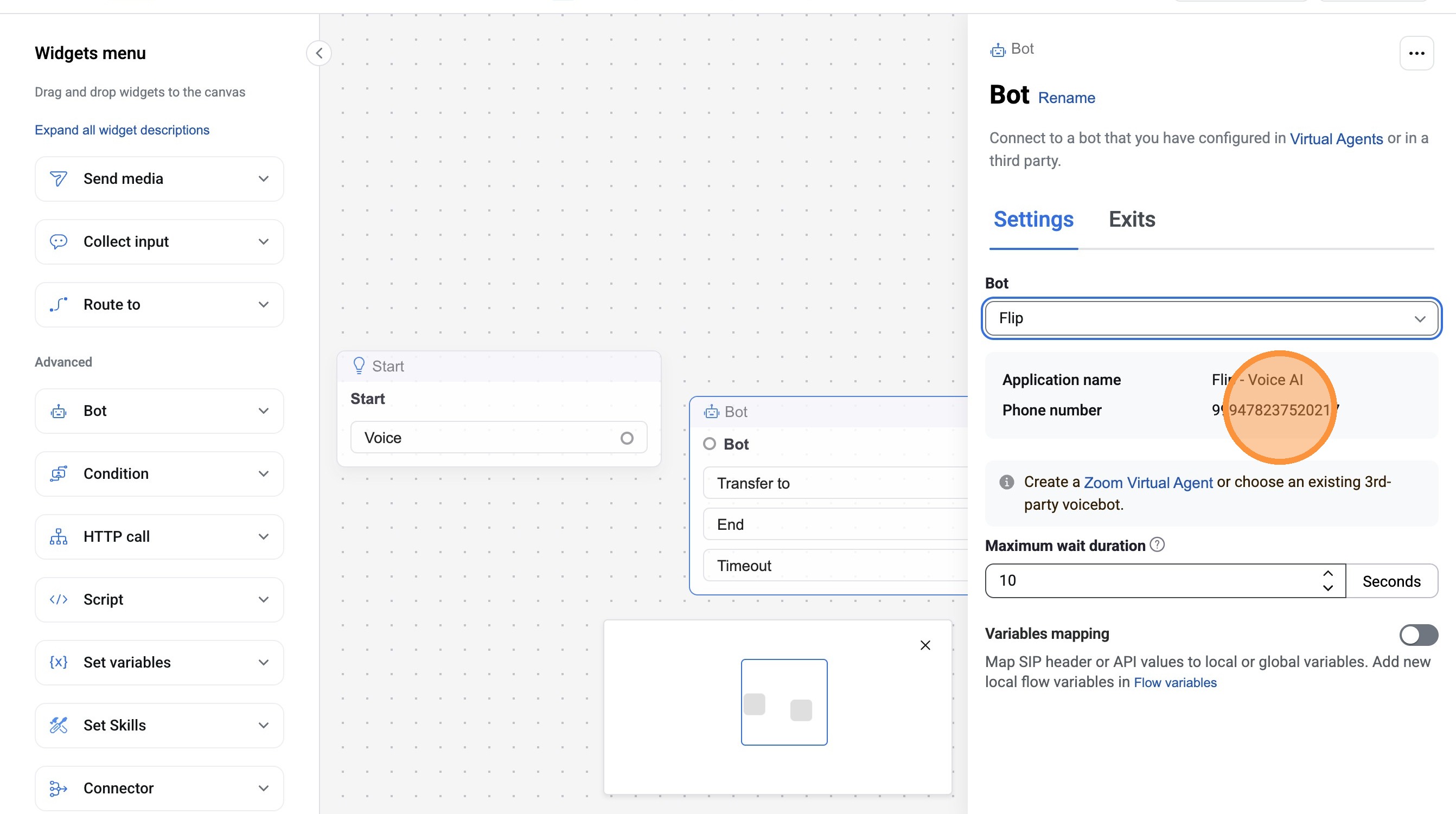
Copy the Phone number
Phone Integration Configuration
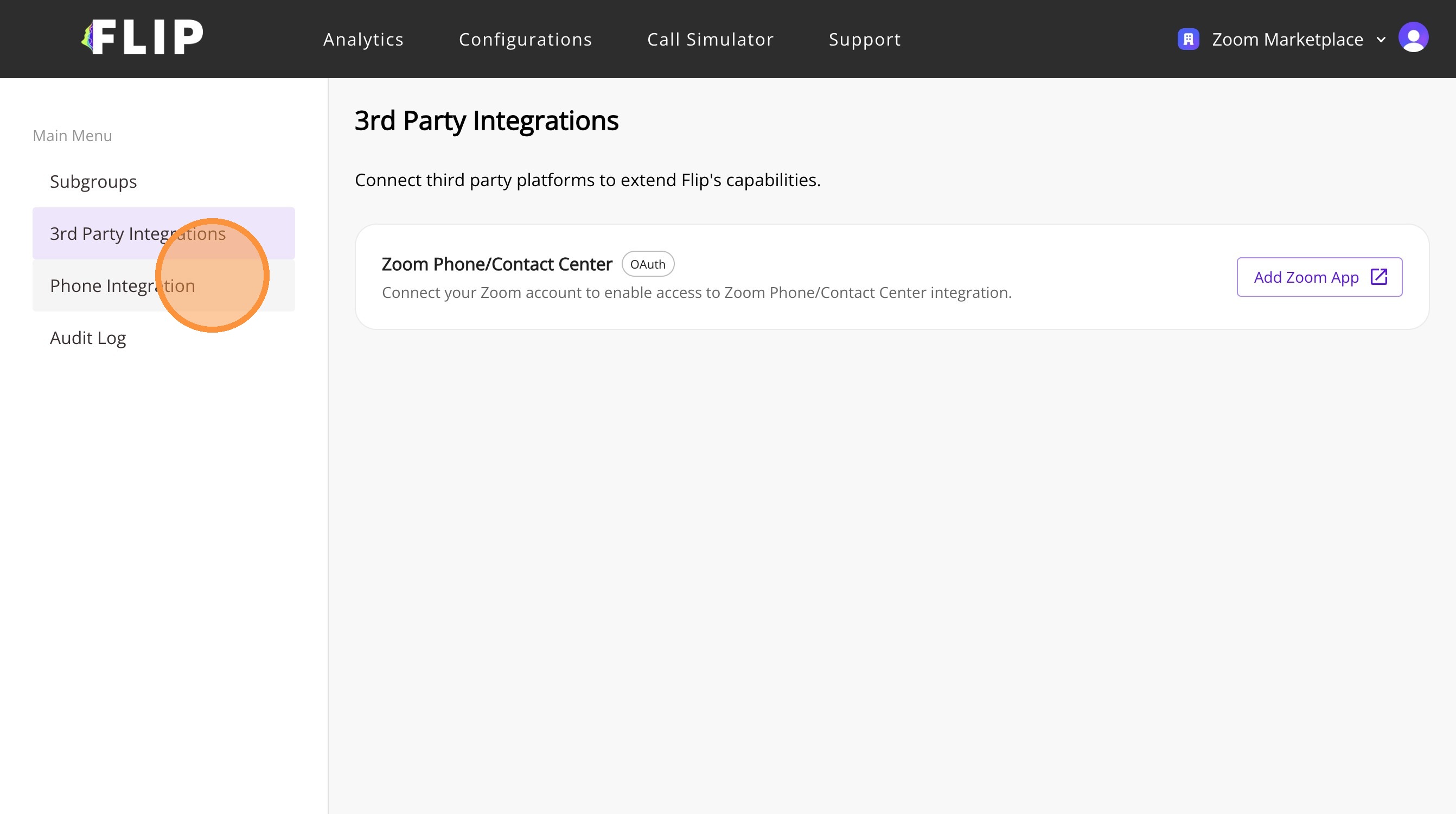
Click "Phone Integration"
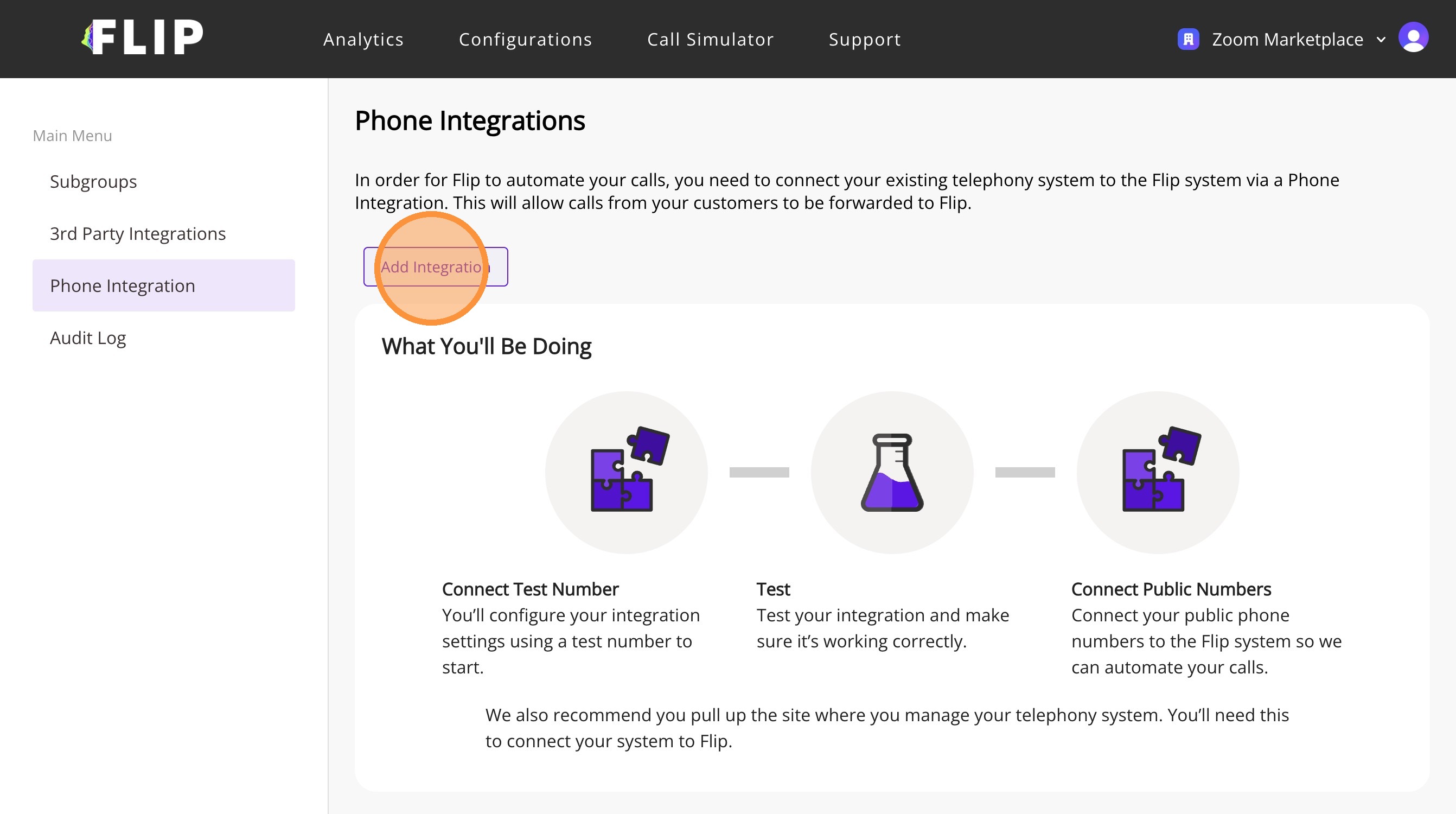
Click "Add Integration"
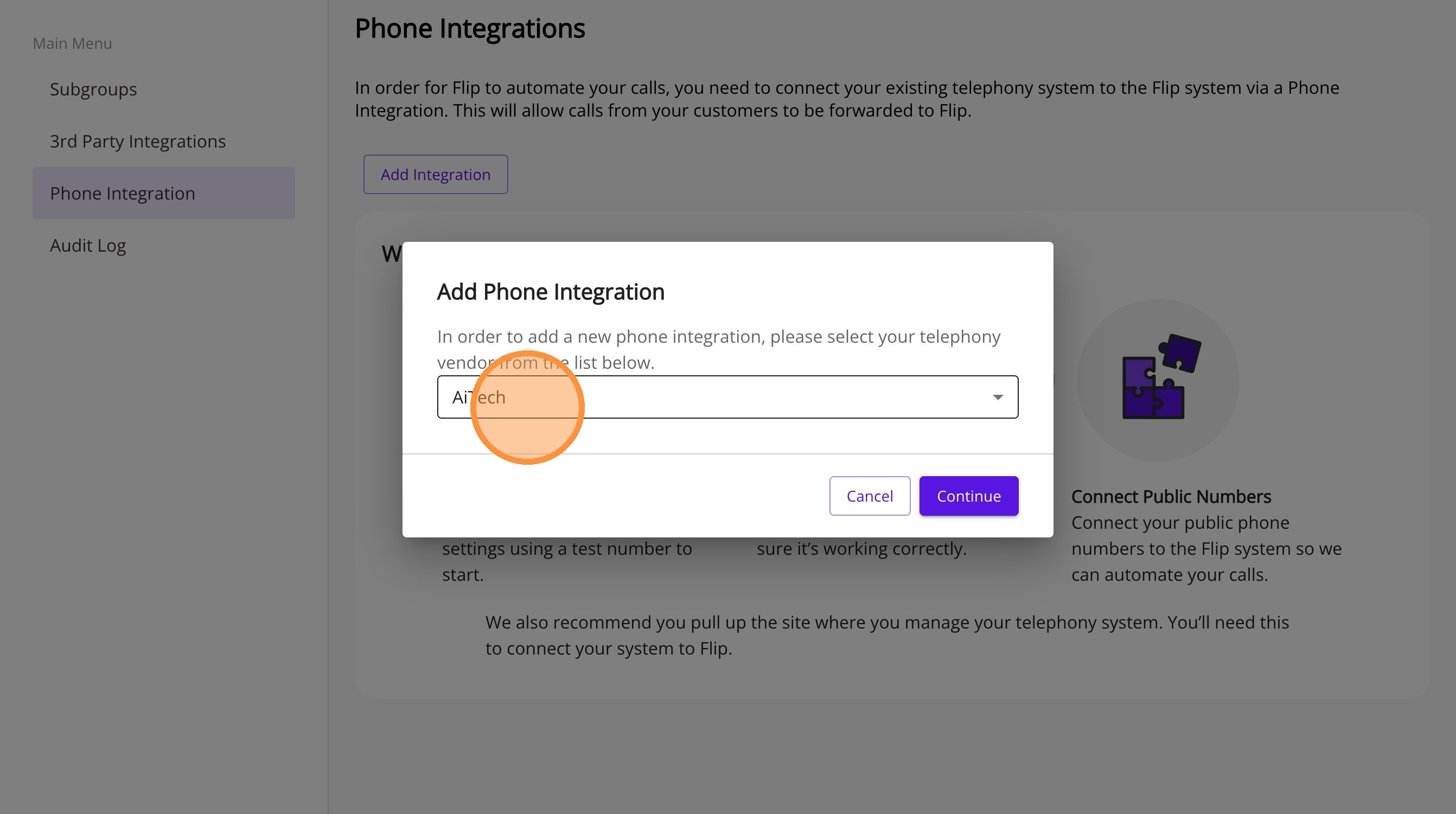
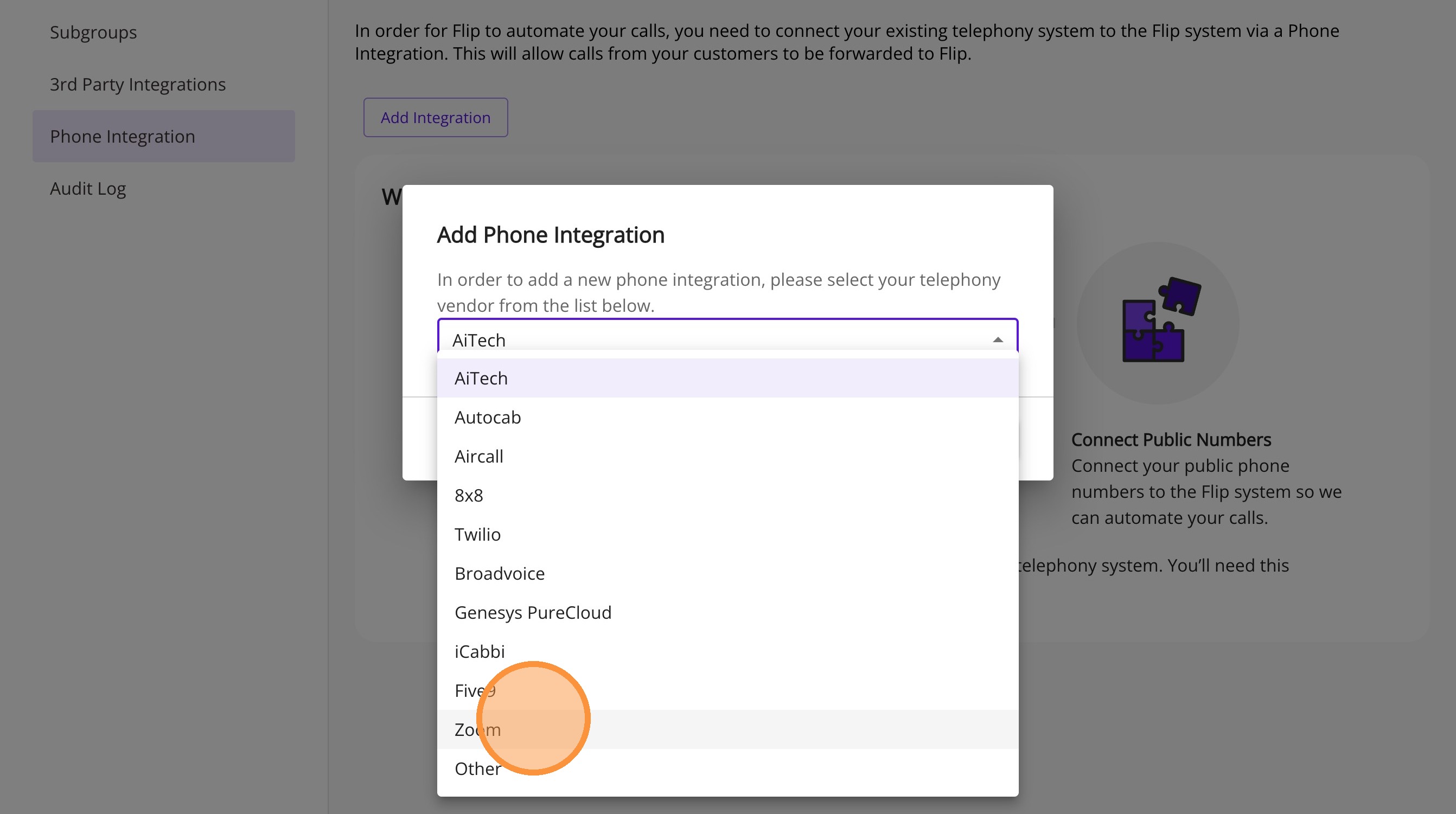
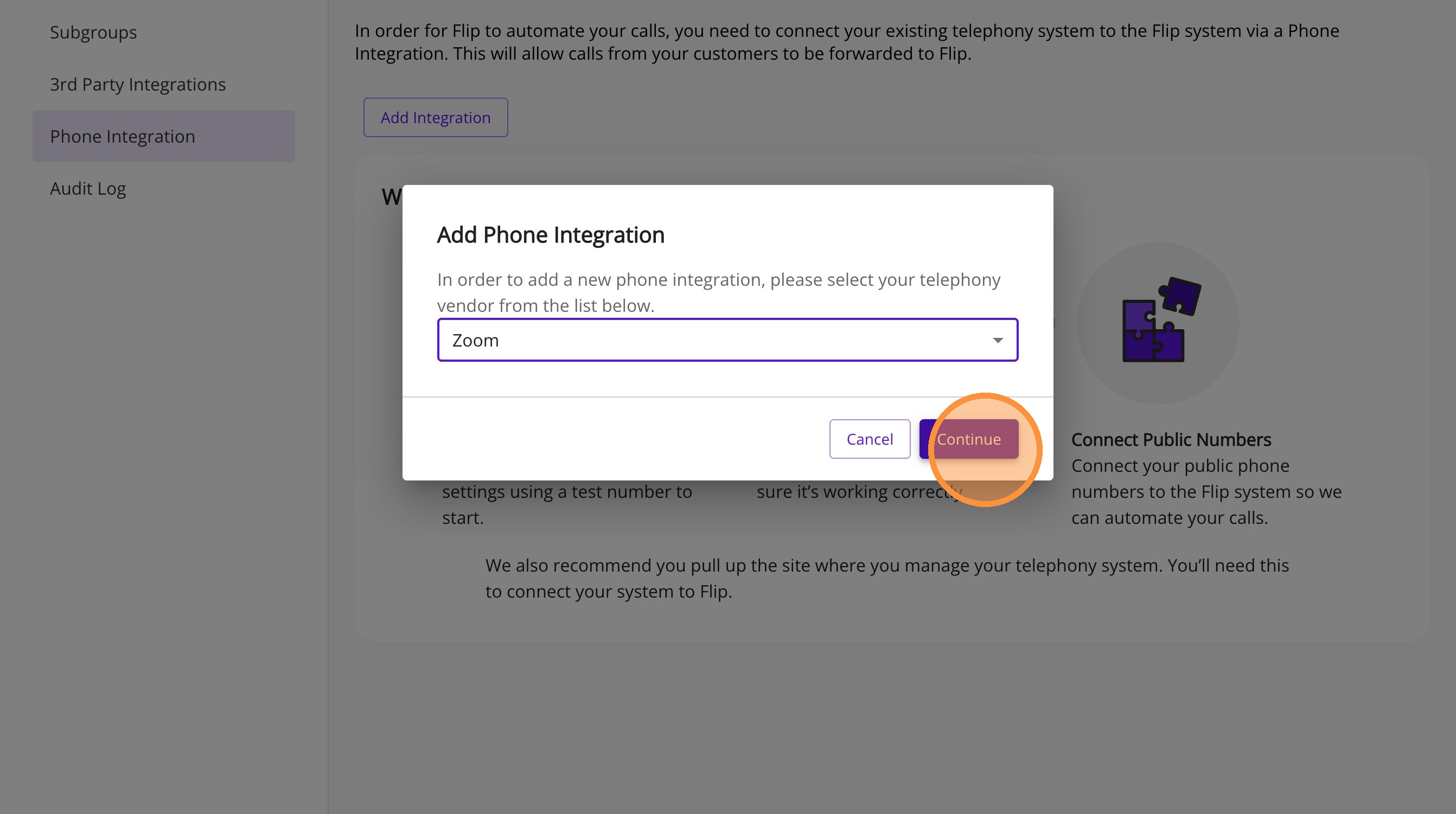
Select "Zoom" as telephony vendor and click "Continue"
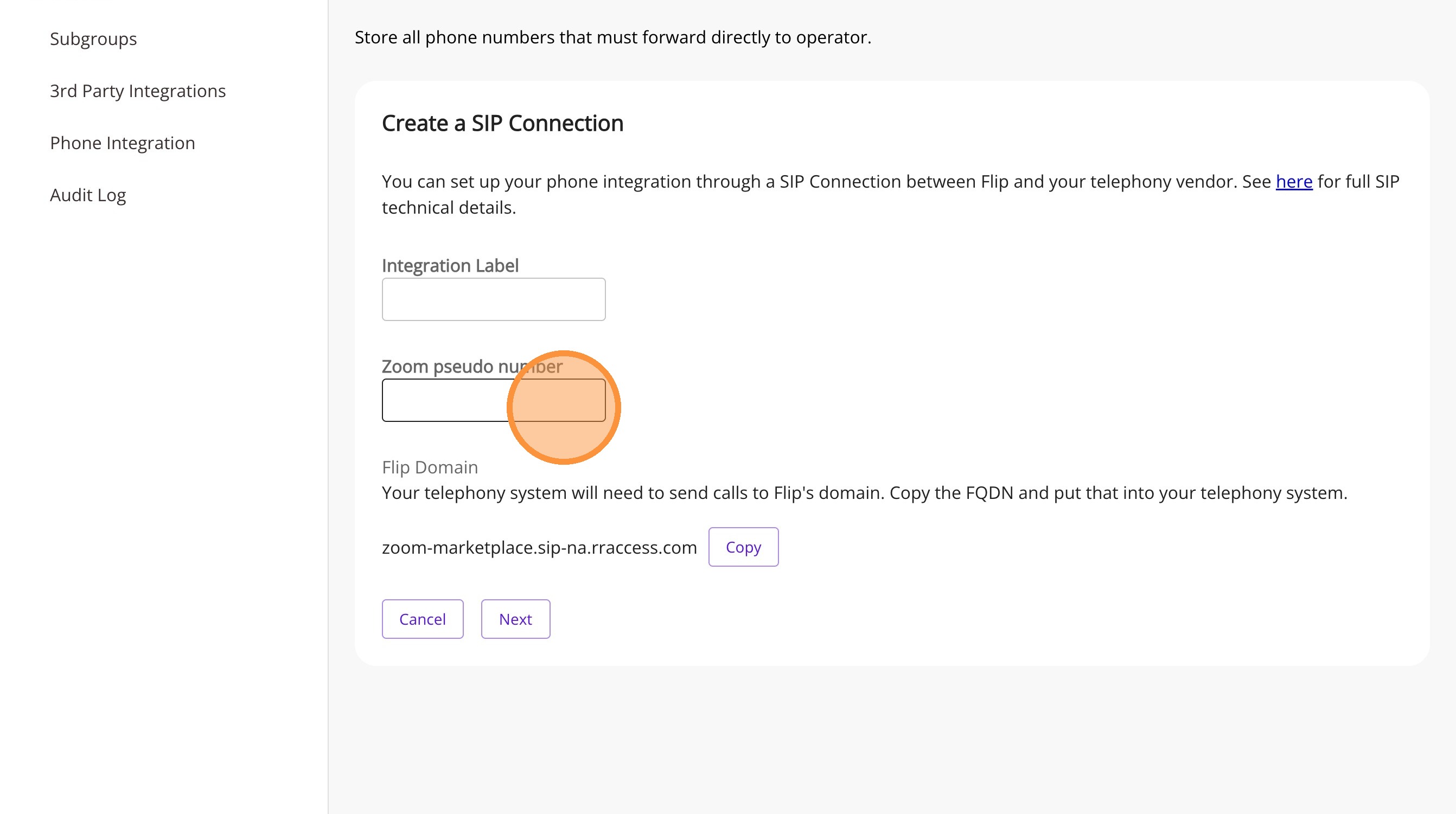
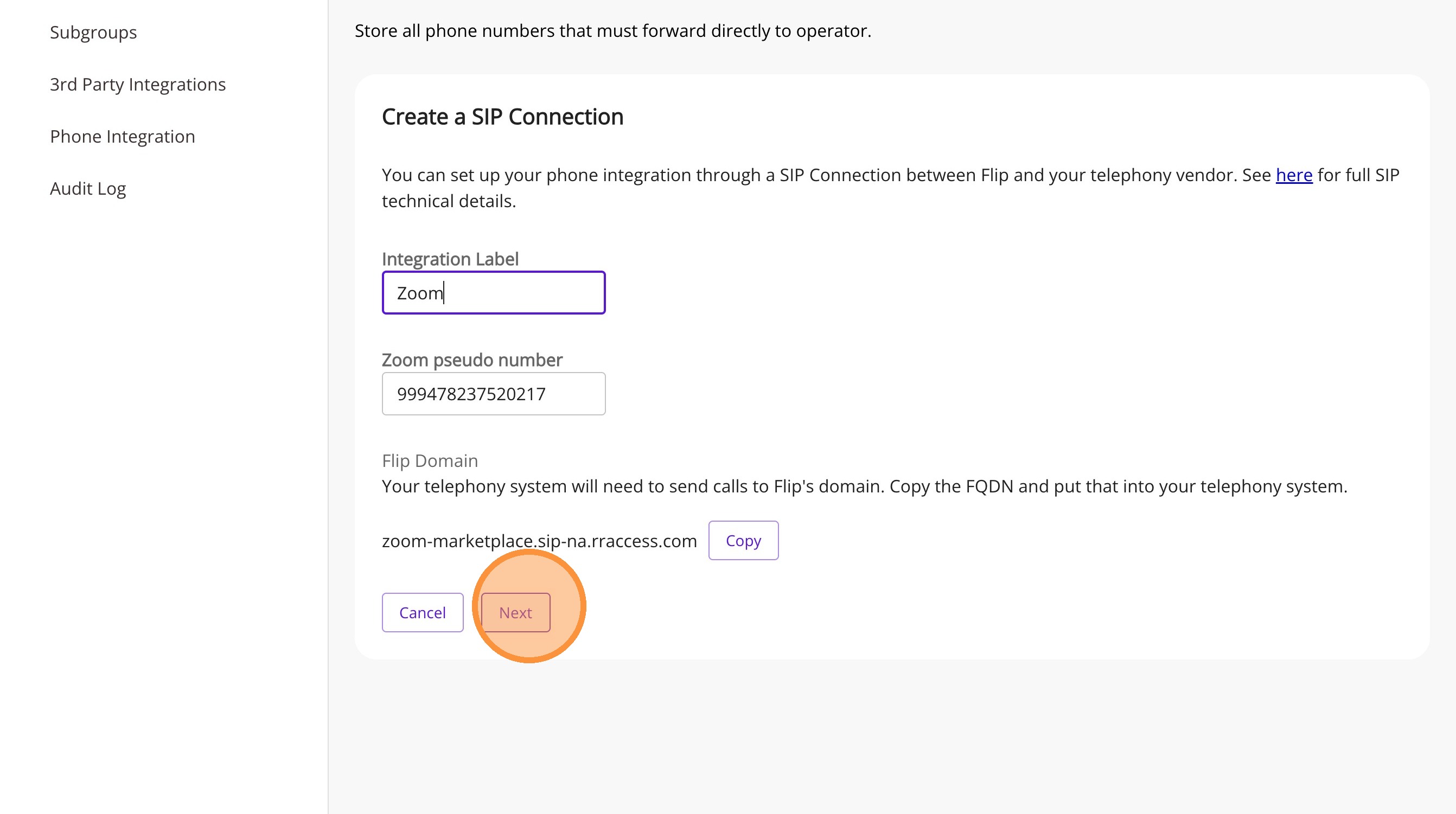
Paste phone number into Zoom pseudo number field
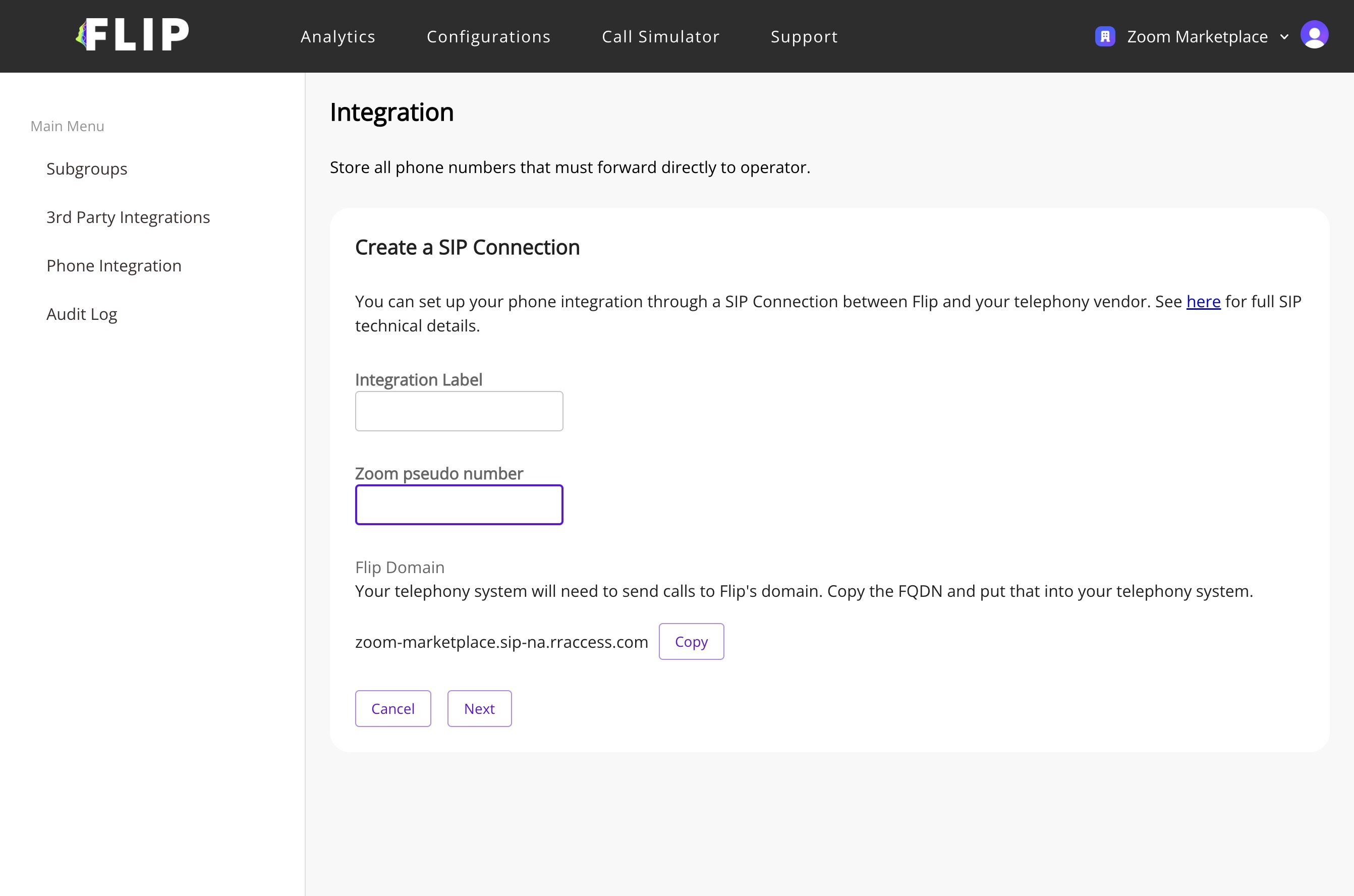
Type "Zoom" in Integration Label field
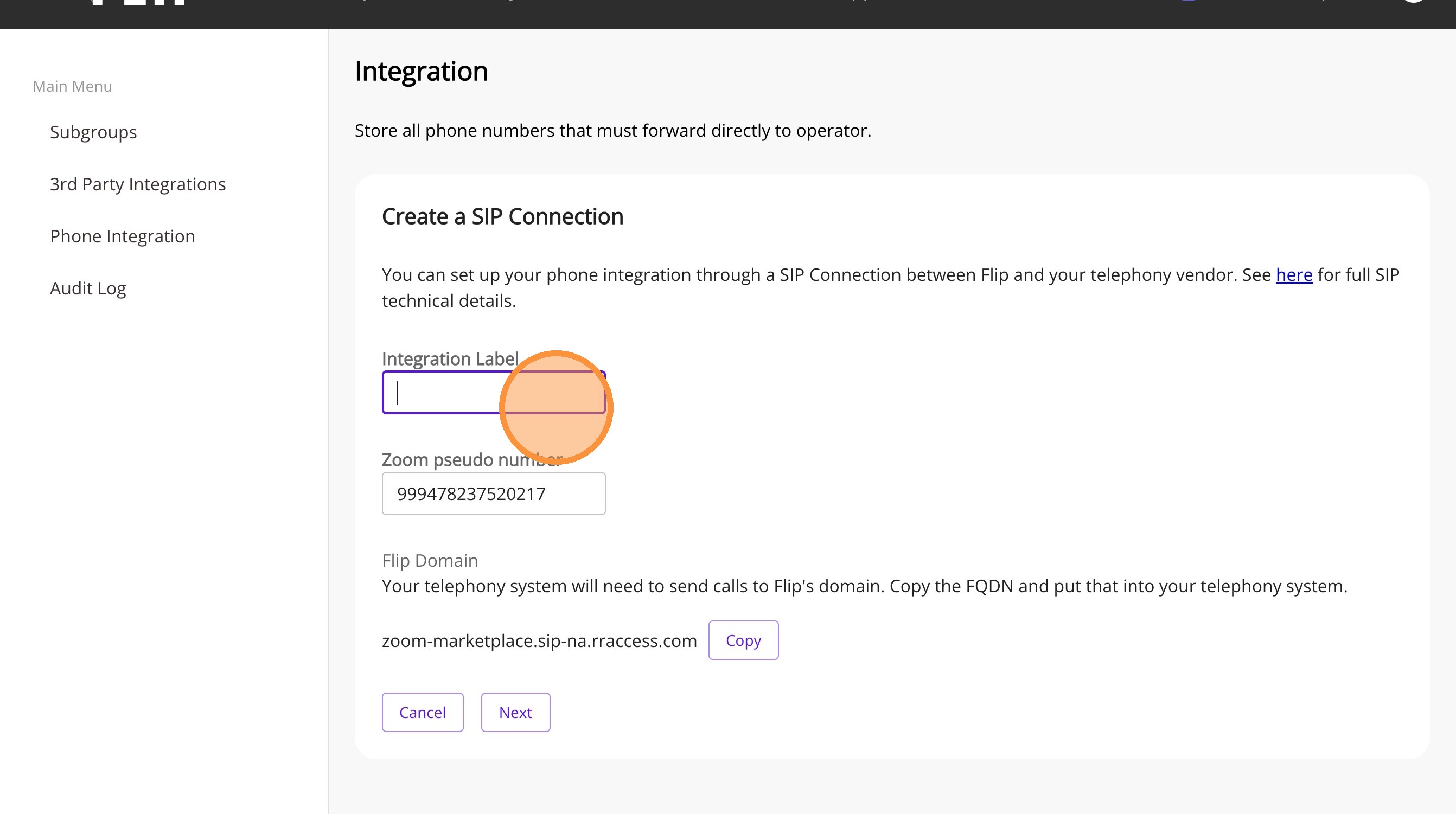
Click "Next"
Flow Mapping and Finalization
Click here.
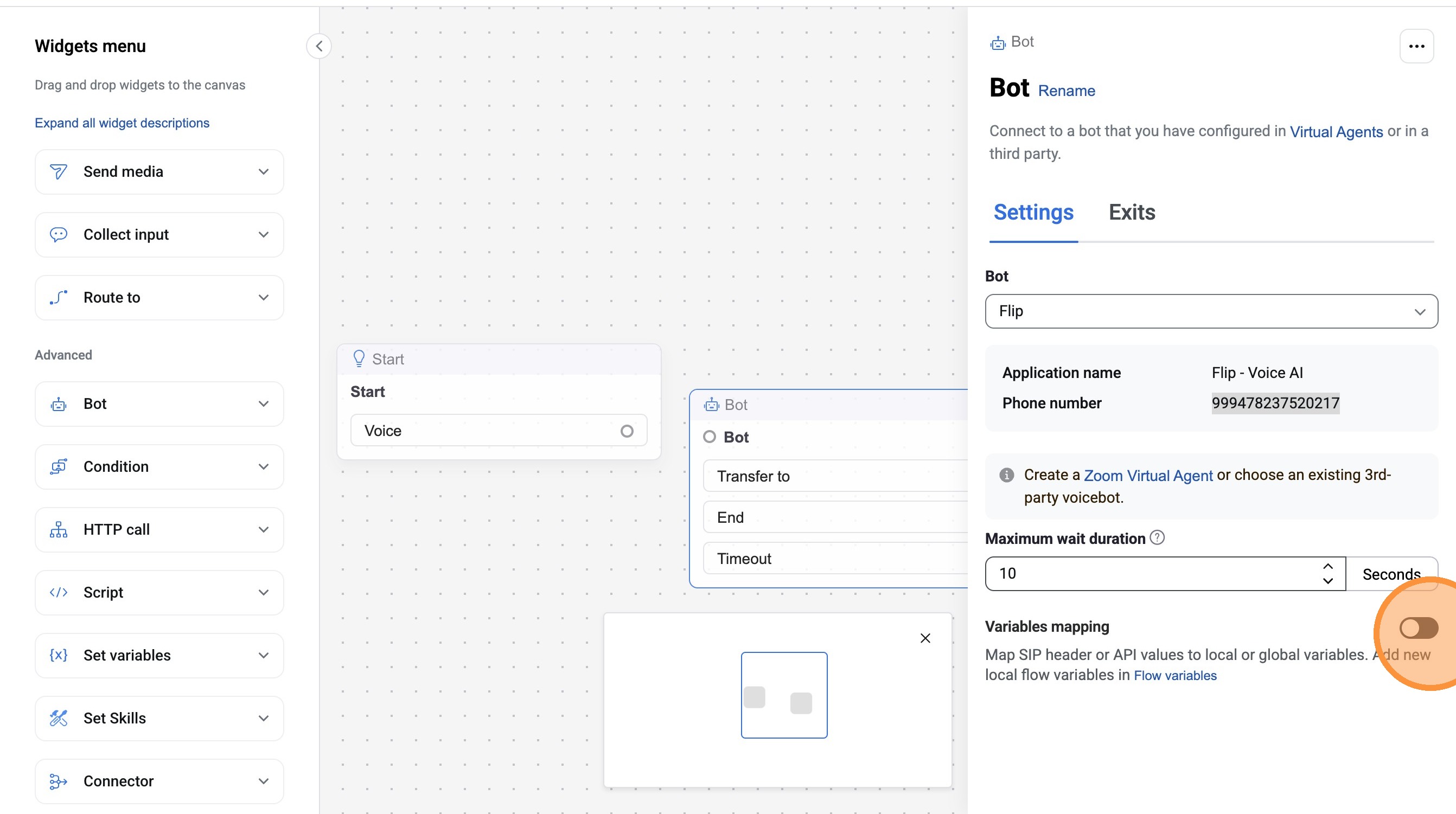
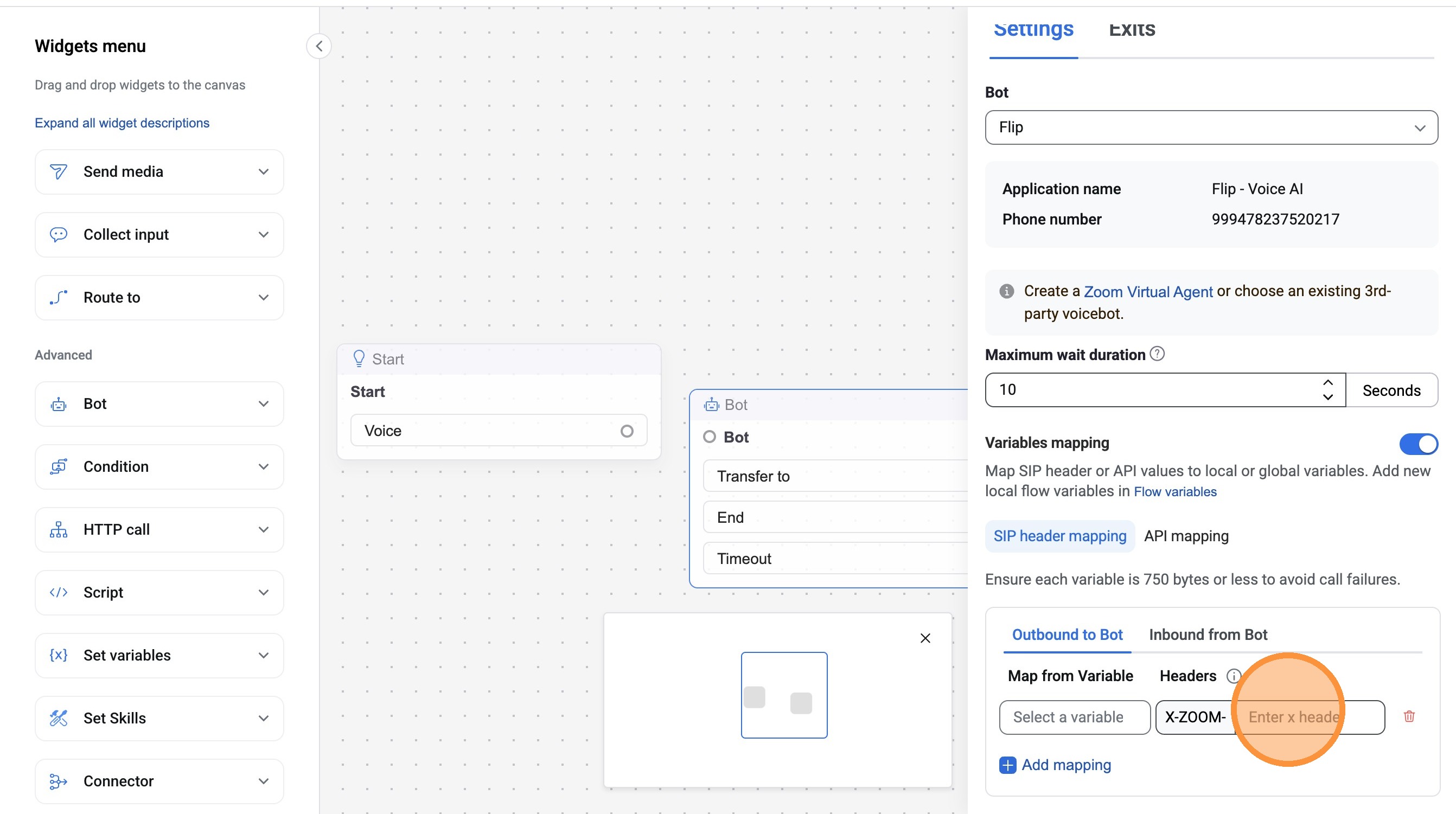
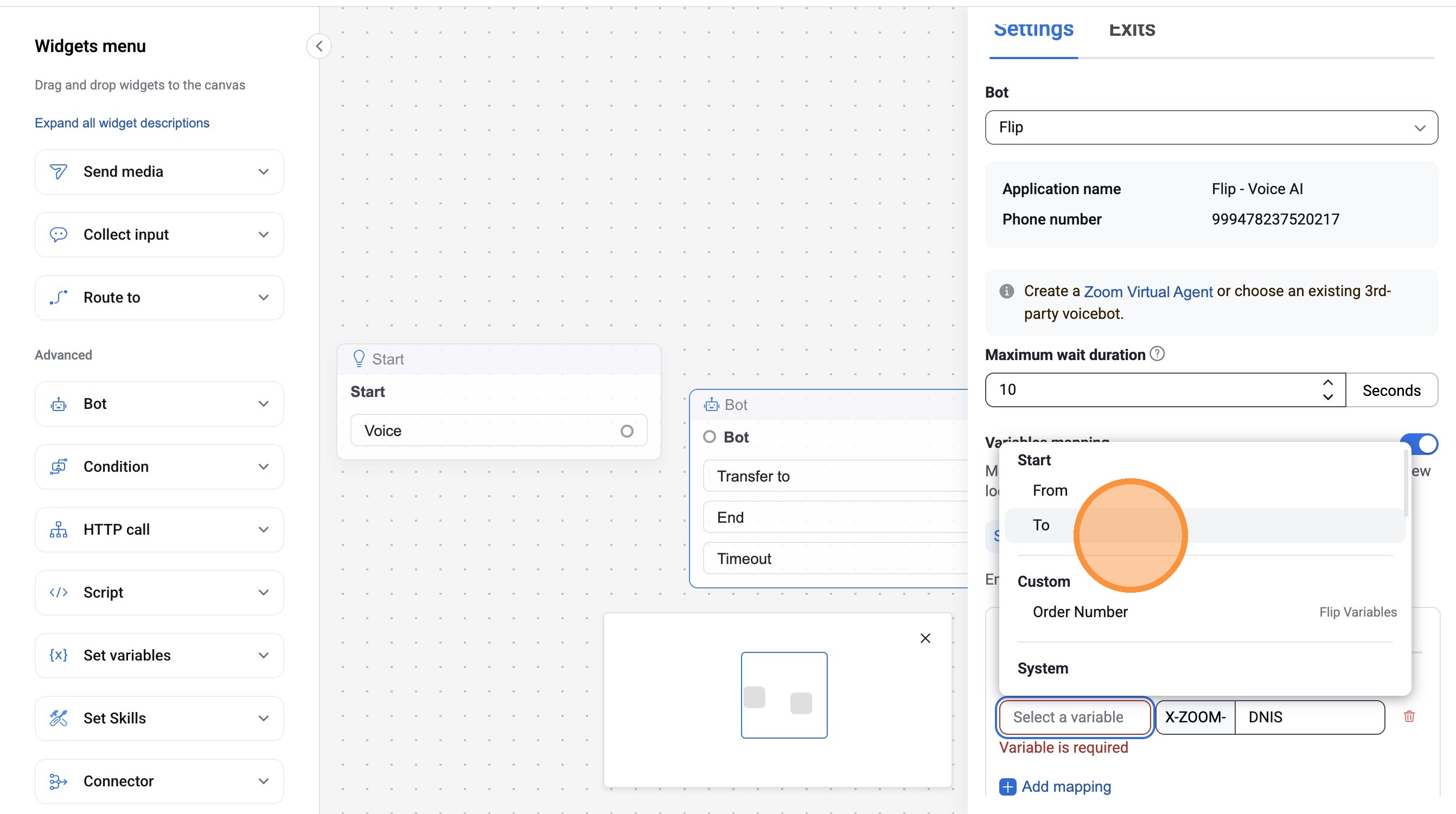
Type "DNIS" in Header field
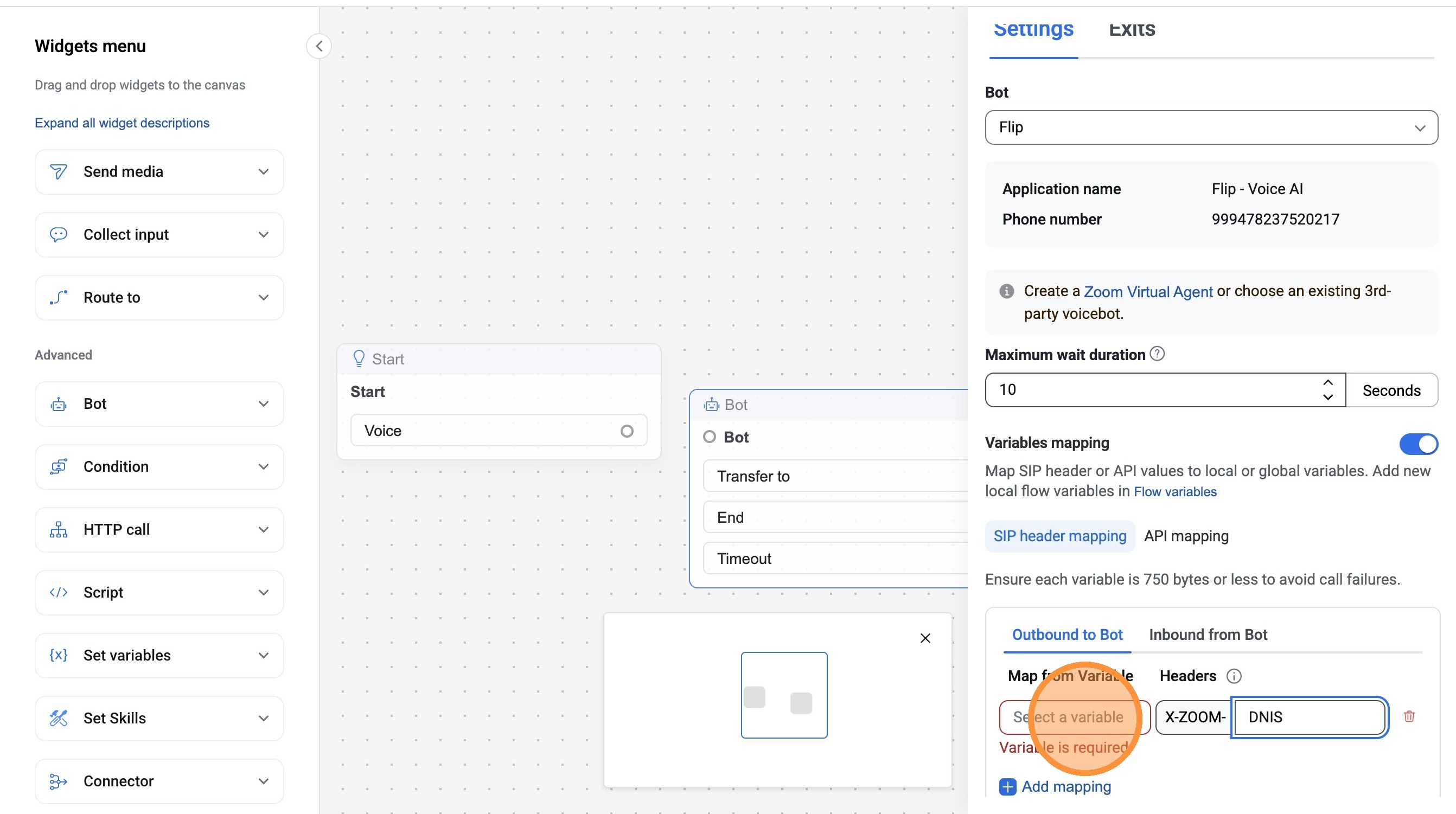
Select "To" from Variable dropdown
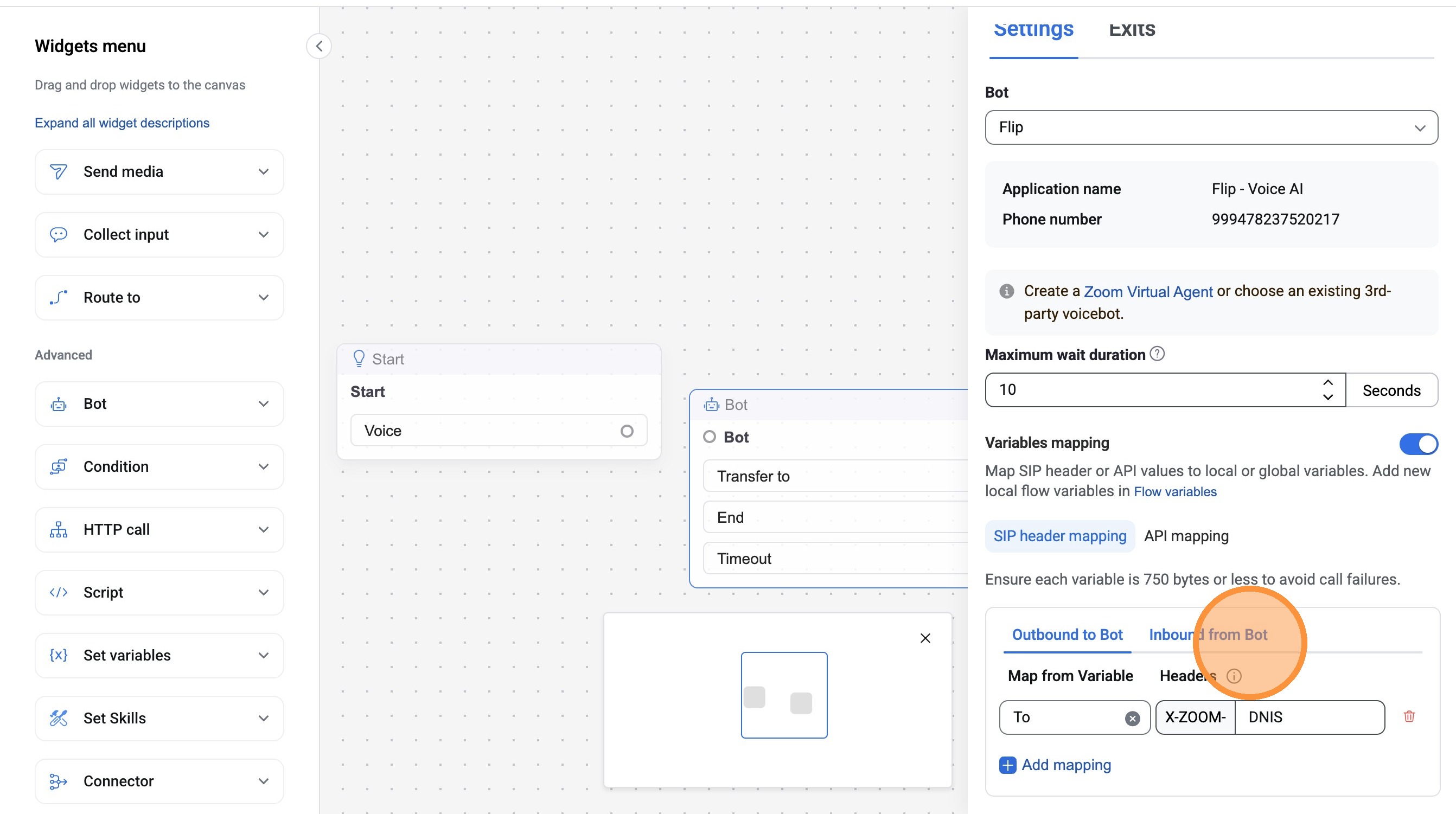
Click "Inbound from Bot"
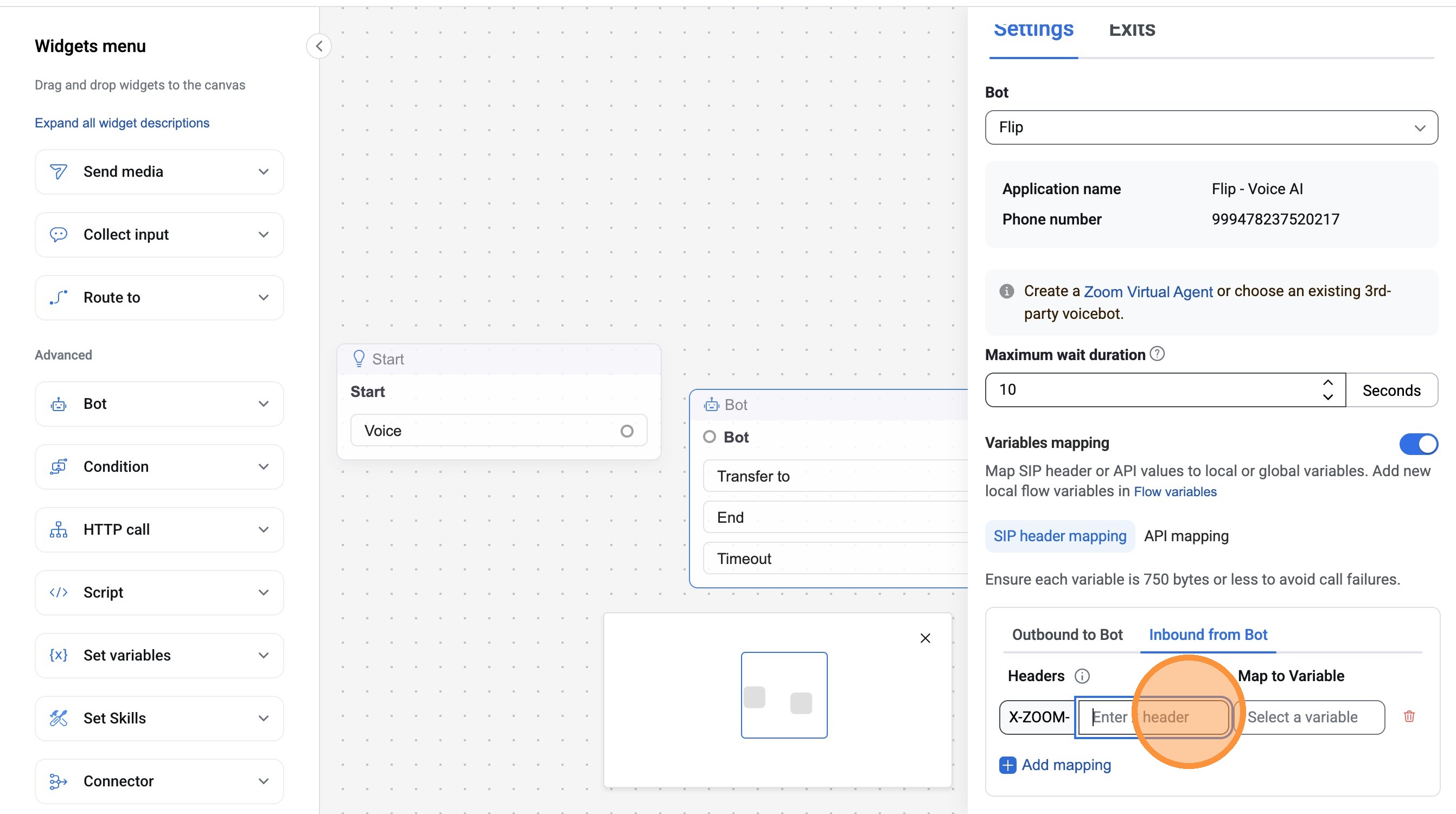
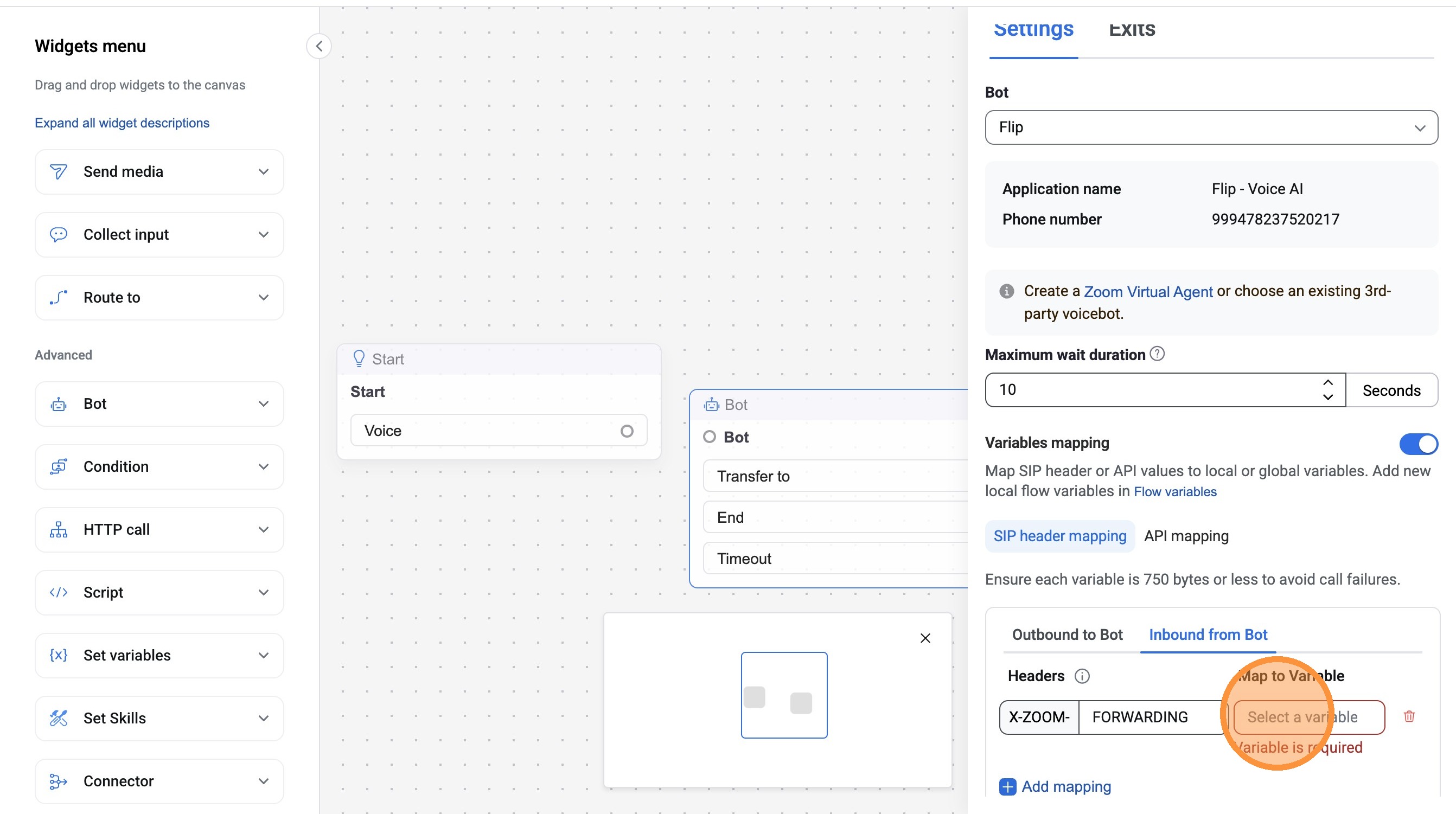
Type "FORWARDING" in Header field
Click the "Select a variable" field.
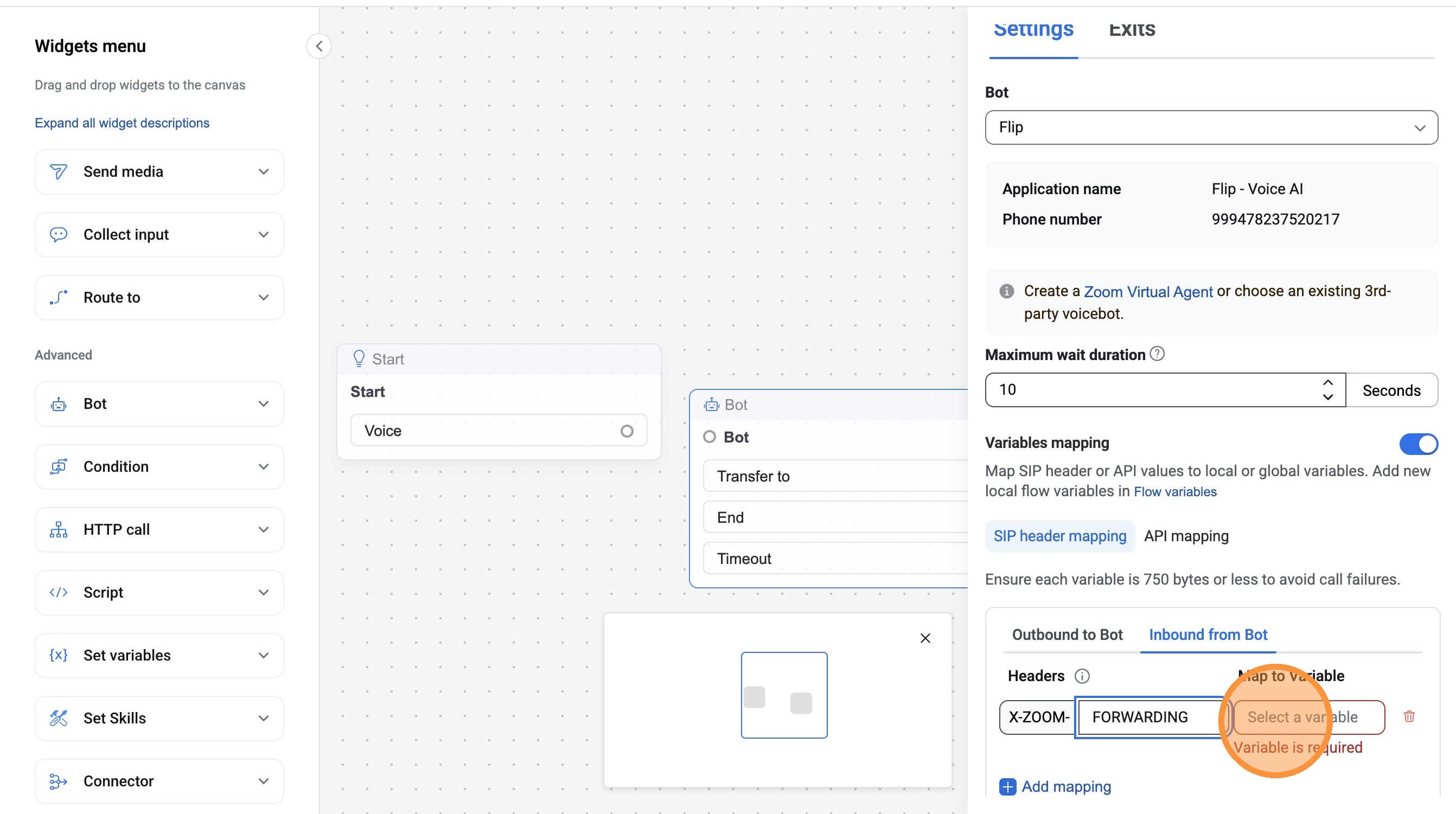
Click "Flow variables"
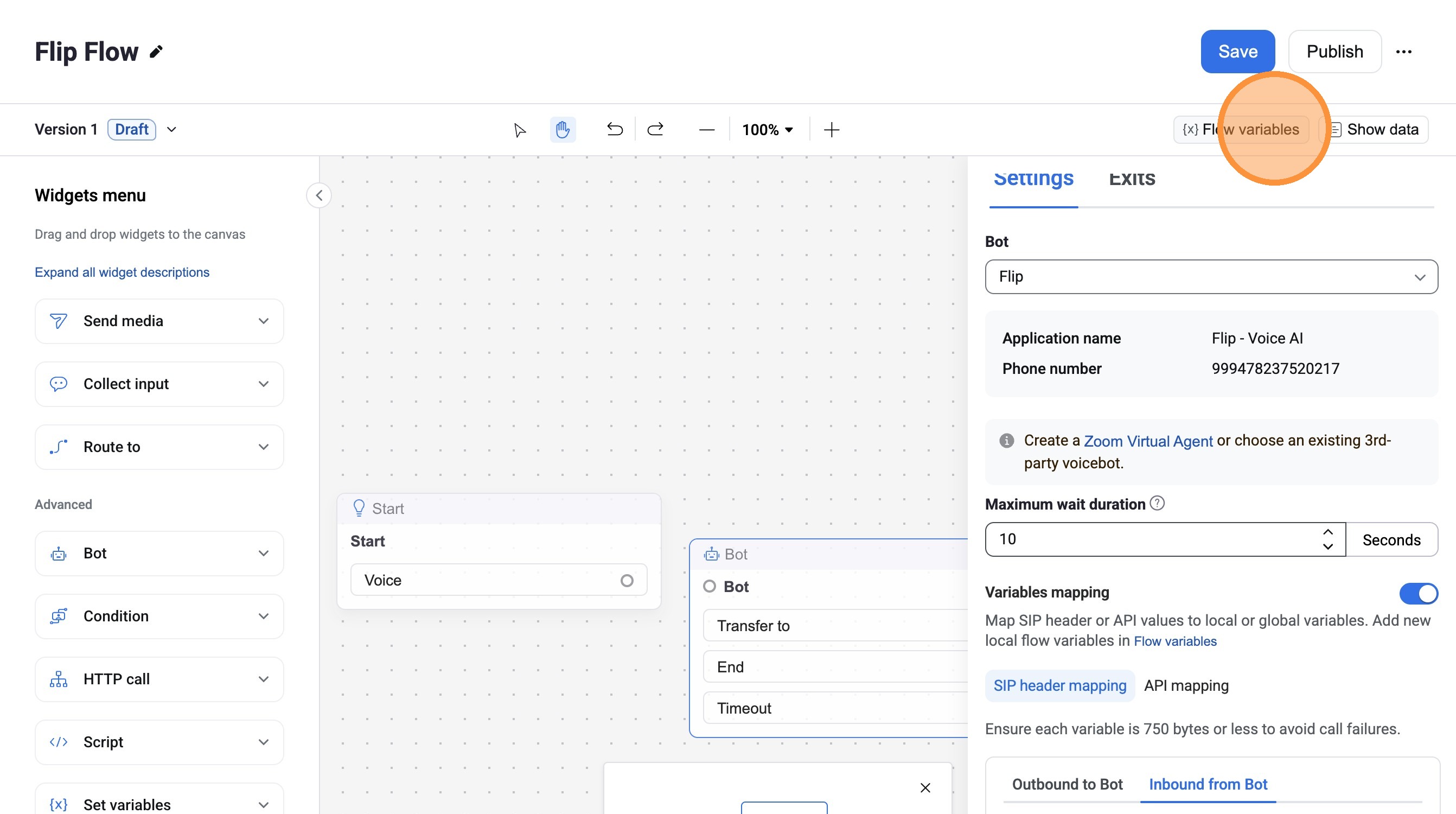
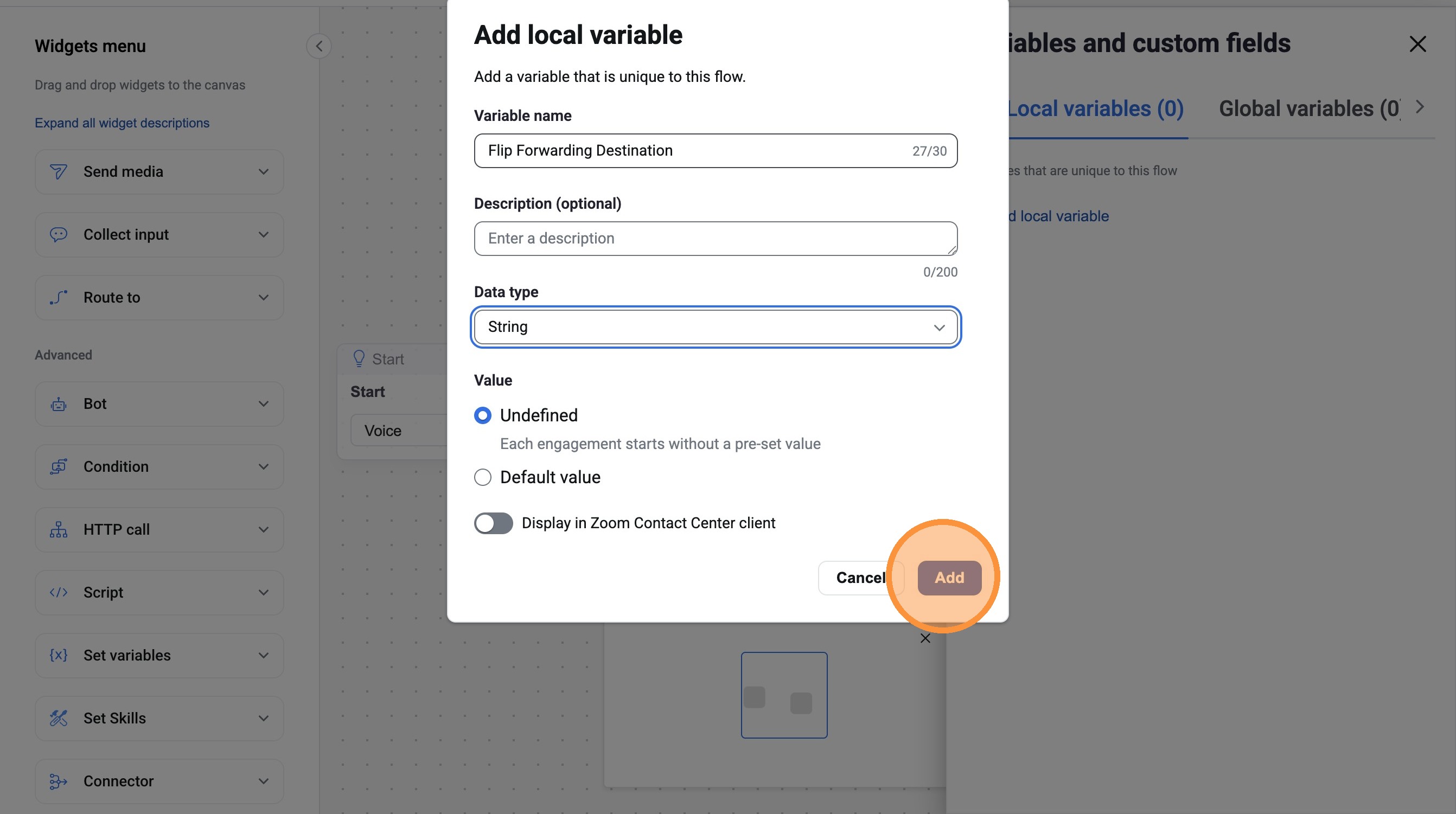
Click "Add local variable"
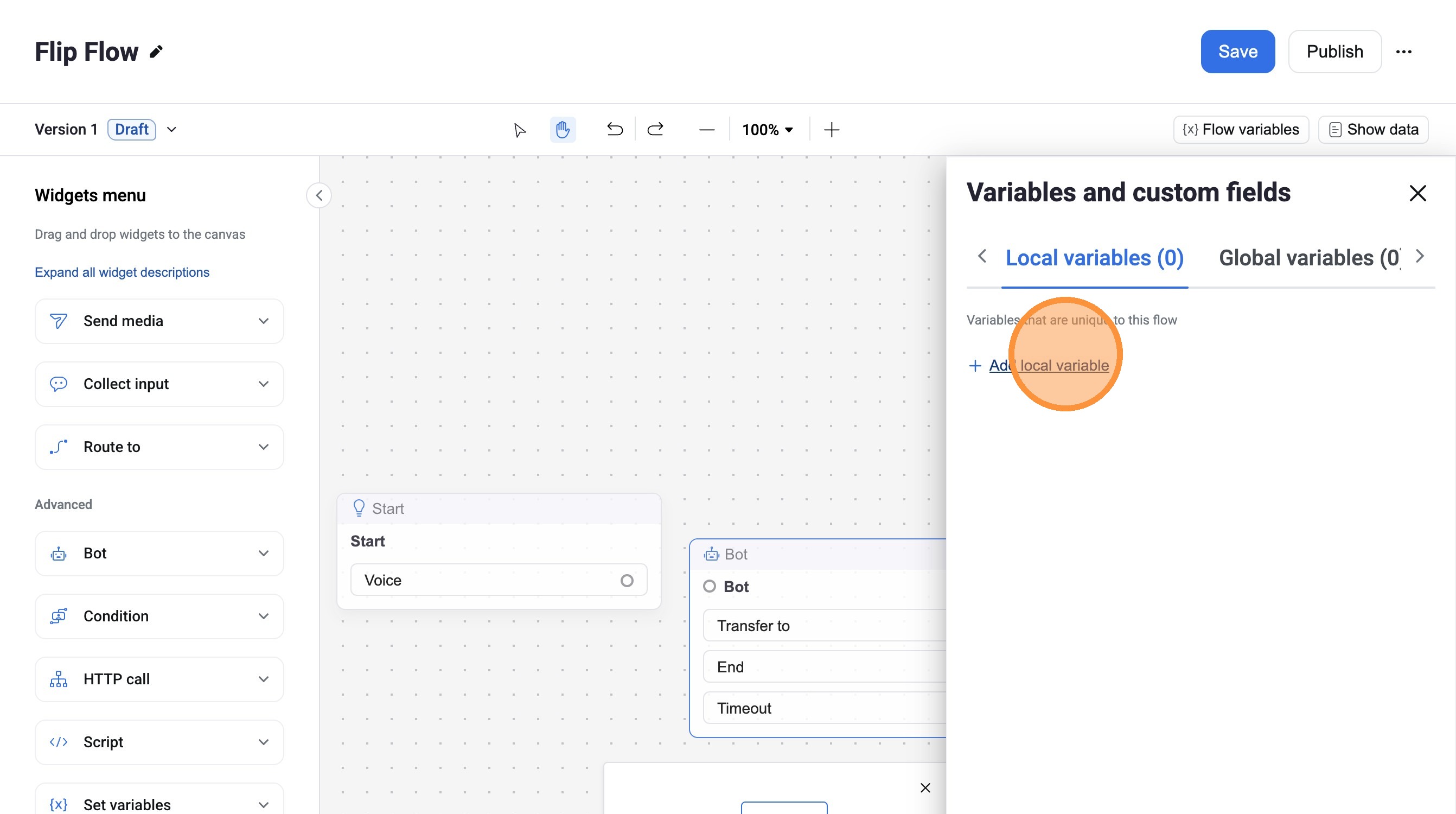
Type "Flip Forwarding Destination"
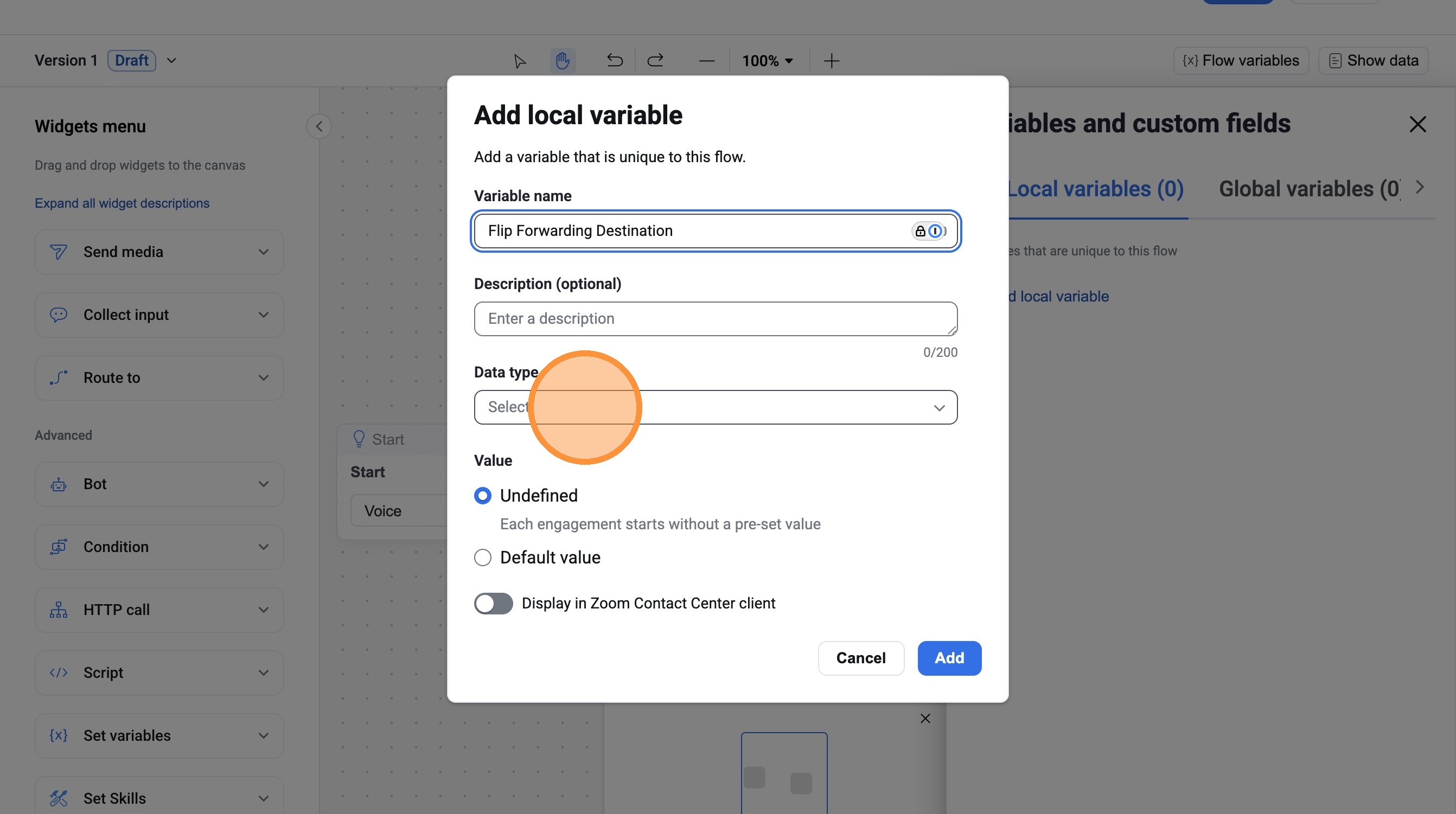
Select "String" as Data type
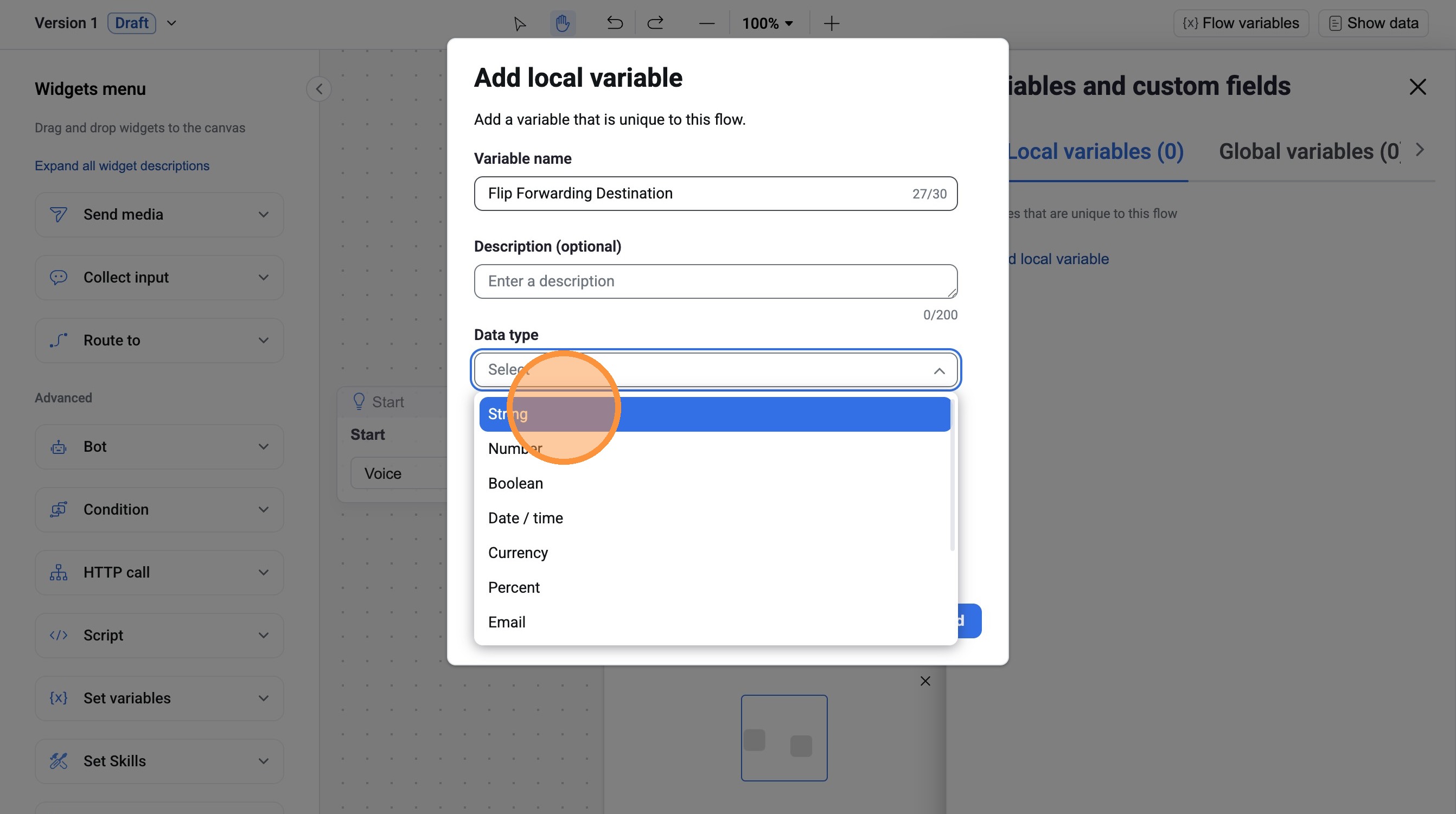
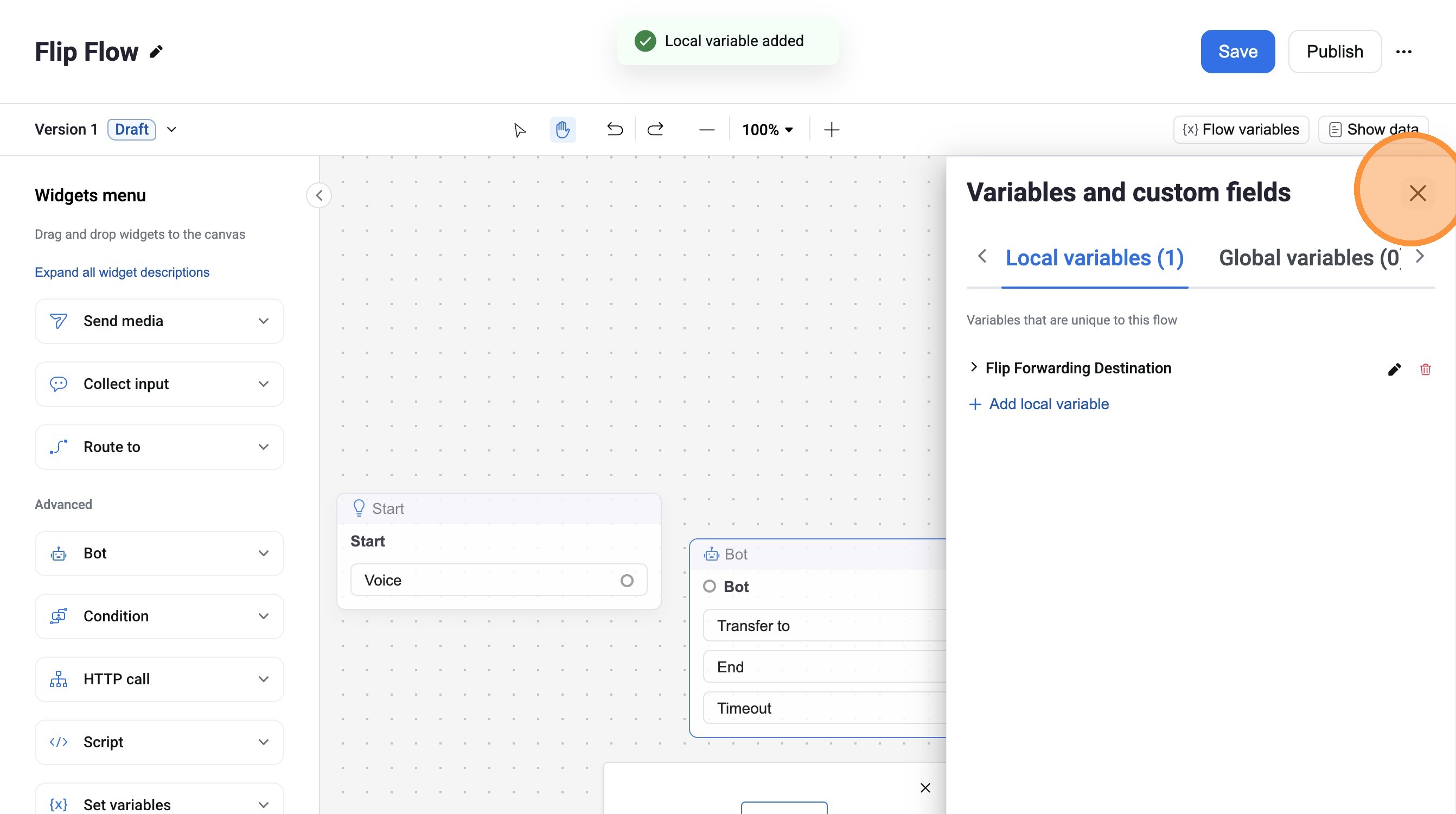
Click "Add"
Click here.
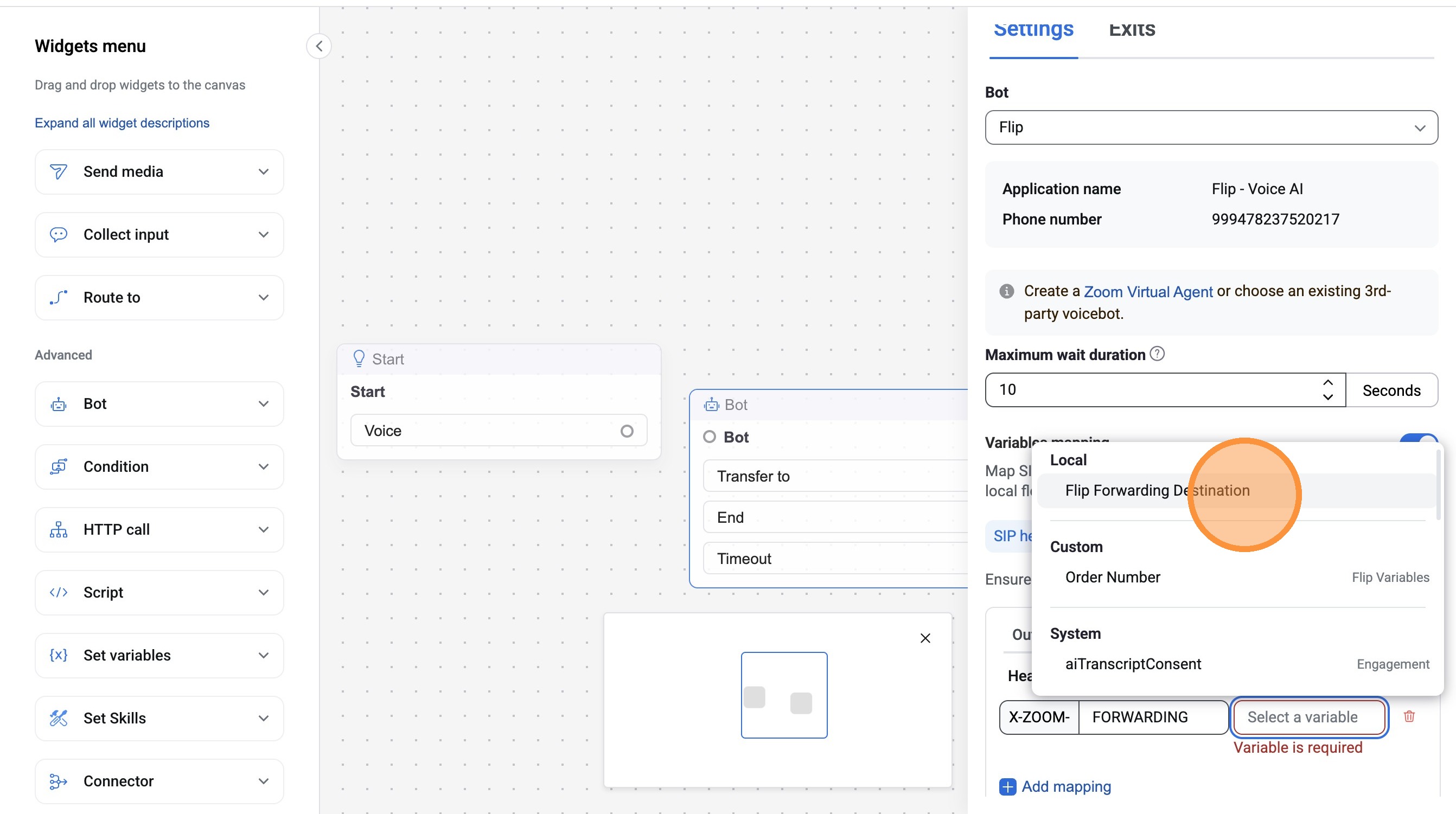
Select "Flip Forwarding Destination" from variable dropdown
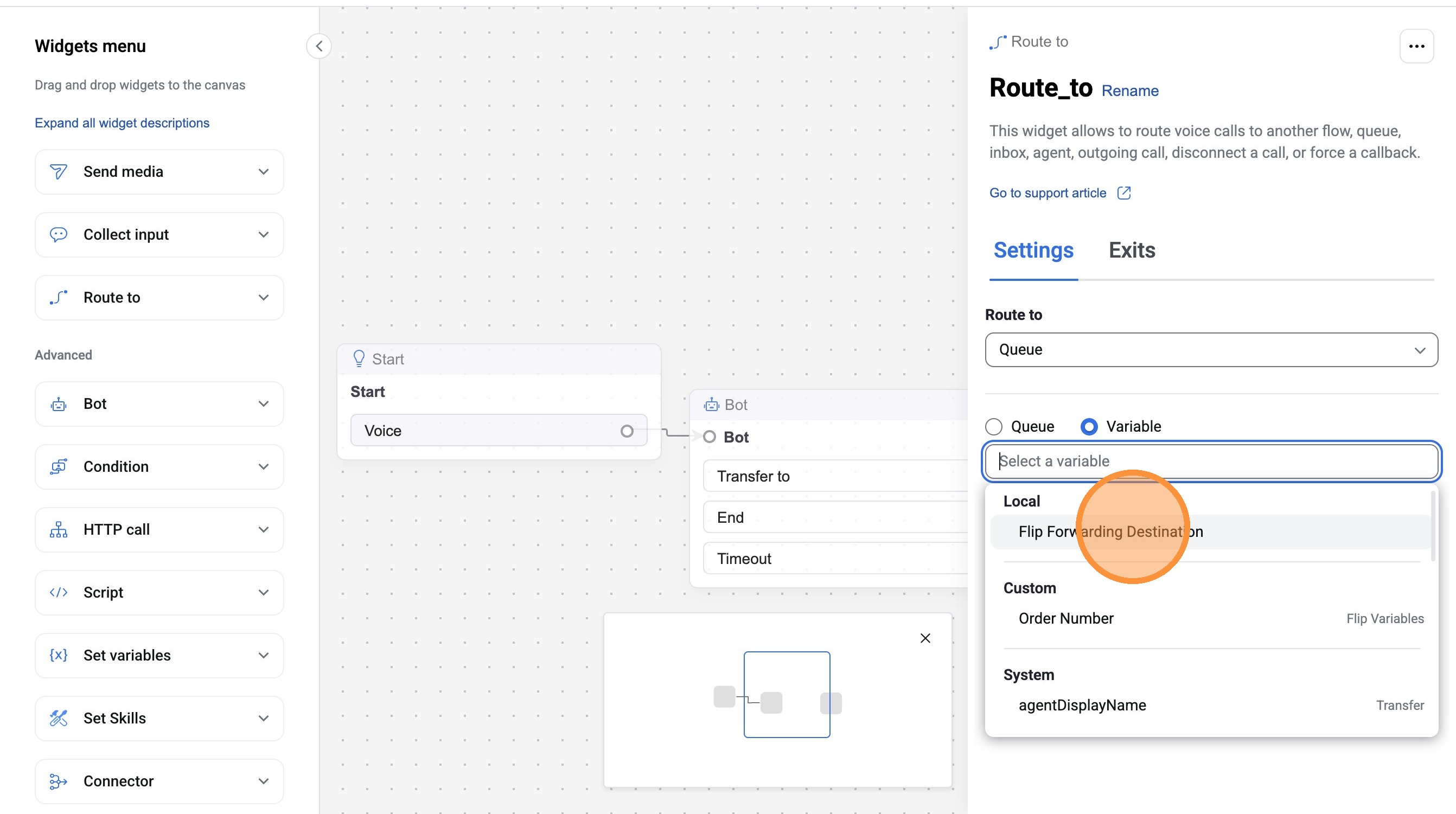
Add Route to widget to flow
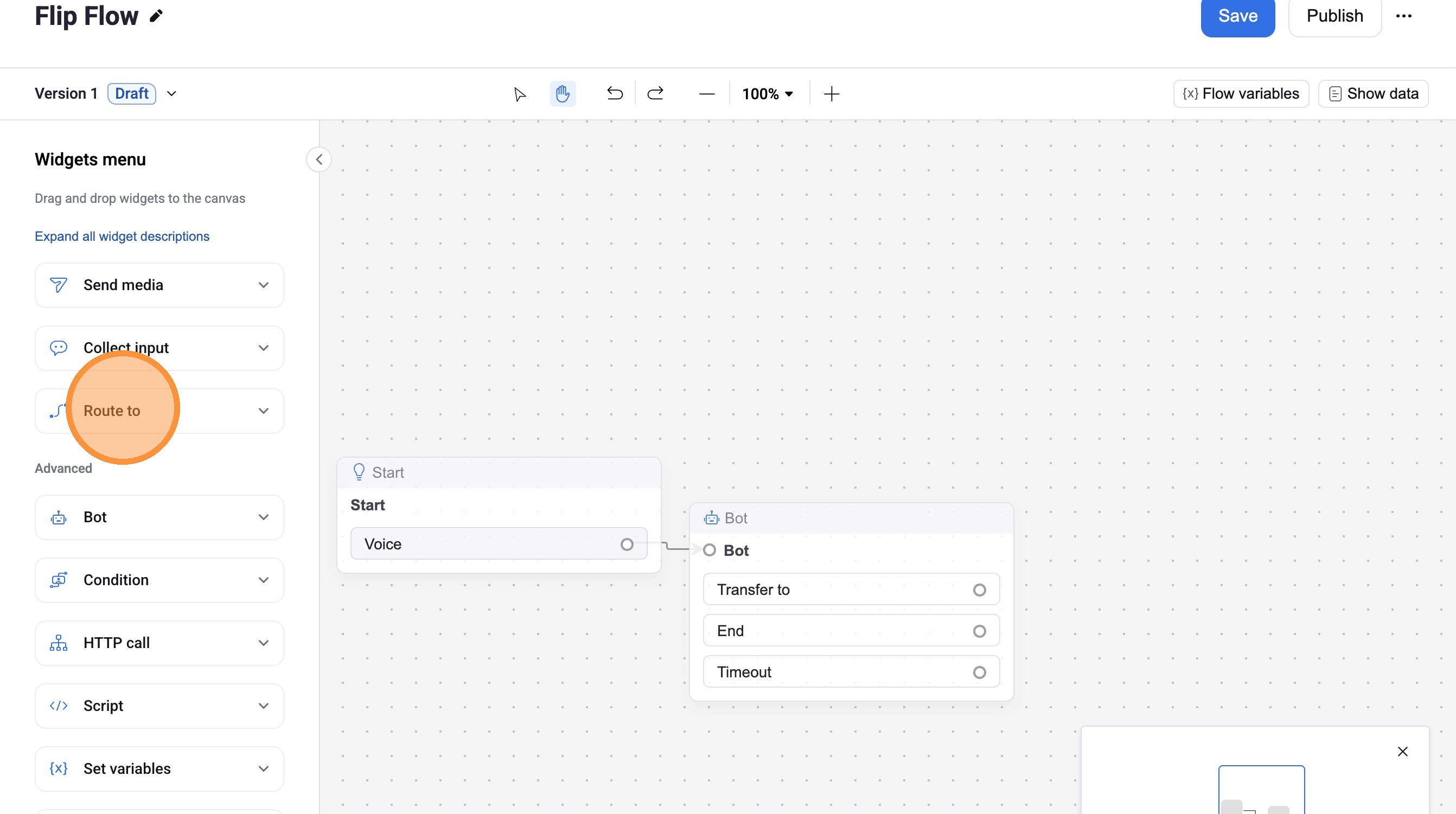
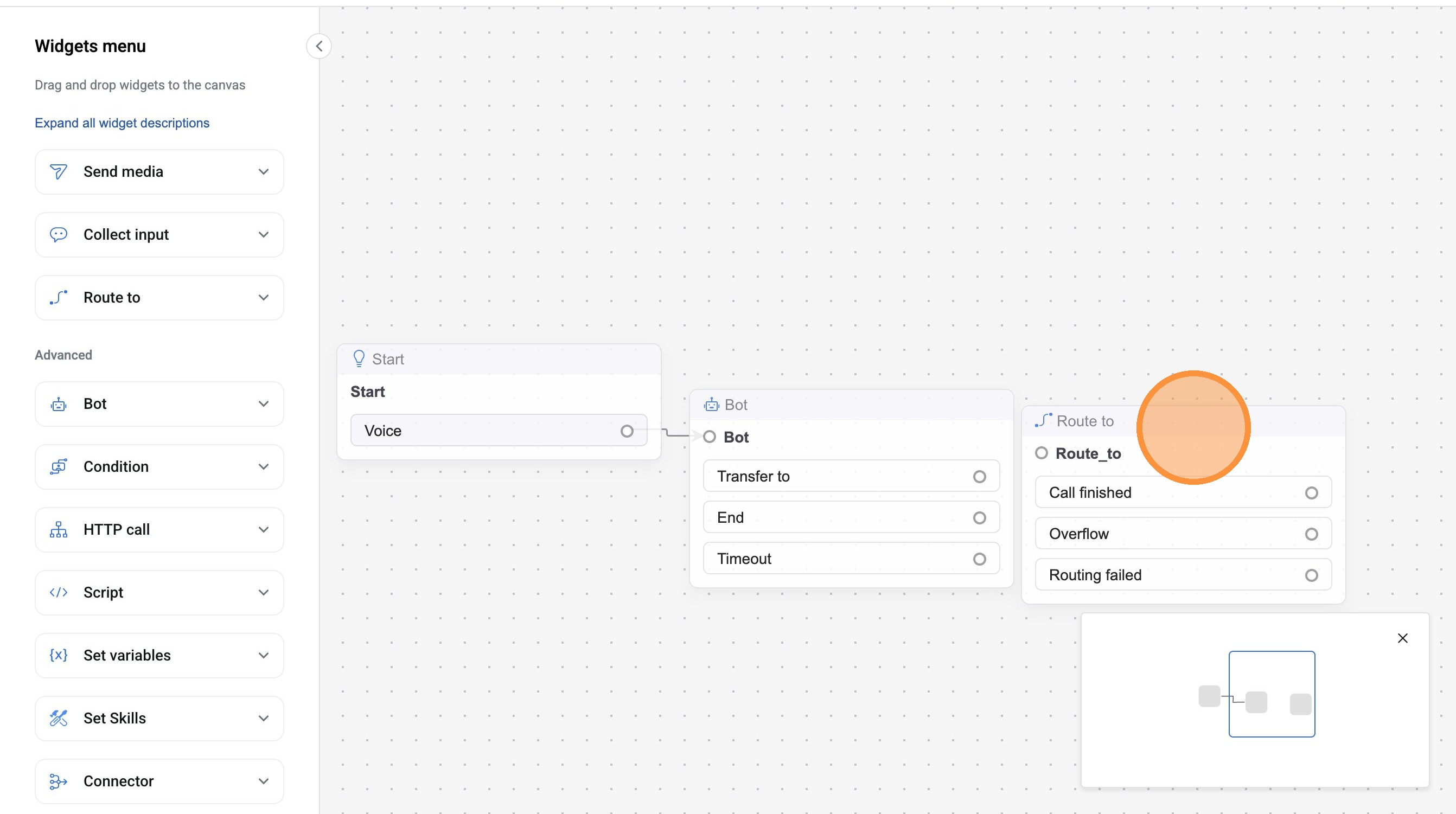
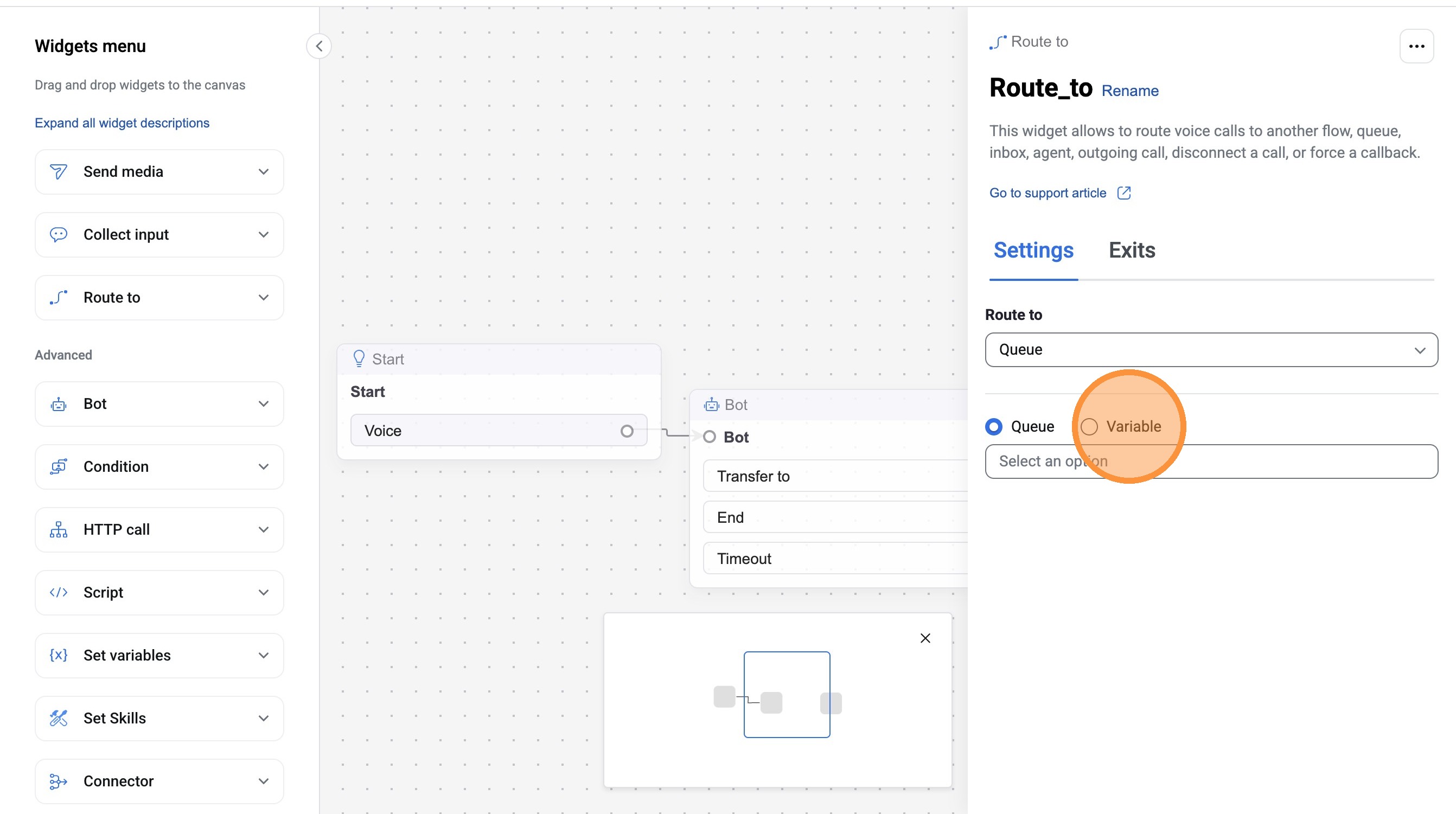
Click "Variable"
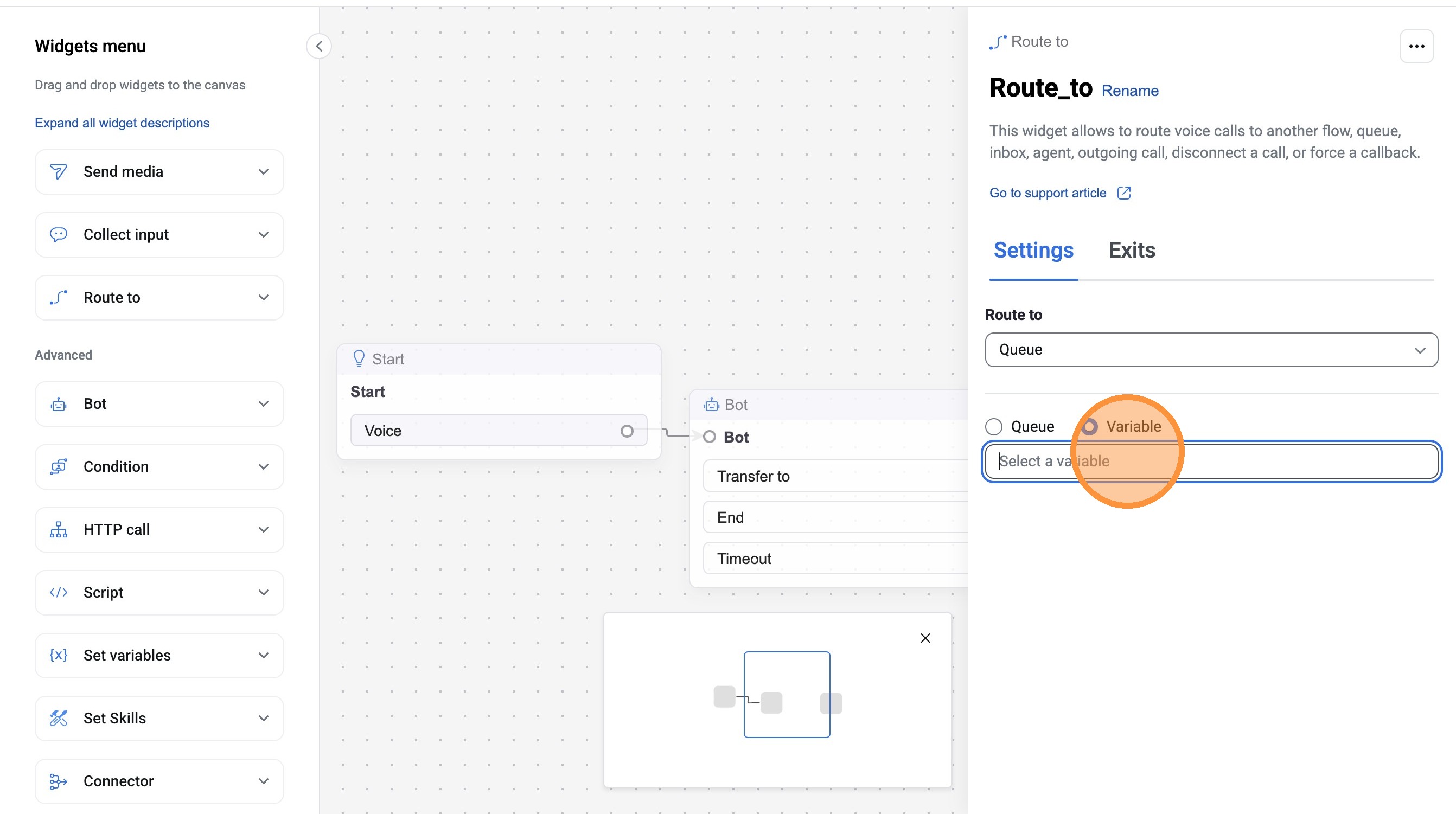
Select "Flip Forwarding Destination" as routing variable
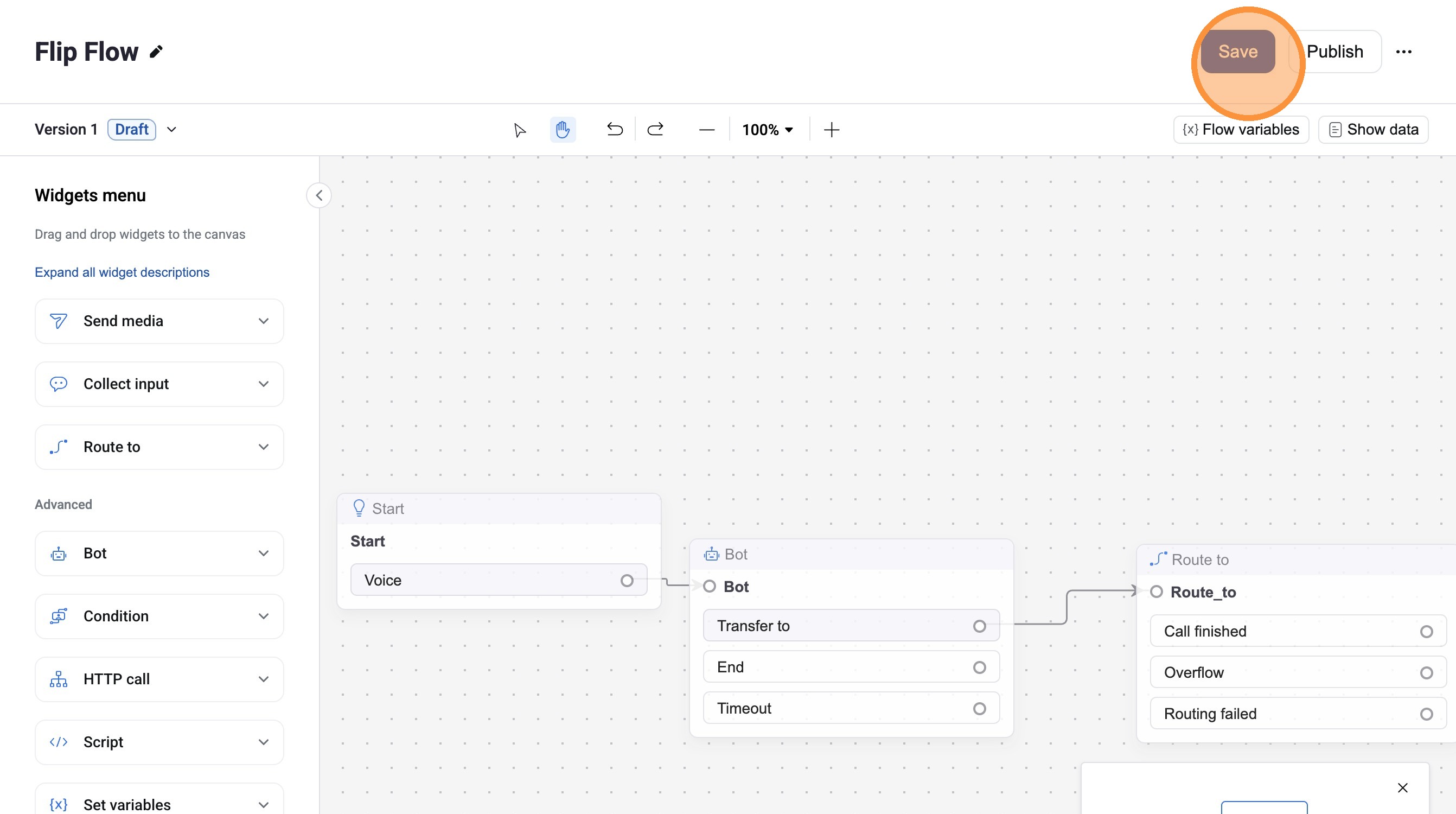
Click "Save"
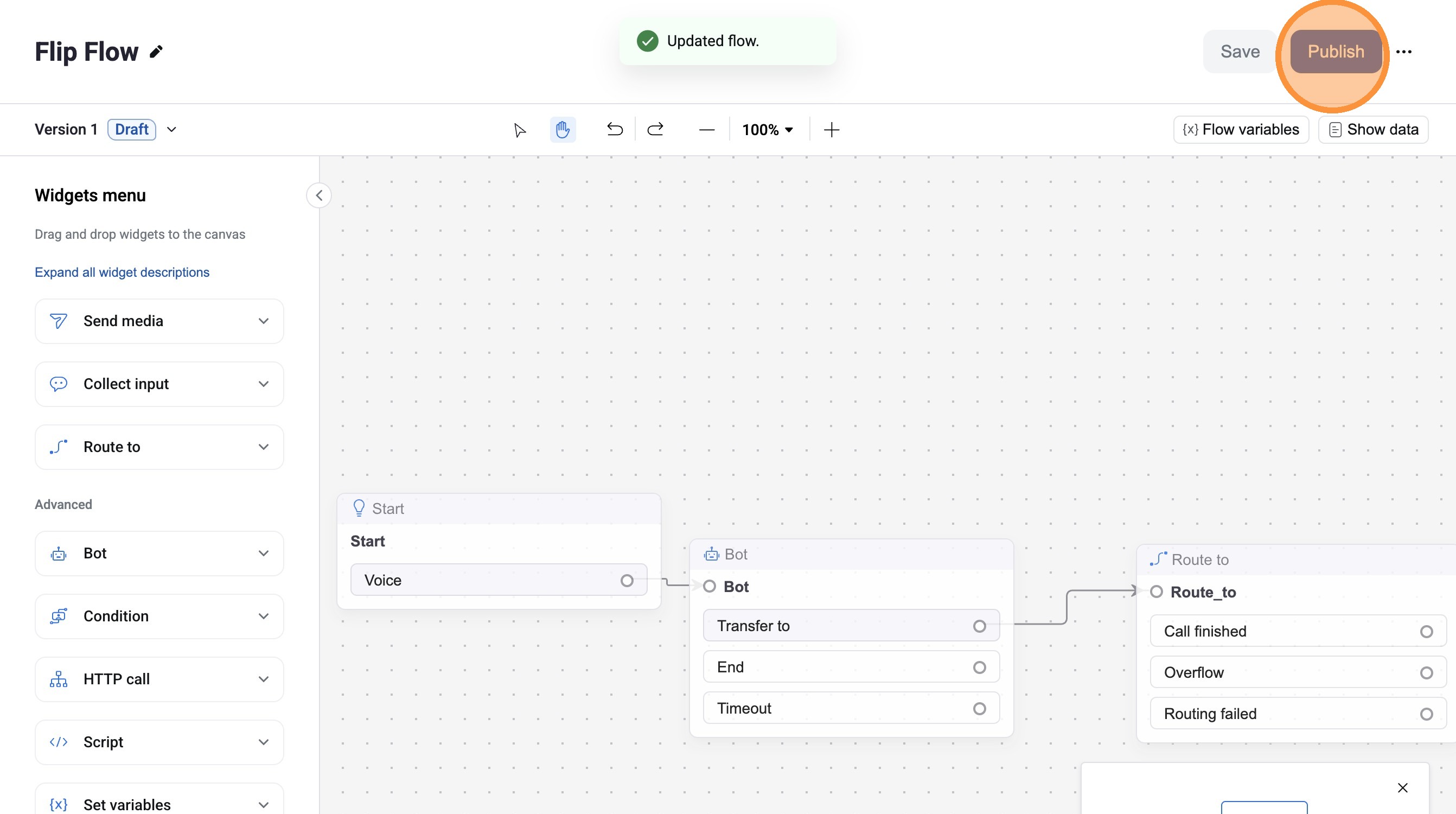
Click "Publish"
Click here.
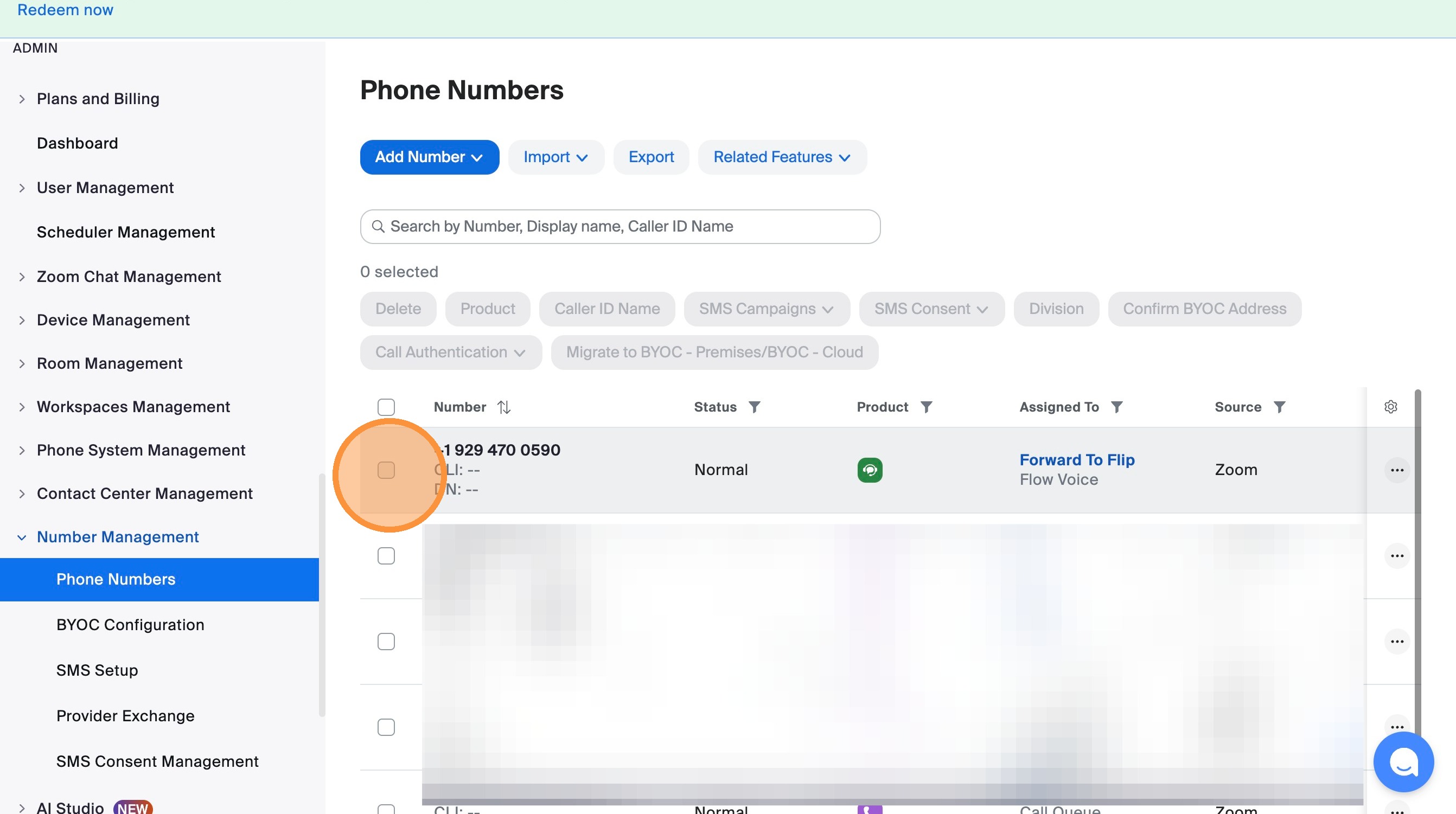
Select phone number checkbox
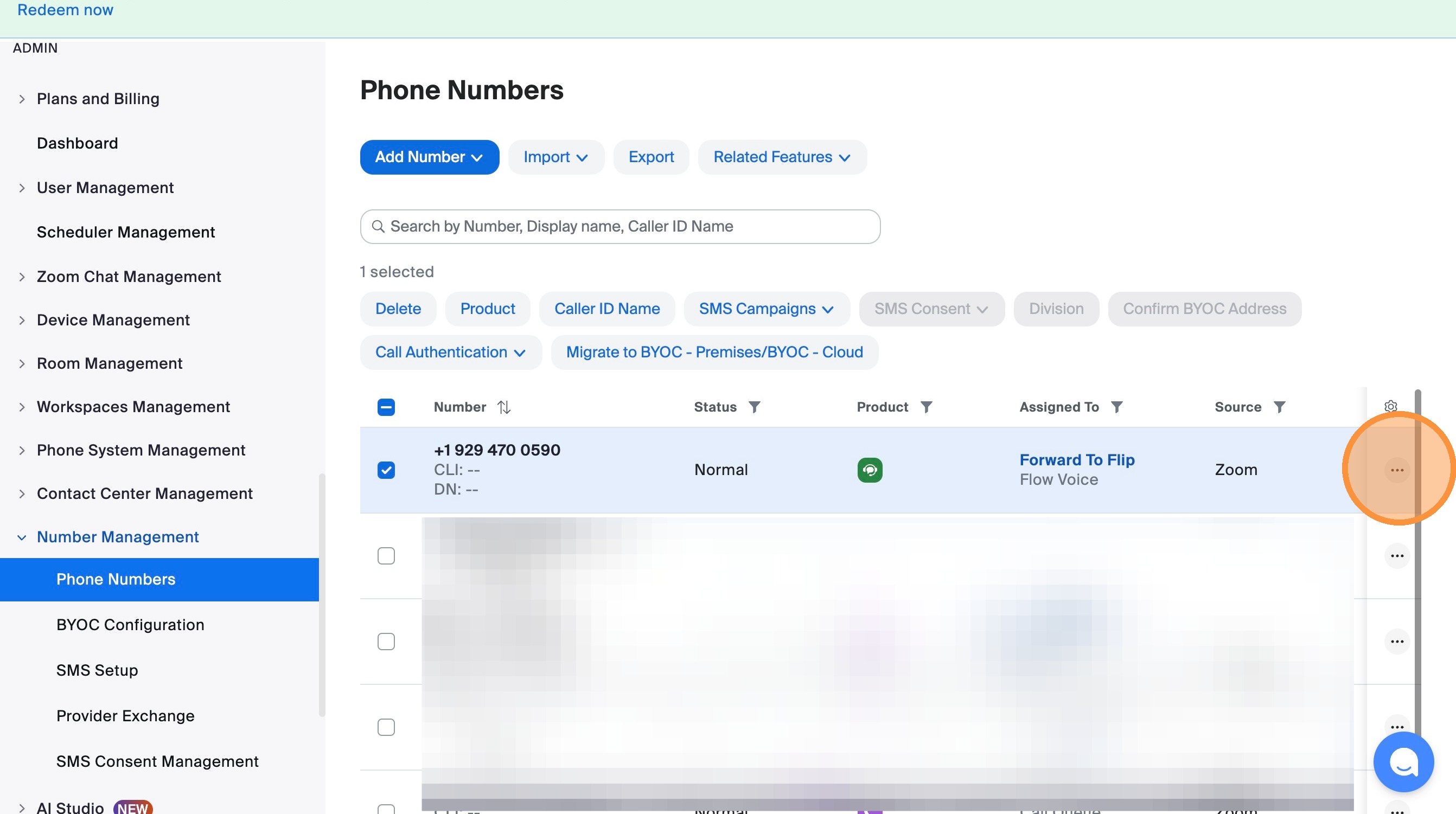
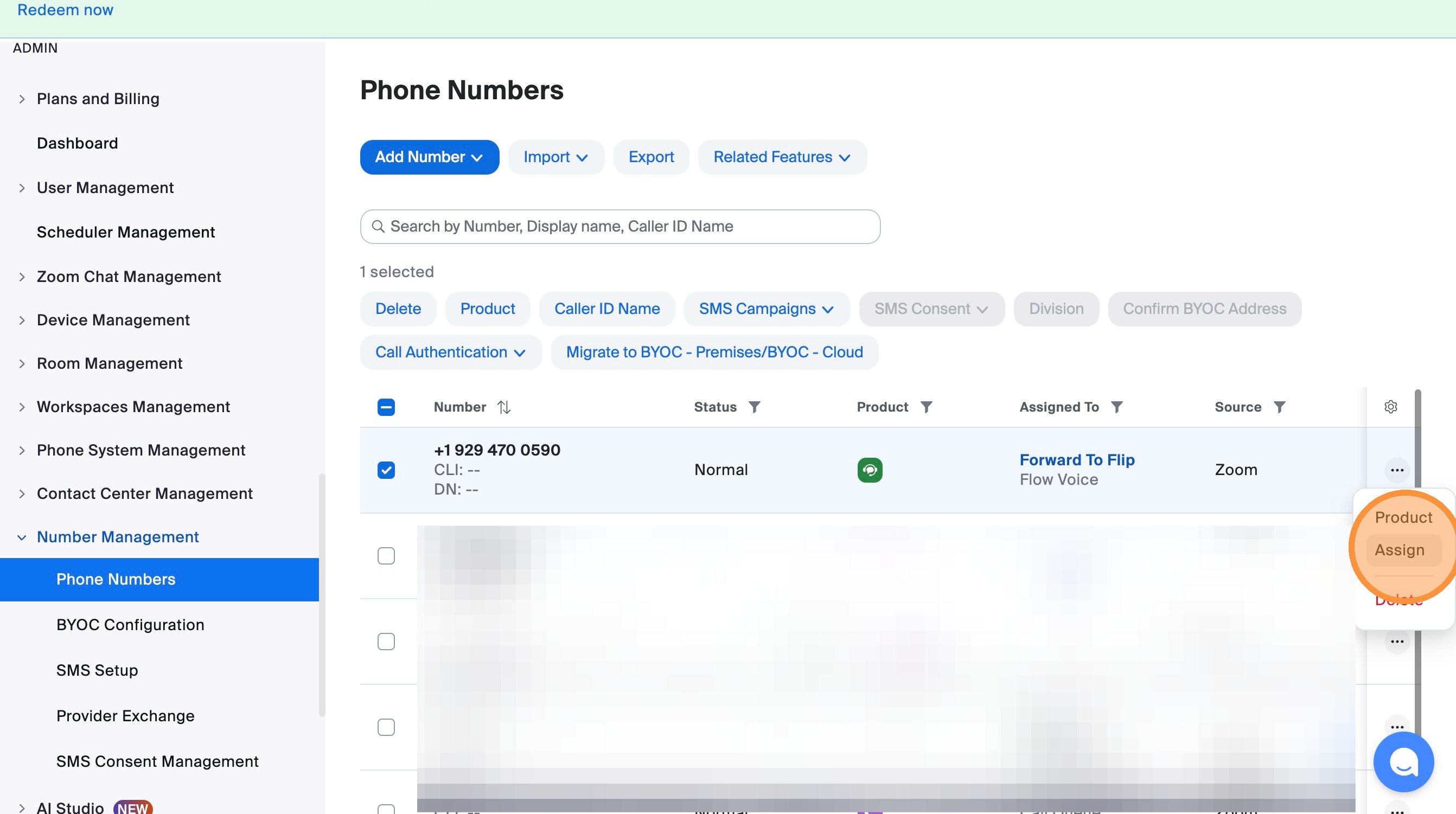
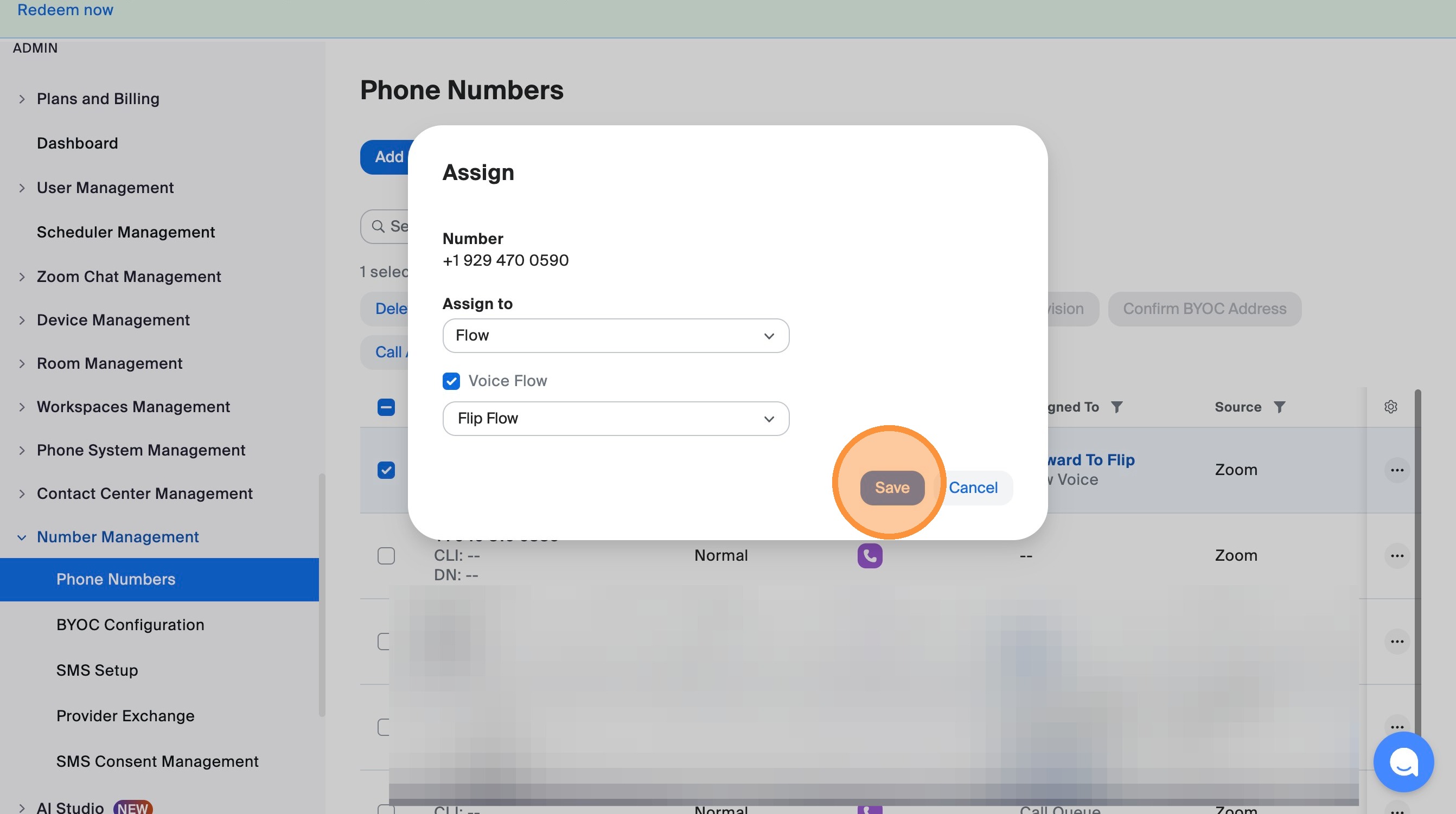
Click "Assign"
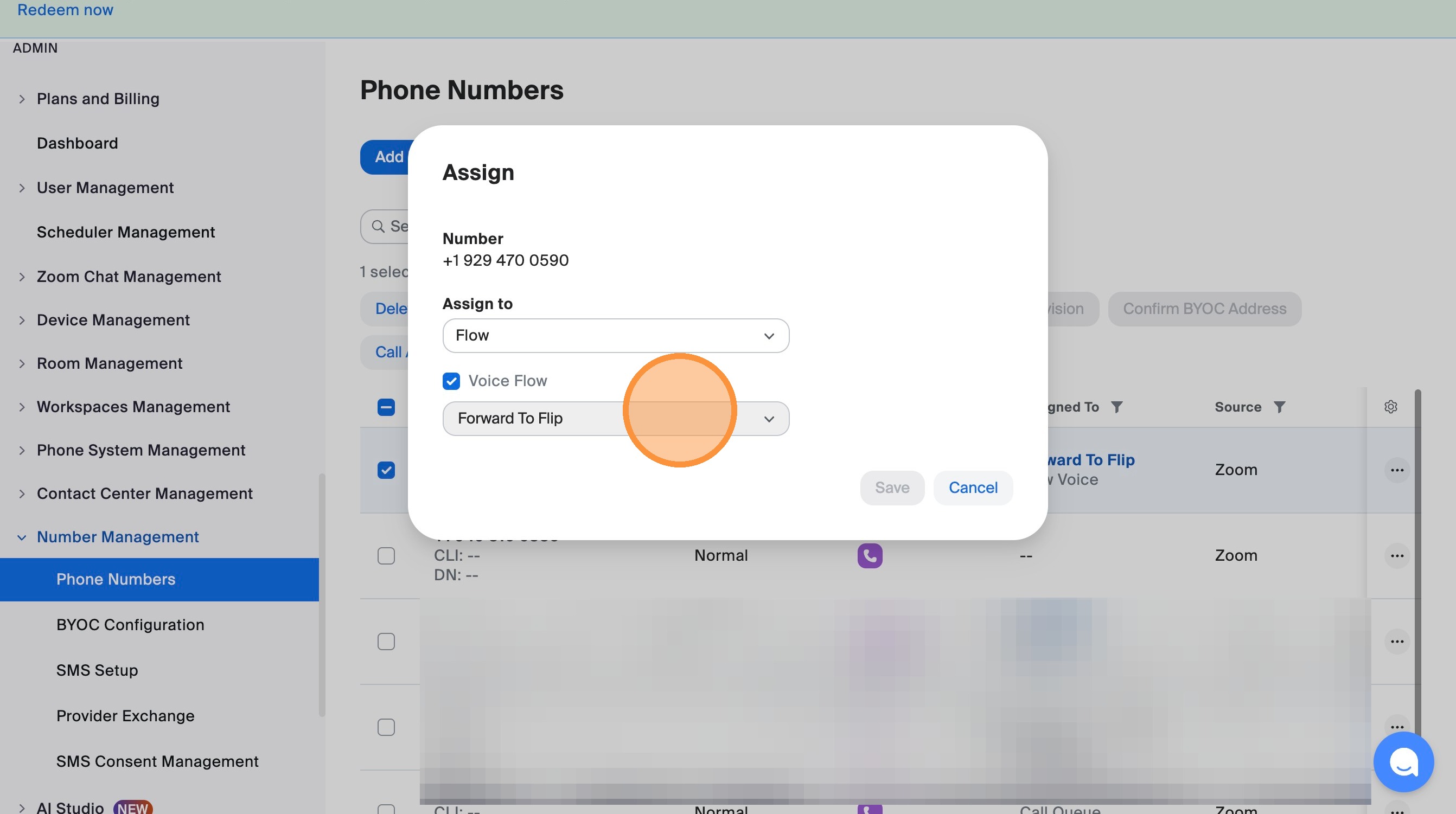
Select "Flip Flow" from Voice Flow dropdown
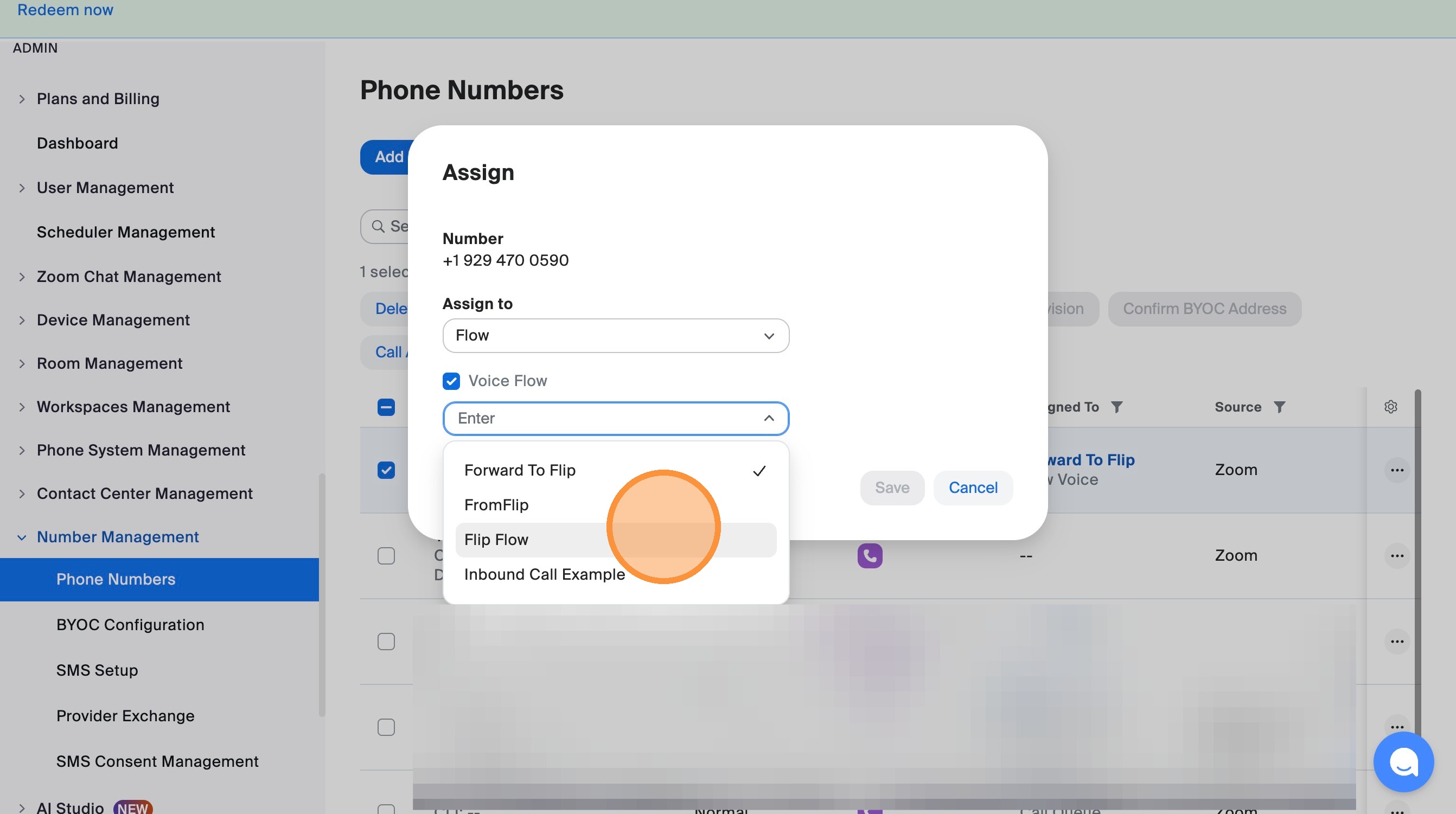
Click "Save"
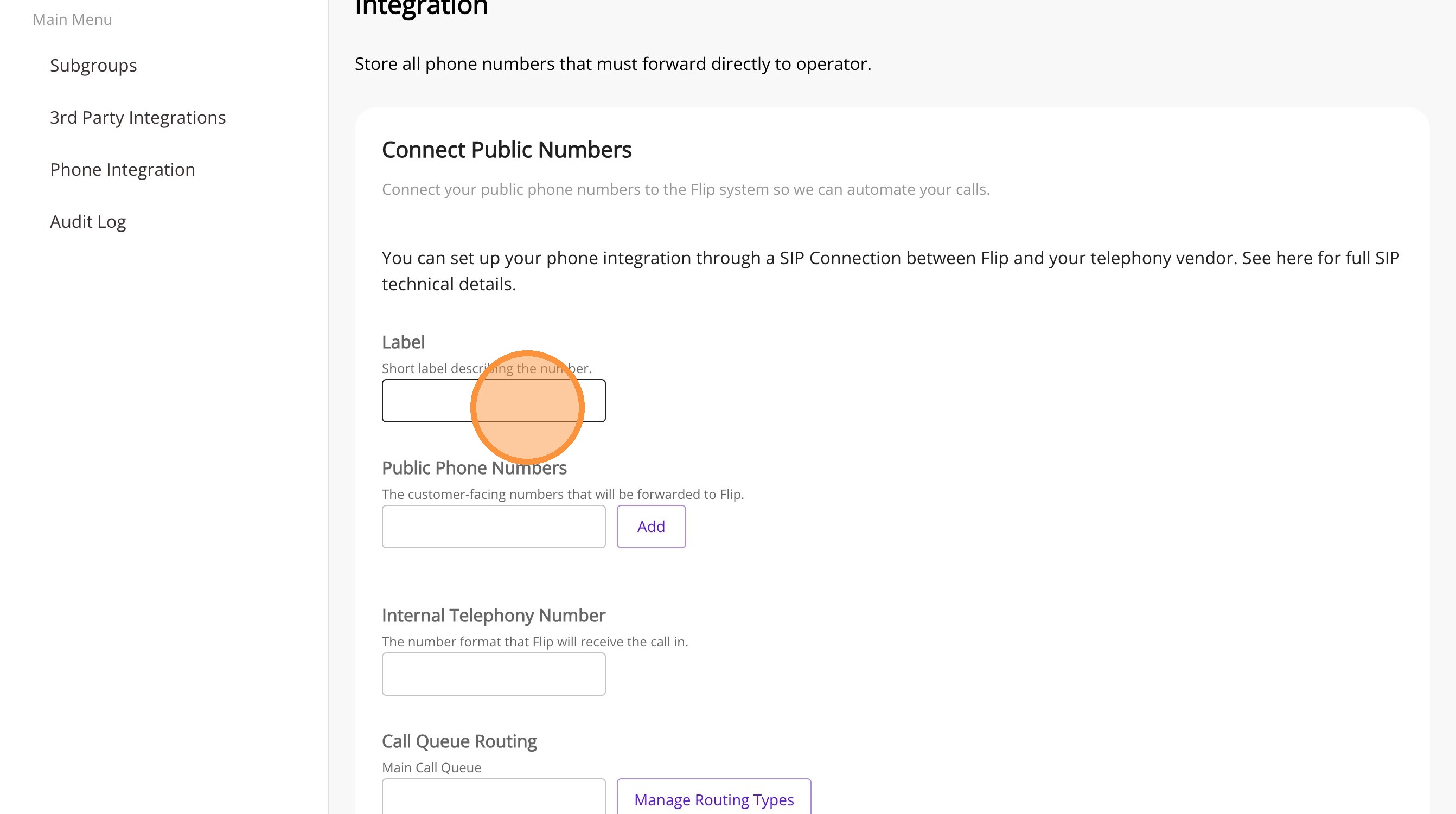
Type "Main Line" in Label field
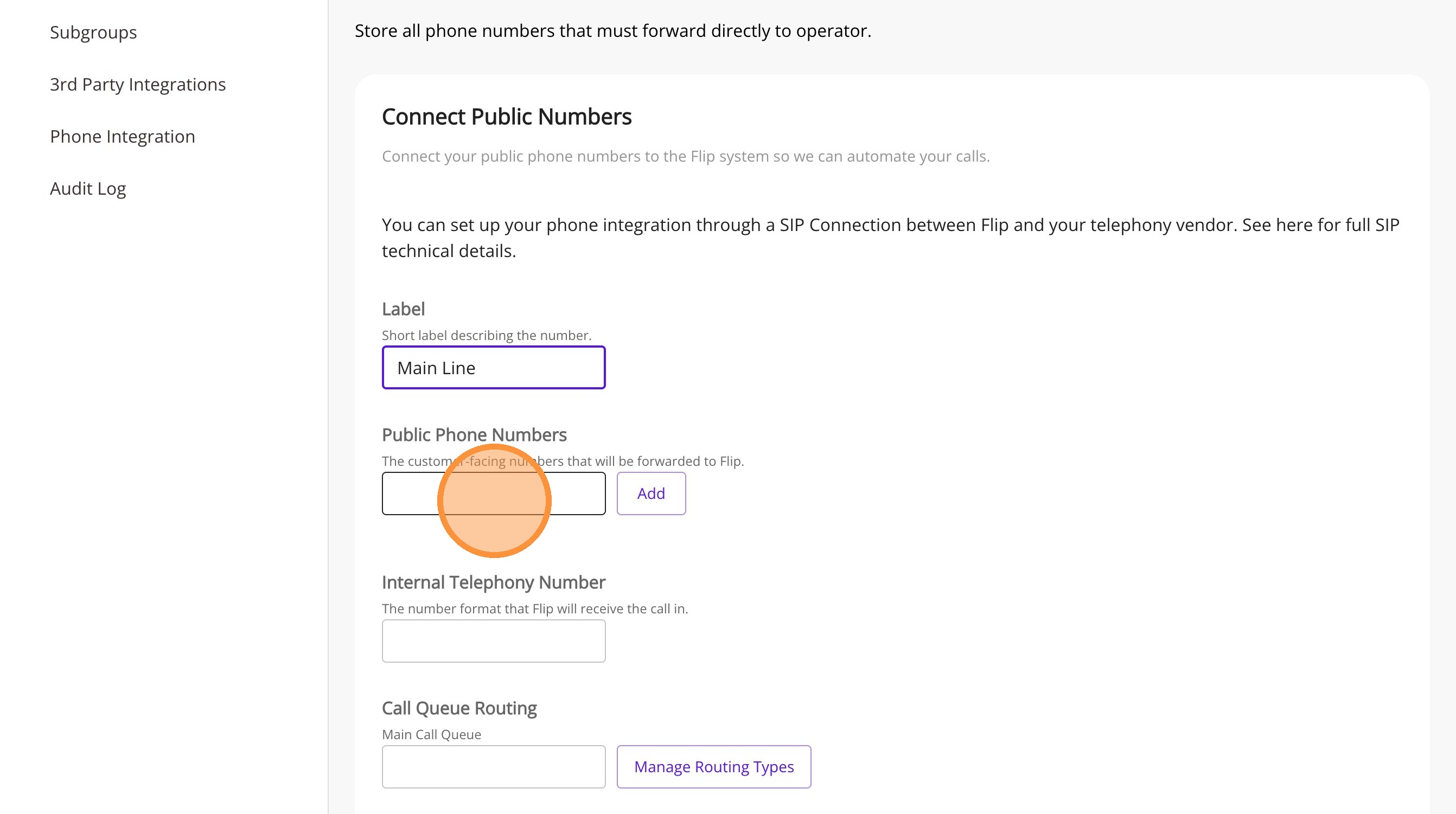
Paste phone number into Public Phone Numbers field
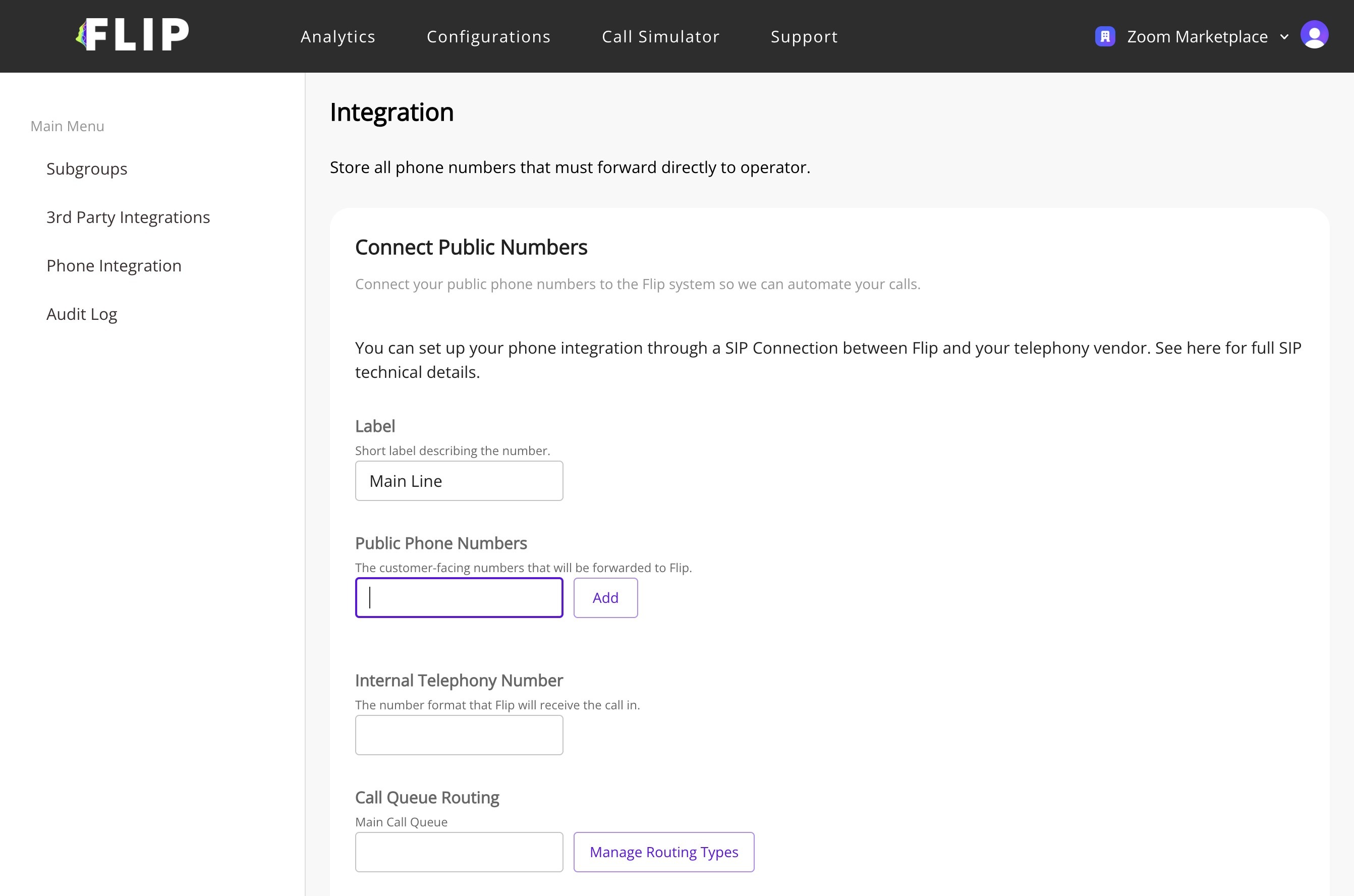
Click "Add"
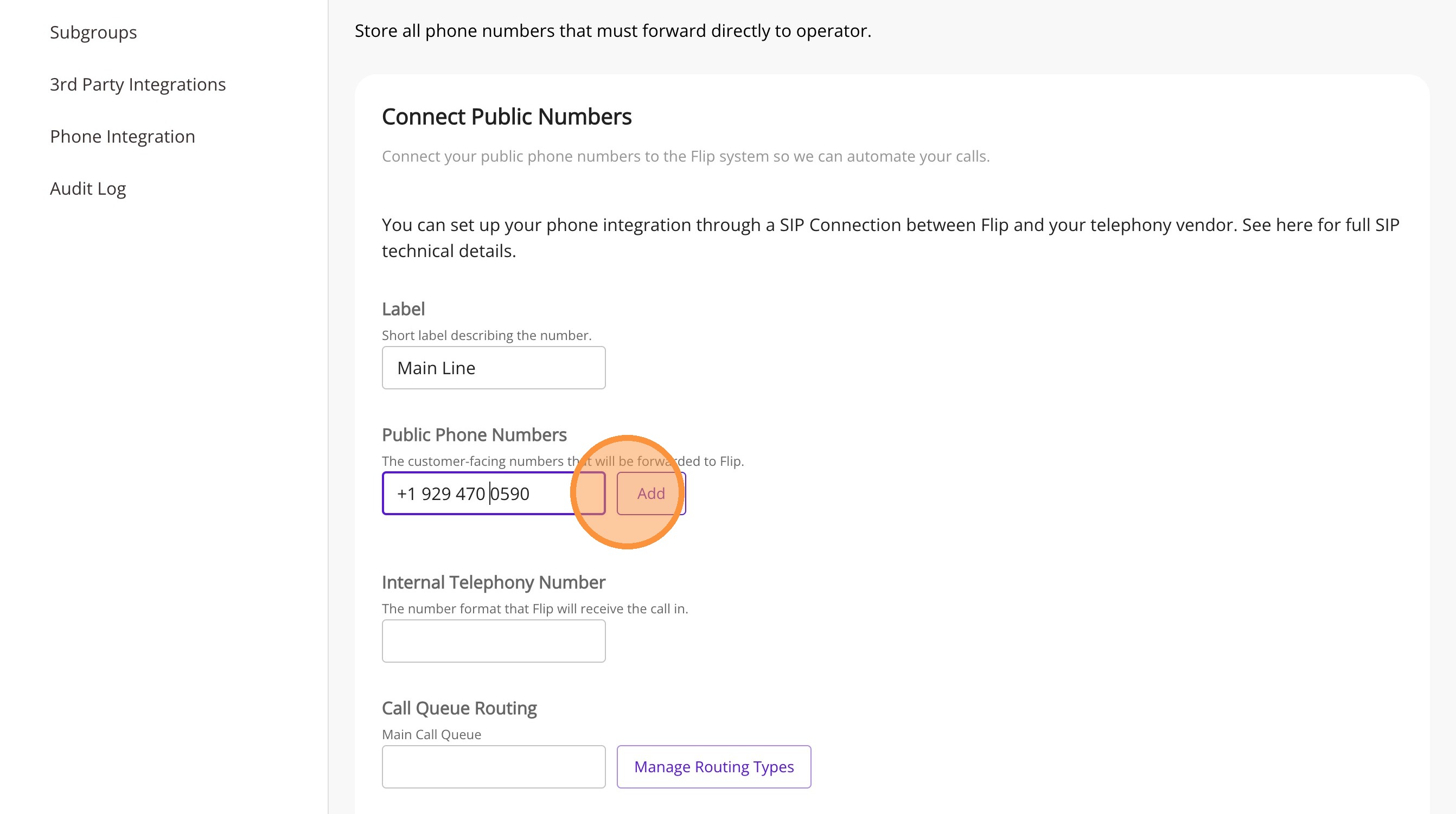
Paste in the copied phone number and remove any spaces
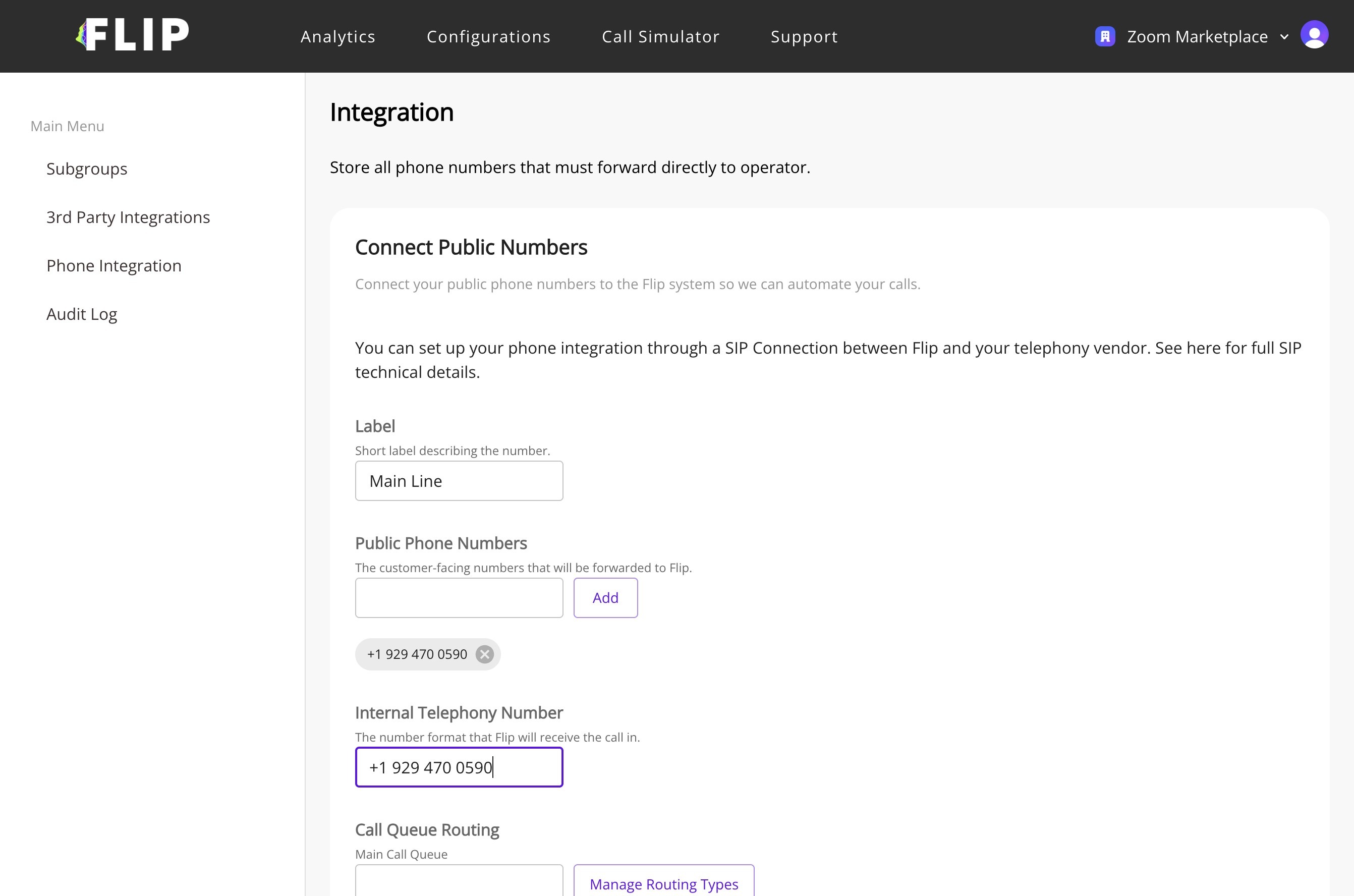
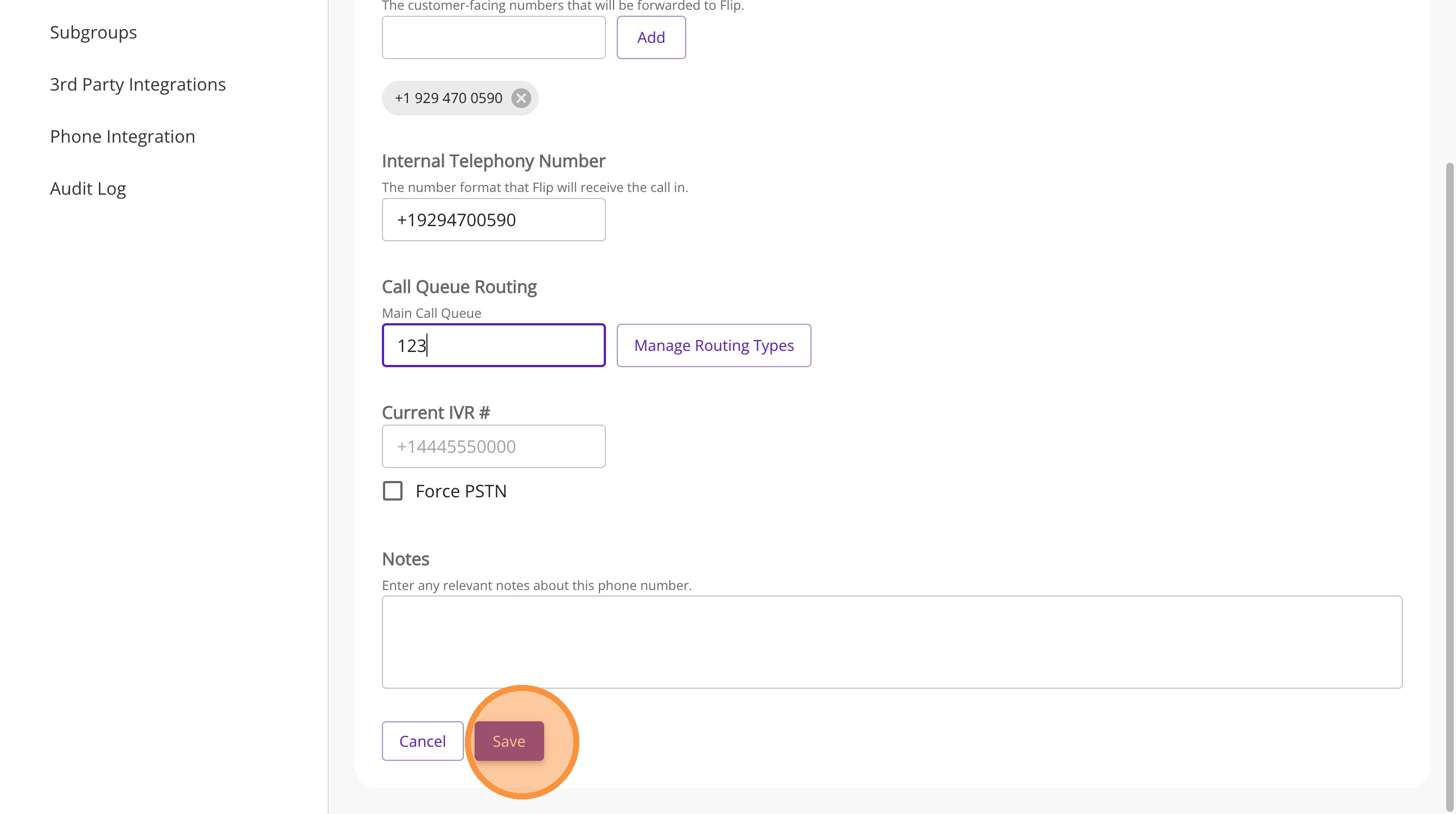
Click "Save"
Removing the integration
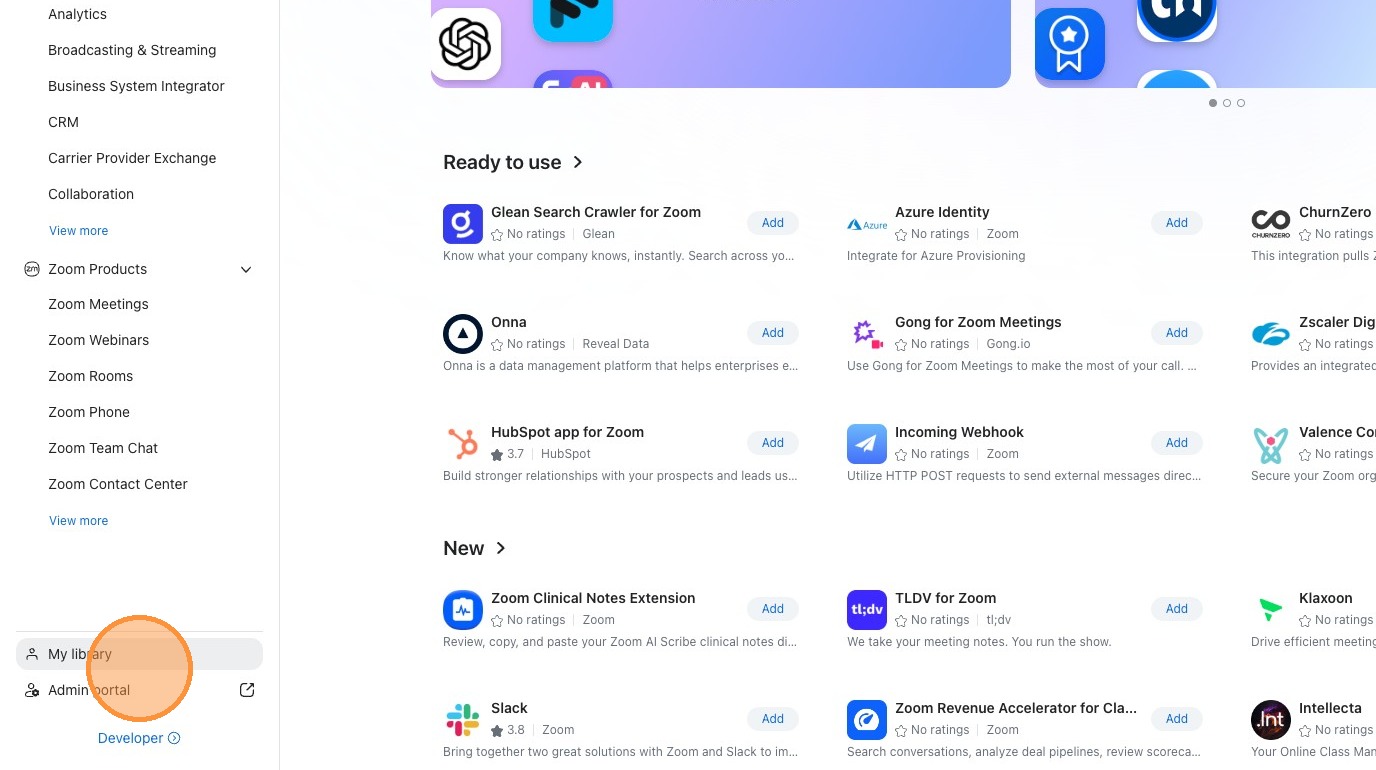
Navigate to https://marketplace.zoom.us/
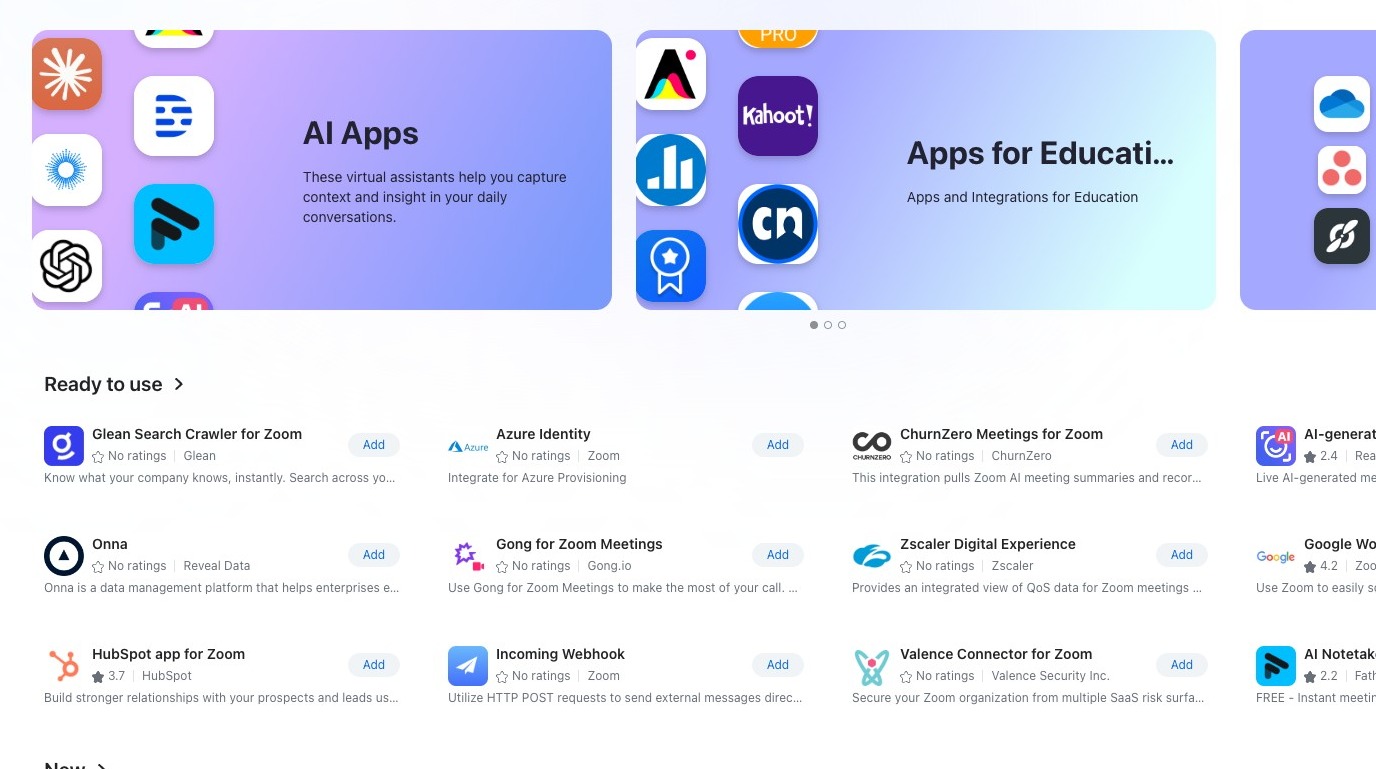
Click "My library"
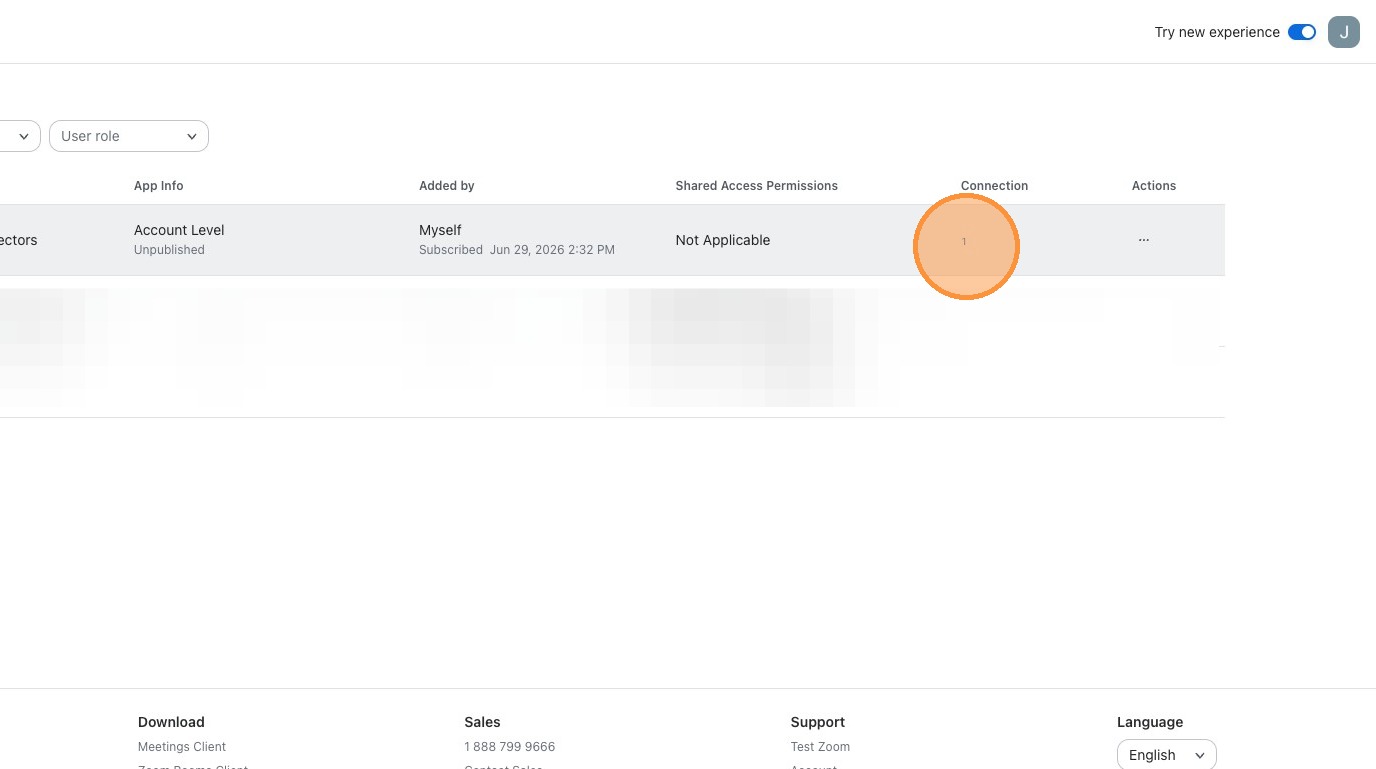
Select the app you want to manage from your library.
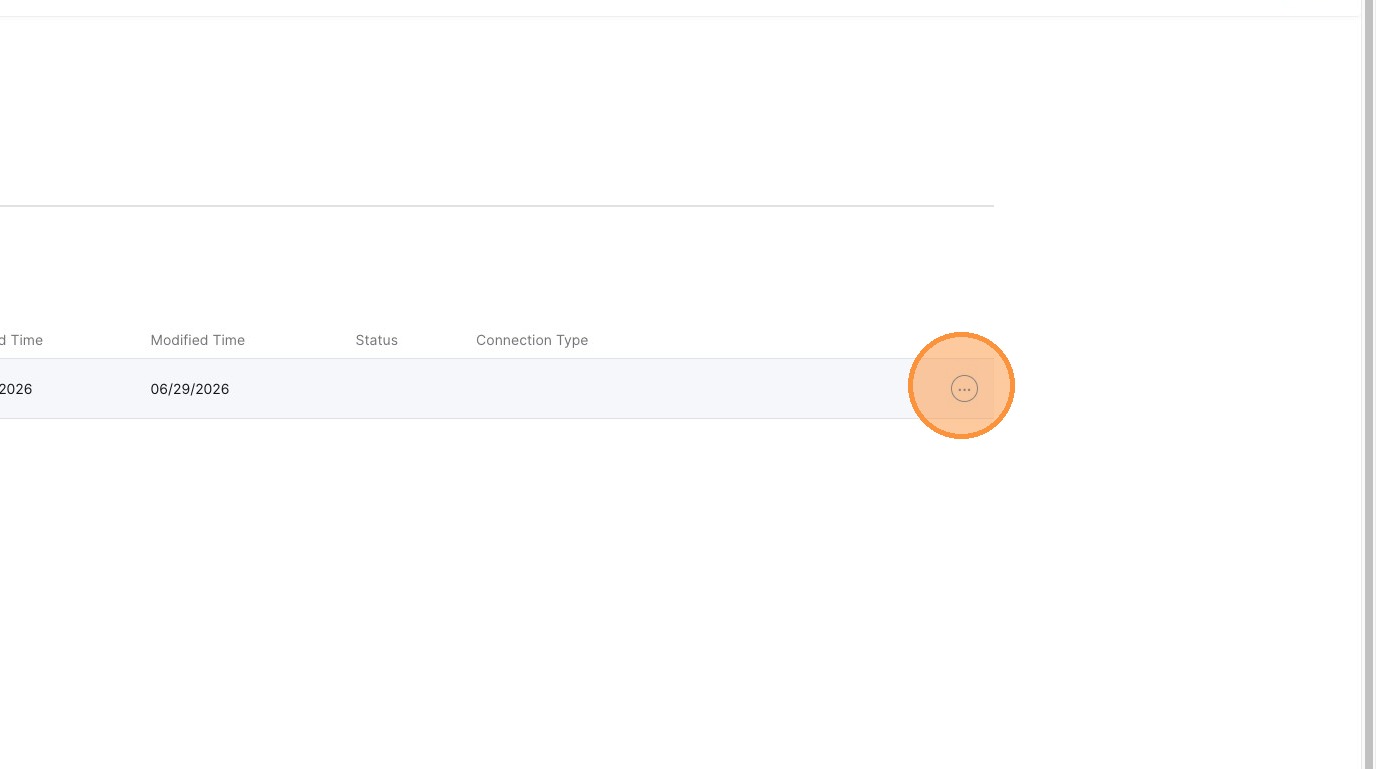
4. Click "..."
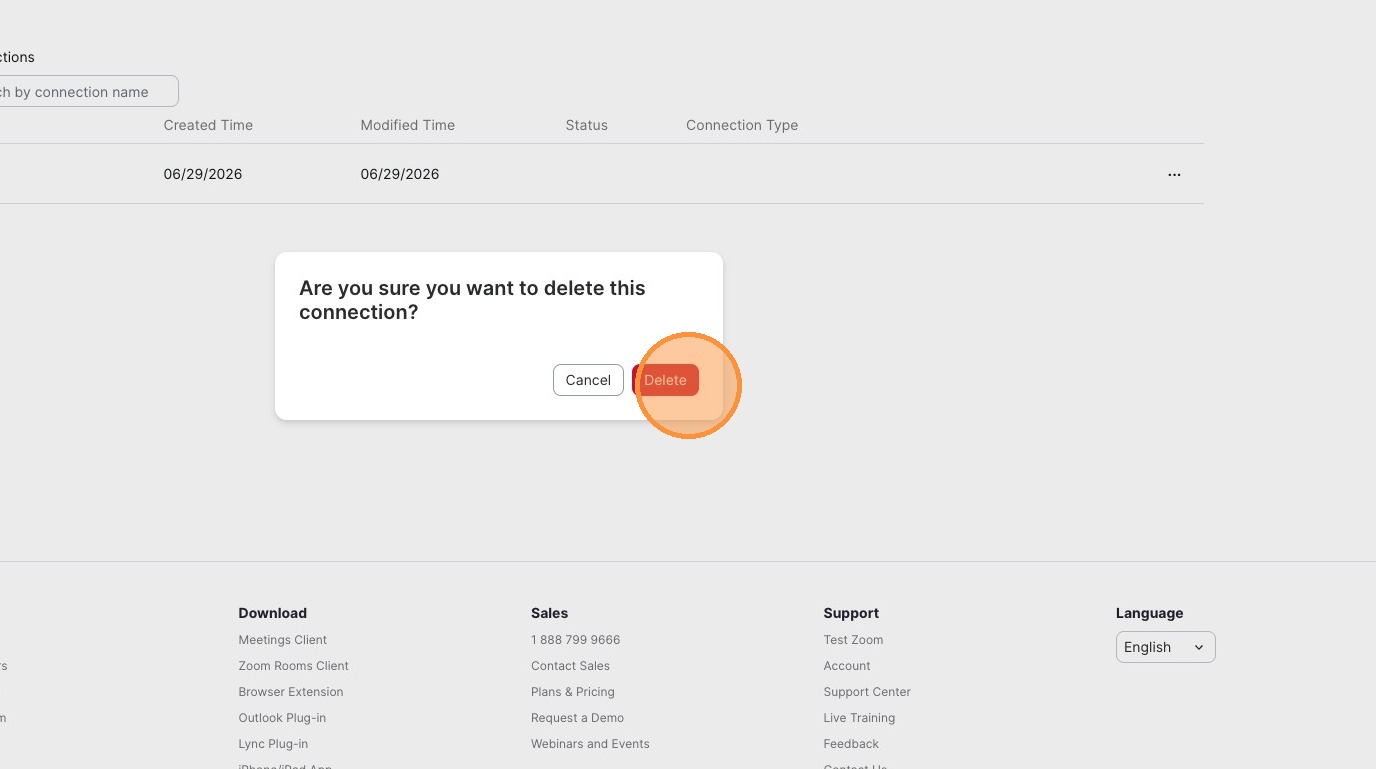
Click "Delete"
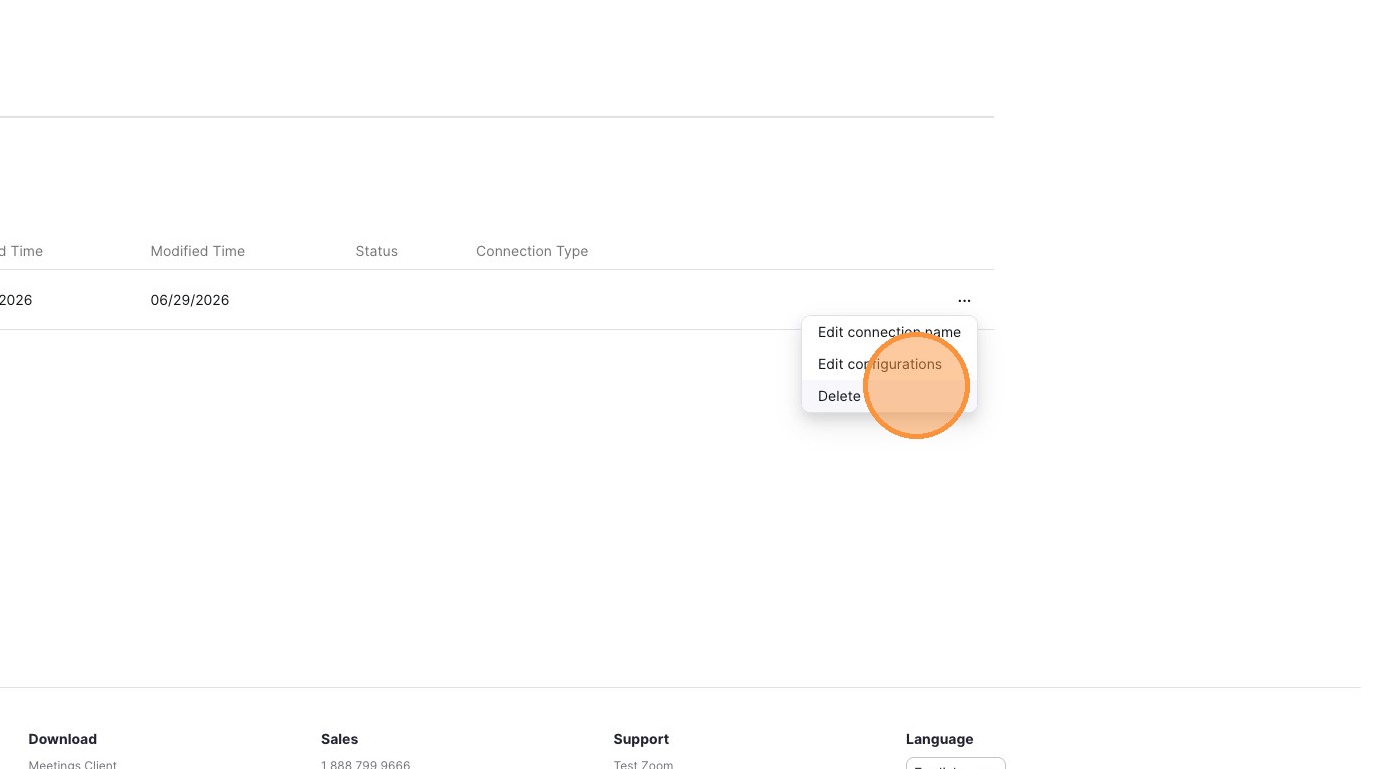
Click "Delete"
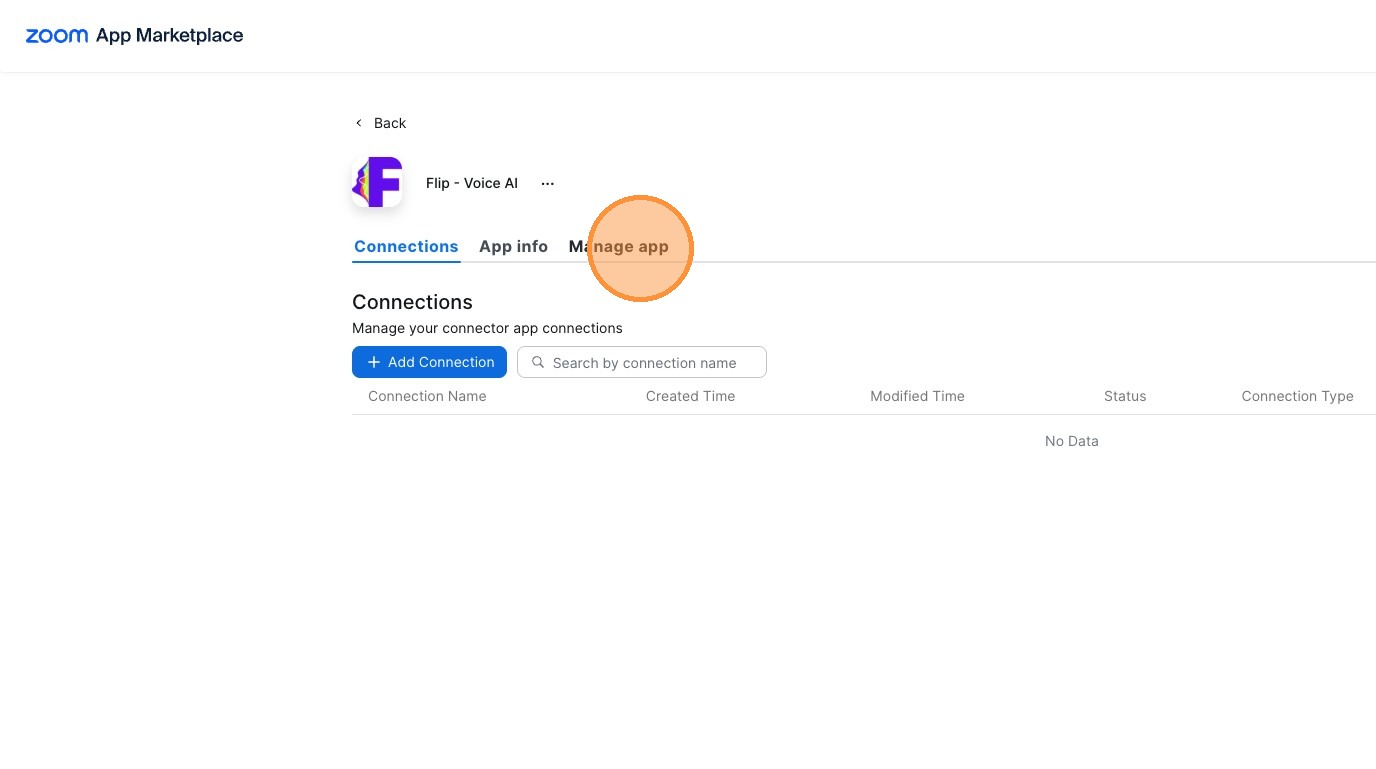
Navigate to the 'Manage app' tab.
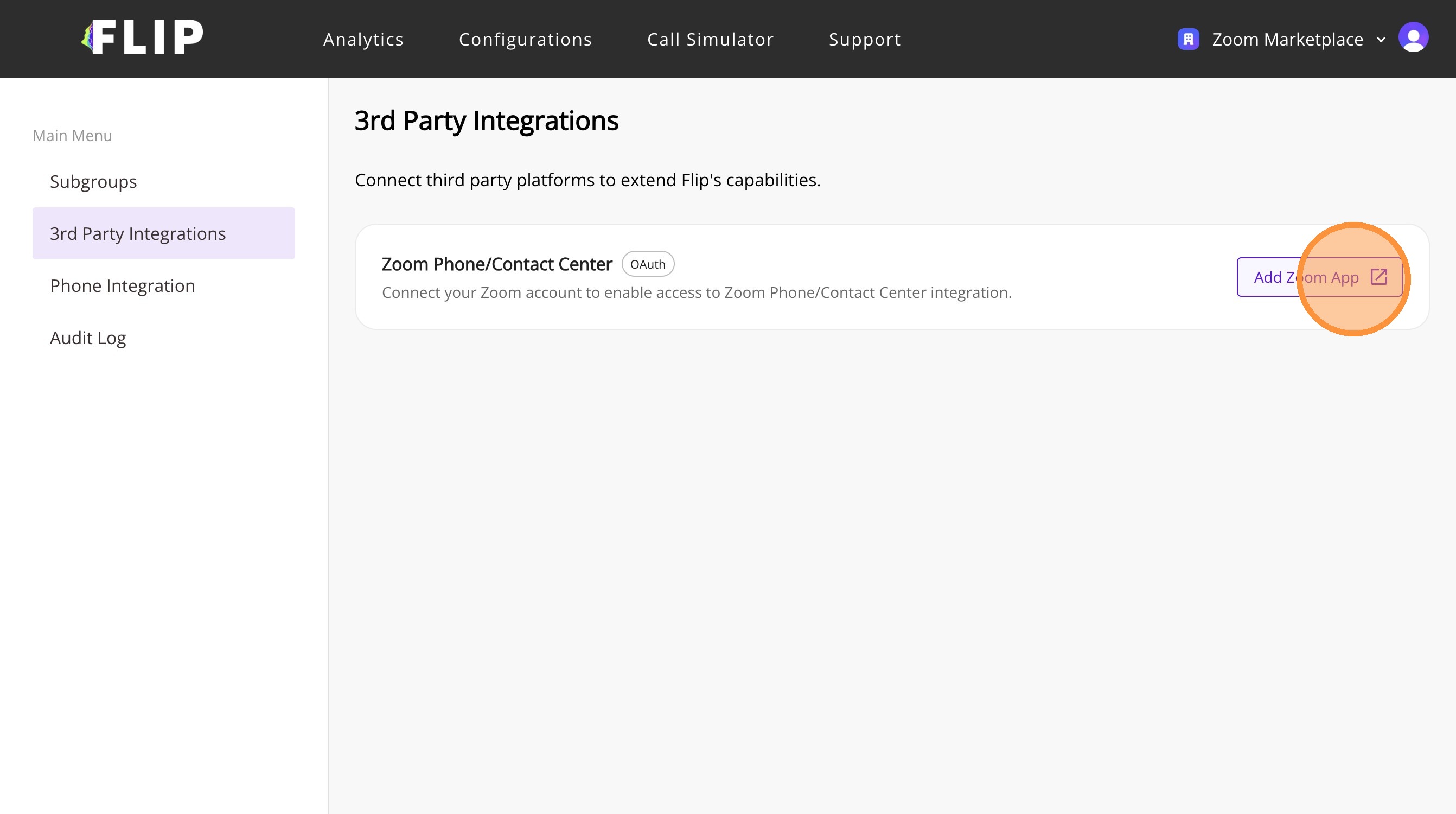
Click "Remove"
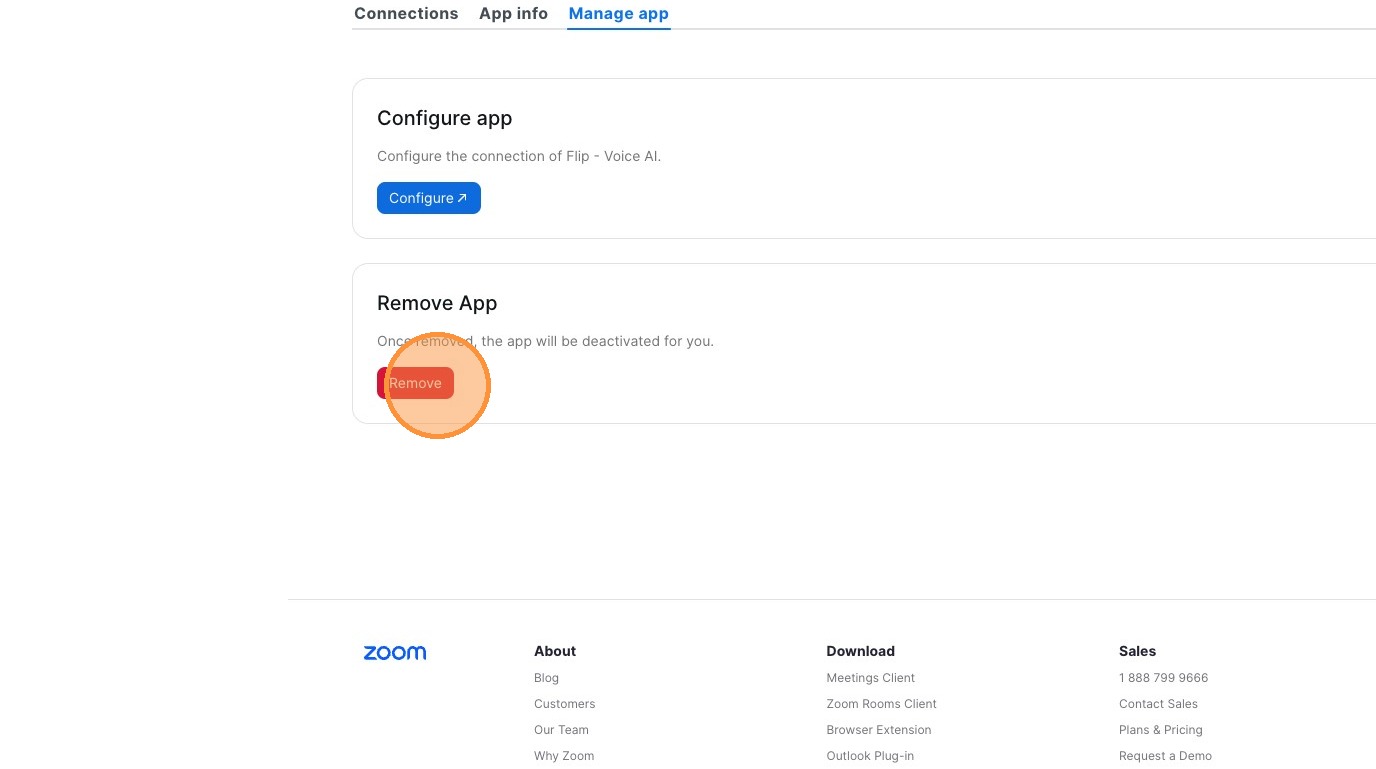
Click "Remove"